DIY
DIY

Is your once-speedy laptop now struggling to keep up? Do the fans sound like a jet engine taking off? Before you shop for a replacement, this guide will show you **how to make your laptop faster** and dramatically extend its life with a little TLC.
Over time, constant use leads to slowdowns, overheating, and digital clutter. The good news is that you don’t need to be a tech wizard to combat these common issues and avoid the high cost of a new machine.


What You’ll Learn In This Guide:
- How to safely deep clean your laptop’s fans and vents for optimal airflow.
- Which hardware upgrades (like an SSD) make the biggest performance difference.
- Simple tricks and mods to keep your laptop cool and prevent overheating.
This guide will walk you through three key areas of DIY laptop maintenance: deep cleaning, strategic hardware upgrades, and effective cooling modifications. These steps will help your machine run faster, cooler, and last for years to come.
Laptop Deep Cleaning – The Foundation for Speed and Longevity
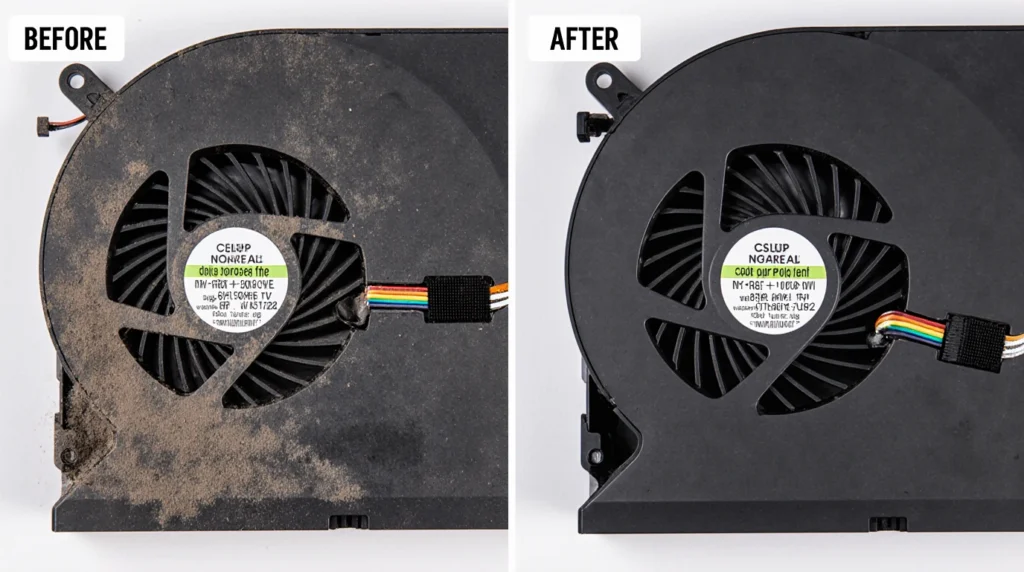
Dust is the silent enemy of electronics. It acts as an insulator, trapping heat and forcing your fans to work overtime. That’s when your laptop starts **performance throttling**—hitting the brakes on purpose to keep from overheating. A thorough cleaning is your first and most effective line of defense.
External Cleaning (The 10-Minute Tune-Up)
A quick external clean-up can prevent the buildup of grime and keep your machine looking and feeling fresh.
- What you’ll need: Microfiber cloths, isopropyl alcohol (70% or higher), a can of compressed air, and a soft brush.
- Screen: To avoid damage, never spray liquid directly onto the screen. Lightly dampen a microfiber cloth and gently wipe. Avoid harsh chemicals like window cleaner.
- Keyboard & Chassis: Use a soft brush and short bursts of compressed air to dislodge debris from between the keys. Follow up with a cloth lightly dampened with isopropyl alcohol to disinfect and remove oils.
- Vents & Ports: Clear out all openings with short, controlled bursts of compressed air to ensure nothing obstructs airflow or connections.
Internal Cleaning (The Annual Service)
For a truly effective clean, you need to get the dust out from where it matters most: the cooling system. Your fans will thank you for it.
Important Disclaimer
Opening your laptop may void its warranty. Electronics are also sensitive to static electricity, which can cause permanent damage. If you are not comfortable with this process, seek a professional technician. For guidance, search for a specific teardown guide for your laptop model on sites like iFixit.
- What you’ll need: An electronics screwdriver kit, plastic prying tools (spudgers), and an anti-static wrist strap (highly recommended).
- Step 1: Power off, unplug all cables, and remove the battery if it’s external. Press and hold the power button for 10 seconds to discharge any residual power.
- Step 2: Ground yourself by touching a large metal object or using an anti-static wrist strap.
- Step 3: Carefully remove the bottom panel screws and use a plastic prying tool to gently unclip the panel.
- Step 4: Locate the fan(s) and heatsink (the metal fins connected by copper pipes).
- Step 5: Crucial Tip! Gently hold the fan blades with a finger or spudger while you clean. Allowing them to spin freely with compressed air can damage the fan motor.
- Step 6: Use short bursts of compressed air to blow dust *out* of the heatsink fins and away from the motherboard. A soft brush can help dislodge stubborn dust bunnies.
💡 Pro Tip: Just cleaning your laptop’s fans and heatsink can reduce CPU temperatures by 5-10°C, leading to instantly better and more consistent performance.
Boost Laptop Performance with Simple Hardware Upgrades
If your laptop feels sluggish, the problem often isn’t the processor. The two biggest performance bottlenecks in older machines are the storage drive and the amount of available memory (RAM).
The Single Best Upgrade: Solid State Drive (SSD)
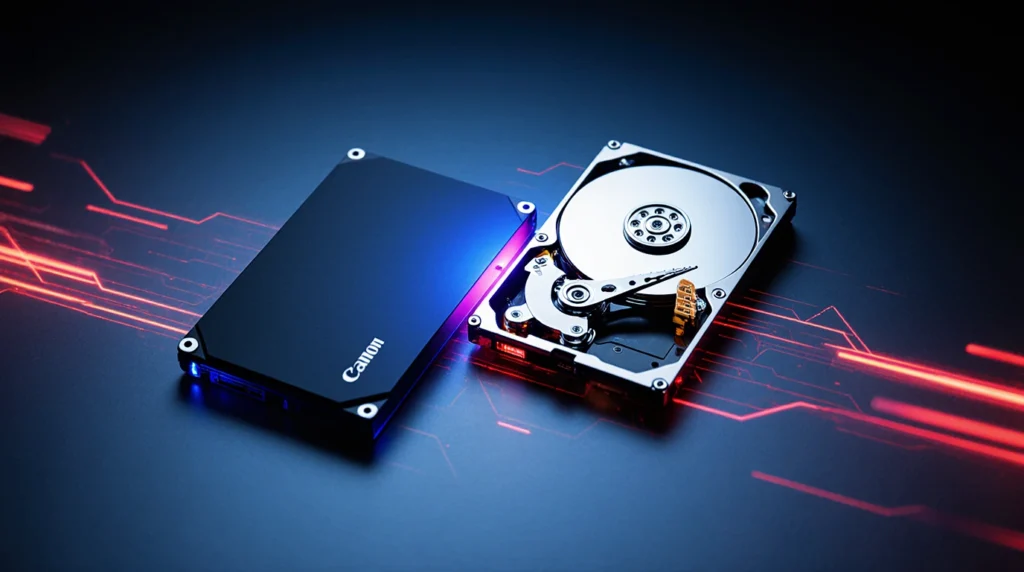
If you do only one upgrade, make it this one. Traditional Hard Disk Drives (HDDs) use a spinning platter, which is slow. An SSD is all-electronic. The real-world impact is transformative: you’ll notice boot times are reduced from minutes to seconds, applications load instantly, and your entire system will feel incredibly responsive. For more help, check out our guide on how to choose the right SSD for your laptop.
More Room to Work: Upgrading RAM
Think of RAM as your desk space. The more space you have, the more applications and browser tabs you can have open at once without everything getting slow. If your laptop struggles when you multitask, you likely need a RAM upgrade. Check your manufacturer’s specifications to see what type of RAM you need (e.g., DDR4) and the maximum amount your system supports.
Staying Cool – Simple and Advanced Cooling Mods
Performance and longevity are directly tied to temperature. A cooler laptop is a faster and longer-lasting laptop. Heat degrades components over time, so managing it is essential.
Easy & Free Mods
- Elevation: The simplest mod of all. Never use your laptop on a soft surface like a bed or couch, which blocks vents. Always use it on a hard surface, and prop up the back with a book or a dedicated stand to dramatically improve airflow underneath.
- Software Tweaks: Use fan control software to create more aggressive fan curves that cool the system more effectively during heavy tasks. You can also use one of the top 5 free tools to monitor CPU temperature to see the impact.
External & Add-on Mods
For more demanding workloads like gaming or video editing, a laptop cooling pad can make a significant difference. These pads feature large fans that force cool air into your laptop’s intake vents, helping to lower overall temperatures.
Frequently Asked Questions (FAQ)
How often should I clean my laptop?
For external cleaning, a quick wipe-down weekly is great. For internal fan cleaning, once every 6-12 months is a good rule of thumb, or more often if you have pets or live in a dusty environment.
Can I upgrade my laptop’s RAM myself?
In most laptops, yes! RAM is usually one of the most accessible components. Check a guide for your specific model first, but it often involves removing a small panel and snapping the new RAM stick into place.
Do cooling pads really help?
They can. While they won’t fix a laptop that’s overheating due to dust-clogged fans, they can lower temperatures by a few degrees during heavy tasks like gaming, which helps maintain peak performance.
Conclusion
You don’t have to accept a slow, overheating laptop. By taking these three steps, you can breathe new life into your machine. Regular cleaning is non-negotiable, a simple SSD and RAM upgrade can make an old machine feel new, and managing heat is the key to long-term health.
Start small—even a quick external clean can make a difference. By investing a little time and effort, you now know **how to make your laptop faster** and get the most value out of the technology you already own.
What’s the one tip that made the biggest difference for your laptop? Share your success stories in the comments below!