DIY
DIY
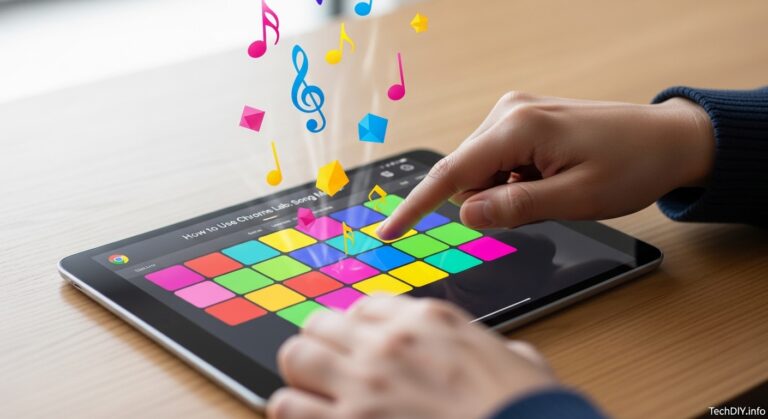
You don’t need a piano, a recording studio, or years of lessons to make real music at home. Chrome Music Lab — Google’s free, browser-based music creation platform — gives anyone with a laptop, tablet, or Chromebook a fully equipped set of DIY music tools that are ready to use in seconds. From building beats to composing melodies to experimenting with sound, this guide walks you through everything step by step.

Whether you’re a complete beginner or someone who already loves tinkering with technology, Chrome Music Lab turns home music experiments into something genuinely creative and educational. No downloads. No subscriptions. No musical experience required.

Introduction: DIY Music Fun
Chrome Music Lab lives at musiclab.chromeexperiments.com and is completely free to access from any modern browser. It was built by Google as part of the Chrome Experiments initiative, with the goal of making music more accessible through technology. The platform offers 14 interactive experiments, each one focusing on a different element of music — melody, rhythm, harmony, waveforms, and more.
What sets Chrome Music Lab apart from other digital music creation tools is its intentional simplicity. There are no menus to navigate, no settings to configure, and no manuals to read. Every experiment is visual, tactile, and immediately rewarding. You click something, you hear a result, and you start understanding music in a way that sheet notation never quite delivers.
The most powerful tool on the platform for home creators is Song Maker — a fully featured grid-based music composer that lets you build a complete piece of music with melody, bass line, and percussion, then share it with anyone via a link. Around it, experiments like Rhythm and Arpeggios give you building blocks for more complex compositions. Together, they form a surprisingly capable home music studio that fits in a browser tab.
For more browser-based creative tools you can use at home, browse our Home Learning Apps section, or check out our full roundup in DIY Tech Projects.
Step-by-Step Guide to Song Maker
Song Maker is the centrepiece of Chrome Music Lab for home creators. It is a grid-based sequencer — meaning you paint notes onto a visual grid and the tool plays them back in order. This is exactly how professional producers work in DAWs (Digital Audio Workstations) like GarageBand or FL Studio, just without the complexity. Here is how to get started from scratch.
Step 1 — Open Song Maker
Go to musiclab.chromeexperiments.com/Song-Maker directly, or open Chrome Music Lab and click the Song Maker tile. The interface loads immediately — no login required. You will see a large coloured grid: the top half is for melody notes, the bottom strip is for percussion.
Step 2 — Understand the Grid
The grid works on two simple axes:
- Left to right = time. The playhead moves from left to right across the grid. Notes on the left play first; notes on the right play last. One full sweep from left to right is one loop of your composition.
- Up and down = pitch. Higher rows produce higher notes; lower rows produce lower notes. The coloured lines separating the rows correspond to notes on a musical scale — by default, C major.
The bottom strip contains percussion sounds: kick drum, snare, hi-hat, and a few others. These work on the same left-to-right time axis but are not pitched — clicking a cell either activates that percussion hit at that moment or it doesn’t.
Step 3 — Paint Your First Melody
Click anywhere in the top section of the grid. A coloured block appears. Press the play button (the triangle icon at the bottom left) and listen. Now click more cells to build a melody. A few beginner tips:
- Start by placing notes that step up or down one row at a time rather than jumping large distances — this creates smoother, more musical-sounding melodies
- Leave some empty columns to create rests (silence) — music needs breathing space as much as it needs notes
- Try ending your melody on the lowest or highest C row (the orange-coloured rows) — these are the “home” notes of the C major scale and give the melody a sense of resolution
Step 4 — Add a Beat
Click in the bottom percussion strip to add drum hits. A simple starting pattern that works with almost any melody:
- Activate the kick drum (bottom row) on beats 1 and 3
- Activate the snare (second row from bottom) on beats 2 and 4
- Activate the hi-hat (third row) on every beat for a driving, energetic feel
This is the foundational “four-on-the-floor” pattern used in virtually every genre of popular music. Once your melody is looping with a beat underneath, it will immediately sound like a finished piece of music rather than a random collection of notes.
Step 5 — Customise Your Settings
Click the settings icon (sliders symbol) at the bottom of the screen to access Song Maker’s configuration options:
| Setting | What It Does | Recommended Starting Point |
|---|---|---|
| Length | Number of bars in your composition (2–16) | 4 bars for a short loop, 8 bars for a full verse |
| Beats per bar | How many beats fit in each bar | 4 (standard time signature for most pop and rock) |
| Split beats into | Subdivides each beat into smaller note values | 2 for simple rhythms, 4 for faster or more complex patterns |
| Scale | The set of notes available in the grid | Major for bright/happy, Minor for moody/sad, Pentatonic for easy-sounding results |
| Instrument | The sound used for melody notes | Marimba and Piano work for almost any genre |
| Tempo | Speed of playback in beats per minute (BPM) | 80–100 BPM for beginners, up to 140 BPM for upbeat tracks |
Step 6 — Save and Share
When you’re happy with your composition, click the Save button (floppy disk icon). Song Maker generates a unique URL — a link that permanently stores your exact composition. Copy this link and share it with anyone. They can open it in any browser and hear exactly what you made, with no app or account needed. This link is also how you return to edit your piece later, so save it somewhere safe.
Using Rhythm and Arpeggios to Create Beats
Song Maker is great for full compositions, but two other experiments — Rhythm and Arpeggios — deserve dedicated attention for home music makers. Both are excellent tools for building the rhythmic and harmonic texture that turns a simple melody into a full track.
Creating Beats with the Rhythm Experiment
The Rhythm experiment presents a circular loop divided into beat positions. Each ring of the circle represents a different percussion instrument. You click dots around the ring to activate that instrument at that point in the beat cycle. It looks like a clock face for music — and once you understand it, building beats becomes completely intuitive.
Start with these steps to build a beat from scratch:
- Open Rhythm at musiclab.chromeexperiments.com/Rhythm
- Click the outermost ring (kick drum) at the 12 o’clock and 6 o’clock positions — these are beats 1 and 3 in a 4/4 bar
- Click the next ring (snare) at the 3 o’clock and 9 o’clock positions — beats 2 and 4
- Click every position on the innermost hi-hat ring to create a continuous pulse
- Press play and listen. You now have a complete, professional-sounding drum pattern
Once you have a foundation, experiment with polyrhythm — the technique of layering two rhythms that are in different time signatures simultaneously. Add one instrument on a 3-beat division and another on a 4-beat division. The combined pattern takes 12 beats to fully repeat, creating a rolling, hypnotic groove. This is the rhythmic foundation of Afrobeat, Afro-Cuban jazz, and much contemporary electronic music.
Building Texture with Arpeggios
The Arpeggios experiment takes a chord and plays its notes in sequence rather than all at once, creating a flowing, harp-like texture. In the experiment, you choose a root note and an arpeggio pattern, and the tool plays the notes of the corresponding chord in a continuous loop.
Here’s how to use Arpeggios as a creative building block:
- Use it as a backing track: Set the Arpeggios experiment running in one browser tab and build your Song Maker melody in another. Compose your melody to fit over the arpeggio pattern — this is how many real songwriters work, building layers one at a time
- Explore chord progressions: Switch the root note every few seconds while the pattern loops. Listen for combinations that sound pleasing together — you are discovering chord progressions by ear, the same way many professional musicians work
- Match the scale: If your Song Maker is set to C major, keep your Arpeggios experiment on notes within the C major scale (C, D, E, F, G, A, B) for results that blend naturally
Recording and Exporting Your Creations
One important limitation to know upfront: Chrome Music Lab does not have a built-in audio export or download function. You cannot click a button and receive an MP3 file of your Song Maker composition directly from the platform. However, there are several straightforward methods to capture and share your music as an actual audio file.
Method 1 — Screen Recording with Audio (Easiest)
The simplest approach is to use your device’s built-in screen recorder while Song Maker plays back:
- Windows 11: Press
Win + Gto open Xbox Game Bar, then click the record button. This captures both screen and system audio simultaneously. - Mac: Open QuickTime Player, select File → New Screen Recording, and enable microphone or system audio capture before pressing record.
- Chromebook: Press
Ctrl + Shift + Show Windowsto access the screen recorder. Enable audio capture in the toolbar before starting. - iPhone/iPad: Add Screen Recording to Control Centre (Settings → Control Centre), enable microphone audio, then record while Song Maker plays.
The result will be a video file. To extract just the audio, run it through a free tool like Audacity (desktop) or Convertio (browser-based, no install needed) to export it as an MP3 or WAV file.
Method 2 — MIDI Export via Browser Extension
For users who want to take their Chrome Music Lab composition into a proper Digital Audio Workstation for further production, MIDI capture is the most powerful route. A browser extension called Web MIDI API combined with a virtual MIDI loopback driver (such as loopMIDI on Windows or the built-in IAC Driver on Mac) lets you route Song Maker’s MIDI output directly into GarageBand, Ableton Live, or any other DAW.
This method requires a bit more technical setup but is worth it for anyone serious about music production. The basic workflow is: install loopMIDI (Windows) or enable IAC Driver (Mac) → open your DAW → create a MIDI recording track → play back Song Maker and record the incoming MIDI in real time.
Method 3 — Share the Link (No Export Needed)
For most home creators, especially younger students, the Song Maker share link is the most practical option. Sharing the link means anyone with a browser can hear your composition on demand, exactly as you made it. It works on every device, loads instantly, and requires no file management. For school projects, family sharing, or social media posts showing your process, the link approach is entirely sufficient.
Method 4 — Record to Your Phone
The lowest-tech solution is often the most effective: play Song Maker through your laptop or computer speakers, hold your phone nearby, and record with the default voice memo app. The audio quality won’t be studio-grade, but it captures the essence of your composition clearly enough for casual sharing. Voice memos on iPhone and Android both produce surprisingly clean recordings of speaker output in a quiet room.
Creative Ideas for Music Lab Projects
Once you’re comfortable with Song Maker and the rhythm tools, here are seven creative project ideas to take your home music experiments further. Each one is designed to build a specific skill while staying fun and accessible.
Project 1: Cover Version Challenge
Choose a song you know well — a nursery rhyme, a pop hit, or a TV theme — and try to recreate just the melody in Song Maker. You don’t need to be note-perfect. The process of working out which row on the grid corresponds to which note you’re hearing trains your ear far more effectively than passive listening. Start with simple melodies like “Twinkle Twinkle Little Star” or the chorus of a favourite song, then work up to more complex pieces.
Project 2: Mood Board in Music
Choose an emotion — excitement, sadness, tension, calm — and compose a 4-bar piece that captures it using only the tools available in Song Maker. Then swap: choose the opposite emotion and make a contrasting piece. Compare your two compositions. Notice what changed: the scale (major vs. minor), the tempo, the rhythm density, the note spacing. You’ve just conducted a self-directed music theory experiment.
Project 3: The 5-Minute Remix
Open someone else’s Song Maker composition — Google’s own gallery on the Chrome Music Lab homepage has dozens — and click Edit to open it in the grid. Now make five changes: adjust the tempo, swap one instrument, change two notes in the melody, add a percussion hit, and remove three notes. Press play. You now have a remix. This is how a huge proportion of modern music production actually works.
Project 4: Soundtrack for a Story
Write (or find) a short story — even two or three paragraphs — and compose a different piece of music for each scene. A tense chase scene gets fast tempo and minor scale. A happy ending gets major scale and a gentle marimba. A mysterious moment gets the pentatonic scale at slow tempo. Matching music to narrative teaches you about film scoring, emotional connotation in music, and how tempo and scale interact — all while being genuinely creative.
Project 5: The Science Experiment
Design a proper experiment using the Sound Waves or Spectrogram tools. Write a clear question — for example, “Do higher-pitched notes produce more visible waves on screen than lower-pitched notes?” — then test it, observe results, and write a conclusion. Use screenshots as your data. This project is suitable as a science fair entry and directly connects digital music creation to the scientific method.
Project 6: Collaborative Composition
Create the first four bars of a Song Maker composition and send the share link to a friend or family member. Ask them to open it, click Edit, change four bars, save it, and send their version’s link back to you. Keep passing the piece back and forth, each person adding or changing elements. You’ve created a musical conversation — a form of collaborative composition used by professional musicians around the world.
Project 7: Album of the Month
Set yourself a challenge: compose one short piece per week for a month using Chrome Music Lab. Each piece should be in a different scale (major, minor, pentatonic, whole tone) and at a different tempo. At the end of the month, collect all four share links and present them together as your first “album.” Write a short description of each track — what mood it captures, what you tried to do, what you would change. This is exactly how professional musicians document their creative process.
Frequently Asked Questions
Can I use Chrome Music Lab on my phone?
Yes. Chrome Music Lab works in mobile browsers on both iOS and Android. Song Maker and Rhythm are particularly well suited to touchscreen use. For the best experience on a small screen, use your phone in landscape orientation and zoom in on the Song Maker grid when placing individual notes.
Is there a limit to how long a Song Maker composition can be?
Song Maker supports compositions up to 16 bars in length. You can set between 2 and 16 bars in the settings panel before you start composing. For longer pieces, a common workaround is to create multiple Song Maker compositions — one per section (verse, chorus, bridge) — and then record each one individually before editing them together in a free audio editor like Audacity or GarageBand.
Can I use my own sounds or instruments in Song Maker?
Chrome Music Lab does not support importing custom sounds. You are limited to the instrument presets available in the settings panel (Piano, Strings, Marimba, Synth, etc.) and the built-in percussion kit. For more sound design flexibility, Chrome Music Lab works well as a composition and idea tool before moving creations into a full DAW for final production.
Does Chrome Music Lab work offline?
No. Chrome Music Lab requires an active internet connection to load its experiments. However, once a page has fully loaded, most experiments will continue to function if your connection briefly drops, since the interactive elements run client-side in the browser. Saving and sharing compositions via link does require connectivity.
Are there other free tools that pair well with Chrome Music Lab?
Yes — for next steps in digital music creation, consider Soundtrap (browser-based DAW with free tier), GarageBand (free on all Apple devices), LMMS (free, open-source DAW for Windows and Linux), and BandLab (free, browser and mobile). Chrome Music Lab works perfectly as an entry point before graduating to these more fully featured tools. See our DIY Tech Projects guide for a full comparison of free music production tools available today.