DIY
DIY
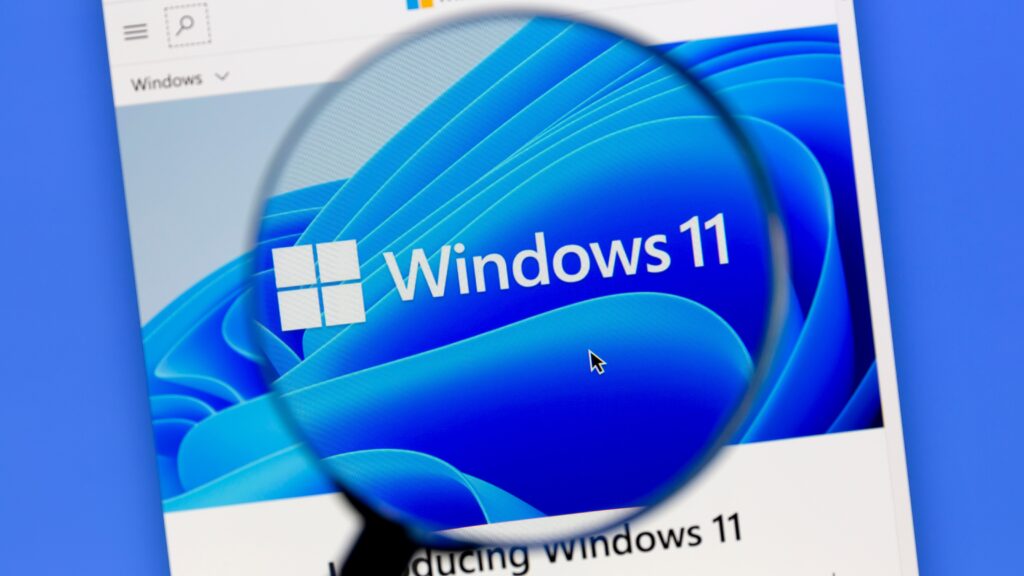
Let’s be real. You’re one of the last holdouts still running Windows 10. You’ve heard the mixed reviews about Windows 11 over the years, and you thought, “If it ain’t broke, don’t fix it.” I get it. But the clock has finally run out. As of **October 2025**, Windows 10 is officially reaching its “End of Life.”
This means no more security updates. No more patches. Sticking with Windows 10 is no longer a preference; it’s a security risk.

So, the question isn’t “should you upgrade?” anymore. The question is, “What am I in for?” As a tech expert who’s used Windows 11 since the first beta, here is your no-nonsense, final guide to making the jump.
The Verdict Up Front: Is Windows 11 Good Now?
Yes. The simple answer is yes. The early days of Windows 11 were rough. It was buggy, and some of the UI (User Interface) changes were infuriating. But after four years of updates, it has matured into a stable, fast, and secure operating system. It’s time to make the switch.
The Real Reasons to Upgrade: What You’ll Actually Notice
Forget the original marketing fluff. Here are the three big improvements you’ll feel on day one.
1. A Modern UI That (Finally) Works Well
The centered Taskbar and redesigned Start Menu were controversial, but the feature that makes it all worthwhile is Snap Layouts. Hover over the “maximize” button on any window, and you get an instant grid to snap your apps into place. For productivity, it’s a game-changer and light-years ahead of Windows 10.
2. Real Performance and Security Gains
This isn’t just marketing speak. Windows 11 has a more efficient thread scheduler, meaning it’s better at telling your CPU what to focus on. The result? The apps you’re actively using feel snappier. Under the hood, the strict hardware requirements (like TPM 2.0) that caused so much drama at launch now provide a much more secure foundation against modern threats.
3. Better Gaming and Android Apps
If you’re a PC gamer, features like DirectStorage and Auto HDR make Windows 11 the superior choice for modern games. Plus, the Windows Subsystem for Android (WSA) is now mature, letting you run your favorite Android apps right from the Microsoft Store. It’s a nice perk.
The Annoyances: What You’ll Miss From Windows 10
It’s not all perfect. Be prepared for these two things to annoy you for the first week.
- The Taskbar is Locked Down: You cannot move the taskbar to the top or sides of the screen. It’s on the bottom, and that’s it. For power users who loved that customization, this is still a major frustration.
- The “Show More Options” Right-Click Menu: Microsoft “simplified” the right-click menu. All the useful options are now hidden behind an extra click on “Show more options.” It’s infuriating, but you’ll eventually get used to it (or install a third-party tool to fix it).
Your Upgrade Checklist: How to Do It Safely
Ready to go? Follow these steps. Do not skip step #2.
- Check Compatibility: First, download and run Microsoft’s “PC Health Check” app. It will tell you if your hardware is officially supported. If it’s not, you can’t (and shouldn’t) upgrade.
- BACK UP YOUR DATA: I cannot say this enough. While the upgrade process is designed to keep your files, **things can go wrong**. Before you start, back up all your important documents, photos, and files to an external hard drive or a cloud service like OneDrive or Google Drive. Hope for the best, but plan for the worst.
- Run the Upgrade: The easiest way is via Windows Update. Go to Settings > Update & Security > Windows Update. If your PC is ready, you’ll see a big banner to download and install Windows 11. Just follow the prompts and make sure you select “Keep personal files and apps.”
- Check for More Updates: After the upgrade is finished, immediately go to Windows Update again and check for more updates. There will likely be a bunch of new drivers and security patches waiting for you.
FAQs: The Final Word on Upgrading
Will I lose my files or have to reinstall everything?
No. If you choose the “Keep personal files and apps” option during the upgrade, all your stuff will be right where you left it. But you should still **back up your data first**, just in case.
How long does the Windows 11 upgrade take?
It depends heavily on your internet speed and your computer’s hardware (an SSD is much faster than an old hard drive). For most modern PCs, plan for about **60-90 minutes** from the start of the download to the final login screen.
Does Windows 11 use more RAM?
Yes, slightly. The minimum requirement is **4GB of RAM**, but for a smooth experience in 2025, you really want **8GB or, ideally, 16GB**. If your PC only has 4GB, you might feel a bit of a slowdown.
Do I need a new antivirus?
No. The built-in Windows Defender is excellent and all most people need. If you have a paid antivirus you like (such as Bitdefender or Norton), it will almost certainly work with Windows 11, but you don’t *need* it.
What *actually* happens if I don’t upgrade from Windows 10?
Your computer will keep working. However, after this month (October 2025), it will **no longer receive critical security updates**. This means any new virus, malware, or vulnerability discovered will leave your PC completely exposed. It’s like leaving your front door wide open. You are putting your personal data and financial information at serious risk.
Conclusion: It’s Time to Make the Jump
The debate is over. With Windows 10 support ending, the upgrade to Windows 11 is no longer a choice; it’s a necessary step to keep your digital life secure. The good news is that after four years, Windows 11 is a solid, reliable, and modern OS.
Back up your files, run the update, and enjoy the new features. The security risks of staying on an unsupported operating system are no longer worth it.