DIY
DIY

Microsoft Teams shows whether your colleagues are available, busy, or away — but can it reveal which device they’re using? The short answer is no. Teams presence indicators reflect availability, not device type. Here’s a complete breakdown of what Teams does and doesn’t show.

Microsoft Teams Status Colors Explained
Every Teams user has a colored dot next to their profile picture that updates in near real time. Here’s what each color means:
- Green dot – Available: the user is active and ready to chat
- Yellow dot (clock icon) – Away: the computer is idle or the screen is off
- Red dot – Busy, In a call, In a meeting, Presenting, or Do Not Disturb
- Purple dot (arrow) – Out of Office
- Gray circle – Offline or status unknown
These statuses are visible to everyone in your organization by default, including on the web and desktop versions of Teams.
Can You Tell if Someone Is on Mobile or Desktop?
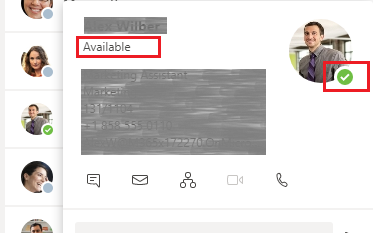
No — Microsoft Teams does not show which device a person is using. Whether someone is on their phone, laptop, or browser, they appear identically to other users. This applies to regular users and even IT admins; the Teams interface does not expose device type in any built-in way.
If a user is logged into Teams on multiple devices at the same time — for example, both a desktop and a phone — their presence is determined by the device they were most recently active on. Once they stop using their computer, presence switches to reflect whatever the mobile device is doing.
How Teams Tracks Your Activity
Teams automatically changes your status to Away after just 5 minutes of inactivity, even if you’re actively working in another app. Locking your PC, letting your screen turn off, or entering sleep mode will also immediately trigger the Away status. Running Teams in the background does not reset the idle timer.
Teams also integrates with your Outlook calendar. If you have a meeting scheduled, your status will automatically switch to In a meeting. If you’ve set automatic out-of-office replies, Teams will display an Out of Office status alongside your availability indicator.
What the Eye Icon Means in Teams Chat
When you send a message in a Teams chat, a small eye icon labeled Seen appears next to it once the recipient has read it. This acts as a read receipt directly inside the chat, without any separate email notification.
How to Keep Your Teams Status Green
There are several reliable methods to prevent Teams from switching to Away:
- Set status manually with a duration: Click your profile picture in Teams, select your current status, then choose Duration. You can lock your status as Available for a set period — Teams reverts automatically when it expires.
- Adjust PC power settings: Go to Settings > System > Power & battery > Screen and sleep. Increase both the screen turn-off and sleep timers so your computer stays active longer.
- Use a keep-awake app: Third-party tools like Caffeine prevent your PC from sleeping. Right-click the Caffeine icon in the system tray, hover over Active for, and pick a duration between 15 minutes and 24 hours.
- Keep the mobile app running: If your desktop goes idle, having the Teams mobile app open in the background on your phone can keep your status active.
- Set a status message: Go to your profile > Set status message. This lets you communicate availability to teammates even when Teams auto-switches your presence to Away.
How to See Who Is Online in a Team
Navigate to the team name in your Teams sidebar and click Manage team. Under the Members tab, you’ll see a full list of all team members along with their current presence indicators. Channels are visible to all team members by default.
How to Get Notified When Someone’s Status Changes
Teams lets you set up status notifications for specific contacts. To do this:
- Open Chat and find the person
- Right-click their name and select Notify when available
- You’ll receive an alert the next time their status changes to Available
This is useful when you need to reach a colleague who is currently busy or in a meeting.
What Does “Last Seen” Mean in Teams?
When a contact is not currently active, Teams may show a Last Seen timestamp on their profile indicating when they were last online. Note that users who manually set their status to Appear Offline will appear as offline to others — even if they are actively using the app.
Frequently Asked Questions
Does Teams show how long you’ve been away?
No. Teams does not display a timer or duration for how long a user has been in Away status. You can only see the current status, not how long they’ve been in it.
Can admins see which device you’re using in Teams?
Admins can view device usage statistics in the Microsoft Teams admin center under Usage reports > Device usage. This shows which devices users connect from (desktop, mobile, web), but this data is not visible to regular users in the Teams interface.
How long does Teams stay active on mobile?
On mobile, Teams presence refreshes when the app is active or when you manually refresh. If the mobile app enters the background and your phone screen turns off, Teams will eventually switch your status to Away — the exact timing depends on your phone’s battery and background app settings.
What is the Caffeine app for Teams?
Caffeine is a lightweight third-party Windows application that prevents your computer from entering sleep or idle mode. Since Teams switches your status to Away when the PC sleeps, Caffeine effectively keeps you appearing as Available without any Teams-specific configuration.