DIY
DIY
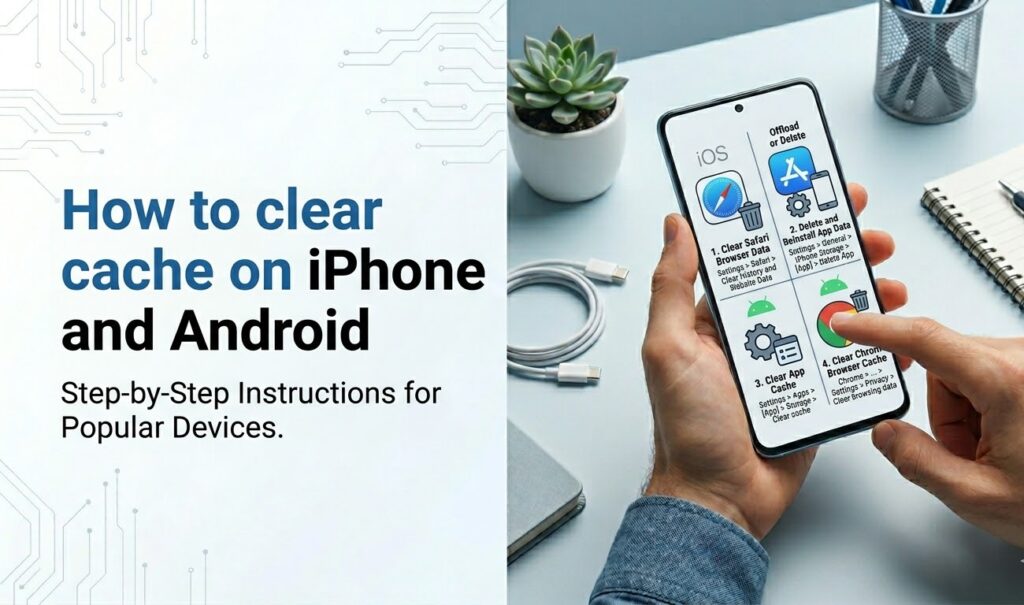
Your phone is slowing down, an app keeps showing outdated content, or your storage bar is creeping towards full. In most cases, clearing the cache is the fastest fix — and it takes less than a minute once you know where to look. This guide covers every method for both iPhone (iOS 15, 16, 17) and Android (12, 13, 14), including Safari, Chrome, and the most popular apps.
⚡ Quick answer — jump straight to your device

iPhone
- Safari: Settings → Safari → Clear History and Website Data
- Chrome: Chrome menu → Settings → Privacy → Clear Browsing Data
- Apps: Settings → General → iPhone Storage → select app → Offload App
▶ Android
- Apps: Settings → Apps → select app → Storage → Clear Cache
- Chrome: Chrome menu → Settings → Privacy → Clear Browsing Data
- Samsung: Settings → Device care → Storage → Clean now
iPhone users — important: Unlike Android, iPhone does not have a single button to clear all app cache at once. You clear cache app by app, either inside the app’s own settings or by offloading it through iPhone Storage. This guide shows you both methods for every major app.
What is cache and why should you clear it?
Every app and browser on your phone stores temporary files called cache — images, scripts, login tokens, and other data it expects to need again soon. Cache makes apps load faster on repeat visits because the phone doesn’t have to re-download everything from scratch.
Cache becomes a problem when it gets too large, becomes corrupted, or stores outdated data. Common symptoms include:
- Apps loading old or incorrect content (a website showing yesterday’s version)
- Apps crashing or freezing on launch
- Storage running low even though you haven’t downloaded much
- Login loops where an app keeps asking you to sign in
- General sluggishness, especially when switching between apps
What clearing cache does NOT delete: Your photos, videos, contacts, messages, saved passwords, app accounts, and app settings are completely unaffected. Cache is temporary data only — clearing it is safe and reversible (the cache simply rebuilds as you use the app).
How to clear cache on iPhone
We’ll start with Safari — the most searched iPhone cache question — then cover Chrome and other browsers, followed by per-app methods for popular apps.
Clear Safari cache on iPhone
Clearing Safari’s cache removes cached website files, cookies, and browsing history from your device. Use this when Safari is loading outdated pages, websites aren’t logging you in correctly, or the browser feels slow.
Clear all Safari cache and history
- Open the Settings app
- Scroll down and tap Safari
- Tap Clear History and Website Data
- Choose a time range (Last Hour, Today, Today and Yesterday, or All History)
- Tap Clear History to confirm
What this deletes:
- Browsing history
- Cached website images and scripts
- Cookies (you will be logged out of most websites)
- Autofill data for websites
What it does NOT delete: Saved passwords (those stay in Settings → Passwords). If you are signed into iCloud, this also clears Safari history on all your Apple devices.
Clear cache for one website only (iOS 17 and later)
If you only want to clear data for a specific website without wiping your entire history, iOS 17 added a per-site option:
- Open Settings → Safari
- Scroll down and tap Advanced
- Tap Website Data
- Use the search bar to find the site you want to clear
- Swipe left on the site name and tap Delete
You can also tap Remove All Website Data at the bottom of this screen — this removes cached files and cookies without touching your browsing history. Note that the history-only view in Safari will still show your visited sites, but all stored website data will be gone.
Prevent Safari cache from building up
Enable Private Browsing for sessions where you don’t want cache saved: tap the tabs icon in Safari, tap the tab count button, and select Private. Safari Private tabs don’t save history, cookies, or cache once the tab is closed.
Clear Chrome cache on iPhone
- Open the Chrome app
- Tap the three-dot menu (⋮) in the bottom right
- Tap Settings
- Tap Privacy
- Tap Clear Browsing Data
- Make sure Cached Images and Files is checked
- Select your time range from the dropdown at the top
- Tap Clear Browsing Data and confirm
Clearing Chrome’s cache on iPhone only affects Chrome — it has no effect on Safari’s cache, and vice versa. If you use both browsers, clear each separately.
Clear Firefox cache on iPhone
- Open the Firefox app
- Tap the hamburger menu (☰) at the bottom right
- Tap Settings
- Tap Data Management
- Make sure Cache is toggled on
- Tap Clear Private Data
Clear app cache on iPhone (per-app methods)
Because iOS has no universal cache-clear button, you have three options for each app: clear cache inside the app itself, offload the app (removes cache but keeps your data), or delete and reinstall (removes everything including data).
Method A — Clear cache inside the app
Many popular apps include a built-in cache-clear option buried in their settings. Here are the paths for the most commonly searched apps:
| App | Path to clear cache | What it removes |
|---|---|---|
| Spotify | Home → Settings (gear) → Storage → Delete Cache | Offline downloads cache; keeps your playlists and account |
| Profile → Settings → Account → Cellular Data Use → Clear Cache | Image/video cache; keeps account and saved posts | |
| TikTok | Profile → Settings → Free Up Space → Clear Cache | Cached videos; keeps account and saved content |
| YouTube | Profile → Settings → History & Privacy → Clear Search History | Search history only; no full cache clear available in-app on iOS |
| Google Maps | Profile → Settings → About, terms & privacy → Clear application data | Cached map tiles and recent searches |
| Profile → Settings → Clear Local Cache | Cached posts and images; keeps account | |
| Snapchat | Profile → Settings (gear) → Account Actions → Clear Cache | Cached snaps and lenses; keeps memories and account |
| Amazon | Hamburger menu → Settings → Clear Browser Cache | Browsing cache; keeps cart, orders, and account |
Method B — Offload the app (safest, keeps your data)
Offloading removes the app itself and its temporary cache but keeps all your saved data — so when you reinstall, you’re back where you left off without re-logging in.
- Open Settings → General → iPhone Storage
- Wait for the list to load, then scroll to find the app you want
- Tap the app name
- Tap Offload App
- Confirm by tapping Offload App again
- The app icon remains on your home screen with a small cloud icon — tap it to reinstall
Tip — check the Documents & Data column: On the iPhone Storage screen, each app shows two numbers: App Size and Documents & Data. Documents & Data is the cache and stored data. If an app shows a small App Size but a large Documents & Data (e.g. Podcasts: 60MB app, 4GB data), that’s where the storage is hiding.
Method C — Delete and reinstall (clears everything)
Use this only when offloading didn’t free enough space, or when an app is badly corrupted and won’t behave after an offload.
- Long-press the app icon on your home screen
- Tap Remove App
- Tap Delete App to confirm
- Reinstall from the App Store
⚠ Deleting an app removes all its local data — saved game progress, offline content, and any data not backed up to iCloud or the app’s own cloud account. If in doubt, offload first and only delete if you need the extra space.
How to clear cache on Android
Android gives you a proper per-app cache-clear button built directly into Settings — no workarounds needed. We’ll cover the system method first, then browser-specific steps, followed by Samsung-specific options.
Clear app cache on Android (Settings method)
⚠ Critical distinction — Clear Cache vs Clear Data:
- Clear Cache — removes only temporary files. Safe. You stay logged in. The cache rebuilds as you use the app.
- Clear Data (Clear Storage) — deletes everything: cache, saved settings, login sessions, and all app data. You will be logged out. Only use this as a last resort.
Both buttons appear on the same screen. Always tap Clear Cache unless you intentionally want to reset the app completely.
Stock Android / Pixel
- Open Settings
- Tap Apps (or Apps & notifications on older Android versions)
- Tap See all apps if prompted
- Find and tap the app you want to clear
- Tap Storage & cache
- Tap Clear cache
Samsung One UI
- Open Settings
- Tap Apps
- Find and tap the app you want to clear
- Tap Storage
- Tap Clear cache
Android 12 and above — no “Clear All Cache” button: On Android 6 through 11, you could go to Settings → Storage → Cached data and clear all app caches in one tap. This option was removed in Android 12. You now need to clear each app individually via Settings → Apps, or use the Files by Google app (covered in the automation section below).
App cache paths for popular Android apps
| App | Quickest path | What it removes |
|---|---|---|
| Spotify | Settings (gear) → Storage → Delete Cache | Offline downloads cache; keeps playlists |
| Settings → Apps → Instagram → Storage → Clear cache | Image and video cache; keeps account | |
| TikTok | Profile → Settings → Free Up Space → Clear Cache | Cached videos; keeps account |
| YouTube | Settings → Apps → YouTube → Storage → Clear cache | Video and thumbnail cache; keeps history and account |
| Google Maps | Settings → Apps → Maps → Storage → Clear cache | Cached map tiles; keeps offline maps and saved places |
| Settings → Apps → WhatsApp → Storage → Clear cache | Temporary media cache; keeps messages and media | |
| Settings → Apps → Facebook → Storage → Clear cache | Feed and image cache; keeps account and messages | |
| Snapchat | Profile → Settings → Account Actions → Clear Cache | Cached snaps and lenses; keeps memories |
Clear Chrome cache on Android
Chrome on Android can be cleared either through the app or through Settings — both reach the same result.
Via the Chrome app
- Open Chrome
- Tap the three-dot menu (⋮) in the top right
- Tap Settings
- Tap Privacy and security
- Tap Clear browsing data
- Select the Basic tab and make sure Cached images and files is checked
- Choose your time range from the dropdown
- Tap Clear data
Set Chrome to auto-clear cache on exit
- In Chrome, go to Settings → Privacy and security → Clear browsing data
- Tap the On exit tab
- Toggle on Cached images and files
With this enabled, Chrome automatically clears its cache every time you close the app — a useful setting on shared devices.
Clear Samsung Internet cache
Samsung Internet is pre-installed on Galaxy phones and has its own cache separate from Chrome.
- Open Samsung Internet
- Tap the three-line menu (☰) at the bottom right
- Tap Settings
- Tap Personal browsing data
- Tap Delete browsing data
- Check Cached images and files (uncheck others if you want to keep history and cookies)
- Tap Delete
Clear Firefox cache on Android
- Open Firefox
- Tap the three-dot menu (⋮) at the top right
- Tap Settings
- Tap Delete browsing data
- Check Cached images and files
- Tap Delete browsing data
files with Device Care
Samsung phones include a built-in tool called Device Care that aggregates junk files (including cache) across all apps and clears them in one step — closer to a system-wide clear than you can get on stock Android.
- Open Settings
- Tap Device care (or Battery and device care on newer One UI)
- Tap Storage
- Tap Clean now
Samsung will scan for junk files, temporary data, and residual files from uninstalled apps, then show you a total before deleting. This is the fastest multi-app cache clear available on Samsung devices without a third-party app.
How much storage does clearing cache actually free up?
This depends heavily on how you use your phone and how long it’s been since you last cleared cache. Realistic estimates:
- Light users (email, calls, basic apps): 50–200 MB
- Regular users (social media, streaming, navigation): 300 MB–1.5 GB
- Heavy users (multiple browsers, lots of apps, heavy streaming): 1.5–4 GB
If storage is critically low and clearing cache only freed 200 MB, the bigger culprits are almost always photos and videos, downloaded podcasts or music, offline maps, or app data (not cache). Here’s where to look next:
- iPhone: Settings → General → iPhone Storage — the bar chart shows exactly what’s consuming space by category
- Android: Settings → Storage — shows a breakdown by category (Apps, Images, Video, Audio, etc.)
- Both platforms: Downloaded Spotify, Netflix, or YouTube content is often the largest single category after photos — delete offline content inside each app
Cache rebuilds over time. Clearing cache doesn’t permanently reduce its size — apps create new cache files as you use them. If your phone is slow due to low RAM rather than low storage, clearing cache gives a brief improvement but the effect won’t last. RAM is a hardware limit that cache clearing can’t fix permanently.
Automatic cache management — set it and forget it
Rather than manually clearing cache every few months, both platforms offer tools to handle it automatically.
iPhone — Offload Unused Apps
This is the best ongoing cache management setting for iPhone users. When enabled, iOS automatically offloads apps you haven’t used recently — removing their cache and binary but keeping all your data.
- Open Settings → App Store
- Scroll to the Automatic Downloads section
- Toggle on Offload Unused Apps
iOS uses usage patterns to decide which apps to offload — apps you use daily are never touched. This can free several gigabytes on phones with many installed apps.
Android — Files by Google
Files by Google is a free app from Google that scans for junk files — including app cache, downloads folder clutter, and duplicate photos — and removes them in one tap.
- Install Files by Google from the Play Store (it may already be installed on Pixel phones)
- Open the app and tap Clean at the bottom
- Tap Confirm and free up under the Junk Files category
Files by Google is the only cleaner app Google officially recommends. It’s ad-free, transparent about what it deletes, and doesn’t request unnecessary permissions.
⚠ Avoid third-party cleaner apps. Apps marketed as “Phone Cleaner,” “Cache Cleaner,” or “RAM Booster” on both the App Store and Play Store are typically ineffective, ad-heavy, or request excessive permissions. Neither Apple nor Google recommends them. The built-in methods in this guide — and Files by Google on Android — are safer, free, and more effective.
Summary — iPhone vs Android cache clearing at a glance
| Task | iPhone method | Android method | Data deleted? |
|---|---|---|---|
| Clear browser cache | Settings → Safari → Clear History and Website Data | Settings → Apps → Chrome → Storage → Clear Cache | History & cookies (iOS); cache only (Android) |
| Clear one app’s cache | Inside the app, or Offload via iPhone Storage | Settings → Apps → [App] → Storage → Clear Cache | Cache only — login and data kept |
| Clear all apps’ cache | No system option — offload per app, or enable Auto-Offload | Files by Google → Clean → Junk Files (or Device Care on Samsung) | Cache only — login and data kept |
| Check per-app cache size | Settings → General → iPhone Storage → tap app | Settings → Apps → tap app → Storage | Nothing — view only |
| Auto-clear cache ongoing | Settings → App Store → Offload Unused Apps → On | Files by Google (scan regularly) or Chrome → Clear on Exit | Cache only — app data kept (iOS offload) |
| Full app reset (nuclear) | Delete App → reinstall from App Store | Settings → Apps → [App] → Storage → Clear Data | Everything — cache, login, and all app data |
Frequently asked questions
Does clearing cache delete photos on iPhone?
No. Clearing cache — whether through Safari, an individual app, or by offloading an app — does not touch your photos or videos. Photos are stored in the Photos app library, which is completely separate from app cache. The only action that could affect photos is deleting them manually or deleting the Photos app itself (which is not possible on iPhone). If you are signed into iCloud Photos, your images are also backed up independently of cache.
What is the difference between cache and cookies?
Cache stores temporary files (images, scripts, video thumbnails) so apps and websites load faster. Cookies store small pieces of data that identify you to a website — your login session, preferences, and shopping cart contents. Clearing cache removes the speed-boost files. Clearing cookies logs you out of websites and resets preferences. Many browser clear-cache screens let you choose which to delete — if you want to stay logged into your favourite sites, clear cache only and leave cookies untouched.
Will clearing cache log me out of my apps?
Clearing cache alone does not log you out — login sessions are stored separately as cookies or tokens, not in the cache. However, if you use the Android Clear Data button (instead of Clear Cache), or the iPhone Delete App option (instead of Offload), you will be logged out because those options remove all app data, not just the cache. The cache-only methods described in this guide keep you signed in.
How do I clear cache on Samsung Galaxy?
Samsung Galaxy phones running One UI have two convenient options. For a single app: Settings → Apps → tap the app → Storage → Clear cache. For all apps at once: Settings → Device care → Storage → Clean now — Samsung scans for junk files across all apps and clears them in one step. This Device Care method is unique to Samsung and is the fastest multi-app cache clear available on Android without a third-party app.
Does clearing cache speed up my phone?
It depends on what is causing the slowdown. If an app is slow because its cache is corrupted or very large, clearing it will help — often immediately. If your phone is generally slow because it has low RAM, clearing cache gives only a brief improvement; RAM is a hardware constraint that cache clearing cannot fix permanently. And if the slowdown is because storage is nearly full (under 10% free), clearing cache to free space will help more generally, since low storage degrades read/write speeds on both iPhone and Android.
Which app is eating the most cache on your phone? Drop your iPhone model or Android device in the comments below — tell us which app you’re trying to clear and we’ll give you the exact path. We respond to every question.