DIY
DIY
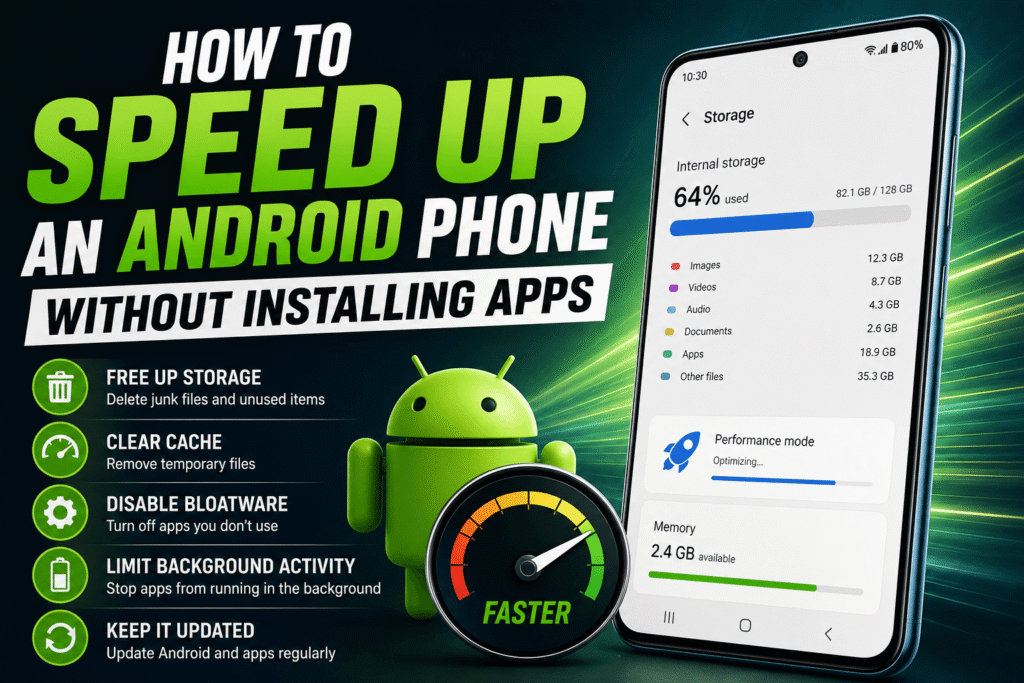
Is your Android phone running slower than it used to? Apps take longer to open, scrolling feels sluggish, and the battery drains faster than expected. While many people install “phone cleaner” or “speed booster” apps hoping for a quick fix, these apps often do little to improve performance and can sometimes make things worse by using extra storage and running in the background.
The good news is that Android includes several built-in tools that can help improve performance without installing any additional software. In this guide, you’ll learn practical ways to speed up your Android phone using features that are already available on most devices.

1. Restart Your Phone Regularly
One of the simplest ways to improve performance is to restart your phone.
Over time, apps and background services can consume memory, leaving fewer resources available for everyday tasks. Restarting your device clears temporary processes and gives the operating system a fresh start.
If you rarely restart your phone, try doing it at least once every few days.
2. Free Up Storage Space
A nearly full storage drive can noticeably slow down your phone.
Android needs free space to create temporary files and manage updates efficiently. If your storage is almost full, performance may decline.
To free up storage:
- Delete old downloads.
- Remove duplicate photos and videos.
- Uninstall apps you no longer use.
- Clear unnecessary screenshots.
- Delete large files you don’t need.
Aim to keep at least 15–20% of your storage free whenever possible.
3. Remove Unused Apps
Many people install dozens of apps and forget about them.
Unused apps take up storage and may continue running background services even when you never open them.
Go through your installed apps and remove anything you haven’t used in months.
Less clutter often means better performance.
4. Clear App Cache
Applications store temporary files called cache to help them load faster.
However, over time these files can grow very large.
To clear cache:
- Open Settings.
- Tap Apps.
- Select an app.
- Choose Storage.
- Tap Clear Cache.
This removes temporary files without deleting your personal data.
Avoid clearing cache constantly, as Android rebuilds it automatically.
5. Disable or Remove Bloatware
Many Android phones come with pre-installed apps from manufacturers or mobile carriers.
These apps are often called bloatware.
If you cannot uninstall them, you can usually disable them.
To do this:
- Open Settings > Apps.
- Select the unwanted app.
- Tap Disable, if available.
Disabling unused apps can reduce background activity and free system resources.
6. Reduce Animations
Android uses animations when opening apps, switching screens, and navigating menus.
While these effects look nice, reducing them can make your phone feel noticeably faster.
Developer Options allow you to shorten or disable animation scales.
Lower animation values don’t increase processing power, but they make the interface appear much more responsive.
7. Keep Android Updated
Software updates often include:
- Performance improvements
- Security patches
- Battery optimizations
- Bug fixes
Open Settings > System > Software Update and install available updates.
Running the latest version supported by your device helps keep everything running smoothly.
8. Update Your Apps
Developers regularly improve their apps by fixing bugs and optimizing performance.
Open the Google Play Store and install available updates.
Keeping apps current helps reduce crashes and improves compatibility with newer Android versions.
9. Limit Background Activity
Some applications continue running even after you’ve closed them.
These background processes consume memory, battery power, and processing resources.
Review which apps truly need background access.
For apps you rarely use, you can limit background activity through your phone’s battery or app settings.
This can improve both performance and battery life.
10. Remove Unnecessary Widgets
Widgets provide useful information directly on your home screen, but each widget uses system resources.
Weather widgets, live news feeds, stock trackers, and constantly updating calendars all consume memory and battery.
Keep only the widgets you actually use.
A cleaner home screen often results in a smoother experience.
11. Use a Simple Wallpaper
Animated wallpapers may look impressive, but they require additional graphics processing.
A static wallpaper uses fewer system resources and may improve responsiveness, especially on older devices.
If your phone feels slow, switching to a simple image is worth trying.
12. Organize Your Home Screen
Hundreds of shortcuts spread across multiple pages can make navigation slower and more confusing.
Delete shortcuts you no longer need.
Group similar apps into folders.
A clean home screen makes your phone easier to use and reduces visual clutter.
13. Close Apps You No Longer Need
Android is designed to manage memory automatically, so constantly force-closing apps isn’t necessary.
However, if an application becomes unresponsive or continues consuming resources after use, closing it can help.
Use this only when needed instead of making it a daily habit.
14. Check Battery Health
A battery that has significantly degraded may affect your phone’s performance.
Some manufacturers reduce processing speed on devices with aging batteries to prevent unexpected shutdowns.
If your phone is several years old and battery life has become poor, replacing the battery may noticeably improve everyday performance.
15. Reset Your Phone as a Last Resort
If your phone remains slow after trying everything else, performing a factory reset may help.
Before resetting:
- Back up your photos.
- Save important files.
- Sync your contacts.
- Make sure you know your account passwords.
A factory reset removes accumulated software issues and gives your phone a fresh start.
Only do this if other solutions haven’t solved the problem.
Avoid “Speed Booster” Apps
Many apps claim they can dramatically increase Android performance with a single tap.
In reality, Android already manages memory efficiently.
Some cleaner apps repeatedly close background processes that Android immediately restarts, wasting battery instead of improving speed.
Others display excessive advertisements while providing little benefit.
In most cases, your phone performs better without these types of applications.
Additional Tips
To keep your Android phone running smoothly over time:
- Restart it regularly.
- Keep storage from becoming full.
- Install official software updates.
- Remove apps you no longer use.
- Clear cache occasionally.
- Avoid installing unnecessary optimization apps.
- Keep your home screen organized.
- Monitor battery health.
These small habits can make a noticeable difference over the life of your device.
Conclusion
You don’t need to install third-party cleaning or optimization apps to speed up an Android phone. The operating system already includes powerful tools for managing storage, memory, and background processes.
By freeing up storage, removing unused apps, limiting background activity, keeping your software updated, and organizing your device, you can improve performance while maintaining a secure and reliable experience.
If your phone is still slow after following these steps, it may simply be reaching the limits of its hardware. In that case, replacing the battery or upgrading to a newer device may provide the biggest improvement. Until then, these built-in Android tips can help you get the most out of your phone in 2026.