DIY
DIY


Quick Summary
A slow Android phone is almost never a reason to buy a new one. Storage saturation, background app overload, and heavy animations are responsible for the vast majority of slowdowns — and all three are fixable in under 10 minutes. This guide covers every fix in order of impact, from a simple restart to Developer Options tweaks most users have never heard of.
Find your fix fast
Use this table to jump directly to the section that matches your situation.
| Your symptom | Most likely cause | Jump to |
|---|---|---|
| Phone has been slow for a while, getting worse over time | Storage nearly full | Fix 3 |
| Phone feels slow but storage has plenty of space | Background apps / bloatware | Fix 4 → Fix 5 |
| Animations feel sluggish and laggy | Animation scales too high | Fix 6 |
| Phone slowed down after an update | Bad app or OS update | Fix 7 |
| Home screen scrolling is choppy | Heavy launcher or live widgets | Fix 8 |
| Tried everything, still slow — phone is 3+ years old | Hardware limits / battery wear | Section 10 |
| Phone randomly slow, fine other times | Background processes / RAM pressure | Fix 2 → Fix 4 |
Why Android phones slow down over time
Before jumping into fixes, it helps to understand the four root causes of Android slowdown. Most phones suffer from at least two of these simultaneously.
Storage saturation. When your internal storage drops below roughly 10–15% free space, Android has nowhere to write temporary files efficiently. It starts using your flash storage as a substitute for RAM — a process called paging — and flash storage is orders of magnitude slower than actual RAM. The result is a phone that feels like it’s wading through treacle. On a 64 GB phone, that threshold is around 6–9 GB free. On a 32 GB phone, it kicks in at just 3–4 GB.
Background app overload. Every app you install that runs a background service — social media, email clients, news aggregators, navigation apps — consumes a small but constant share of RAM and CPU. With 40 apps each running one background process, the cumulative load is substantial.
Software bloat. Manufacturer and carrier pre-installed apps (often called bloatware) run persistent background services you never asked for and cannot easily remove. On budget phones especially, these can consume a disproportionate share of the available 2–3 GB of RAM before you open a single app.
Aging hardware. Flash storage degrades with read/write cycles. The CPU and GPU in a 4-year-old mid-range phone were designed for apps that existed in that era — modern apps are larger, more complex, and more demanding. Some degree of slowdown on older hardware is unavoidable, but the fixes in this guide can recover a surprisingly large amount of lost performance before hardware becomes the true bottleneck.
Fix 1 — Instant wins (do these first)
Difficulty: Easy | Time: Under 2 minutes | Works on: All Android phones
Run through these before anything else. They take under two minutes combined and resolve a surprising number of slowdown complaints on their own.
Restart your phone
A full restart clears every running background process, flushes the RAM, resets network connections, and forces all apps to reload fresh the next time you open them. If you have not restarted in the last few days, do it now and test again before continuing. Many “my phone is slow” complaints disappear entirely after a restart.
Hold the power button → Restart (not just lock the screen). Wait for the phone to fully boot before testing speed.
Close all background apps
Tap the recents button (the square icon, or swipe up and hold depending on your navigation style). Swipe all apps away, or tap Close all if your phone has that button. This frees up RAM immediately. Note that Android manages background apps intelligently and will kill them automatically when RAM is needed — but if you have 30 apps open in recents from the past week, clearing them gives Android a clean slate.
Turn off unused radios
Wi-Fi, Bluetooth, NFC, and mobile data all run background scanning processes even when you are not actively using them. If you are at home with solid Wi-Fi, turn off mobile data. If you are not using Bluetooth headphones or a smartwatch, turn it off. Pull down the notification shade and toggle what you do not need. The CPU cycles this frees up are small individually, but together they add up.
Disable Always-On Display and live wallpapers
Always-On Display keeps part of your screen powered and constantly refreshing content. Live wallpapers re-render on every home screen interaction. Both consume GPU resources that could be used for the apps you are actually running. Go to Settings → Display and turn off Always-On Display. Replace any live or animated wallpaper with a static image.
Fix 2 — Use battery saver mode as a speed hack
Difficulty: Easy | Time: 30 seconds | Works on: All Android phones
This is a counterintuitive trick that many Android power users know about but rarely gets written about in mainstream guides.
Battery saver mode was designed to extend battery life by limiting background activity — but its side effect is that it also restricts the exact background processes that slow your phone down: background app syncing, location polling, push notification delivery delays, and visual effects. The result is a phone that feels noticeably more responsive for foreground tasks you are actually doing.
Enable it via Settings → Battery → Battery Saver (exact path varies by manufacturer). On Samsung it is called Power saving mode. On Xiaomi it is Battery saver. Toggle it on and use your phone normally for 30 minutes to feel the difference.
The trade-off: some apps will not sync in the background, and notifications from messaging apps may be slightly delayed. For most users this is an acceptable compromise when the phone is feeling particularly sluggish. Turn it off when you no longer need the extra responsiveness boost.
Fix 3 — Free up storage space (the #1 performance killer)
Difficulty: Easy | Time: 10–20 minutes | Works on: All Android phones | Impact: Very high if storage is low
Check this first: Go to Settings → Storage and look at the bar at the top. If less than 15% of your storage is free — for example, less than 9 GB on a 64 GB phone — storage is almost certainly contributing to your slowdown and this section is the most important one for you.
Step 1 — See what is using your storage
Settings → Storage shows a breakdown by category: Apps, Photos & videos, Audio, Downloads, Other files. Tap each category to drill into the largest items. Most people are surprised to find that Downloads and Photos account for the majority of used space rather than apps.
Step 2 — Clear out Downloads
Open the Files app (or Files by Google if you have it installed — it is free on the Play Store and excellent). Navigate to Downloads. Sort by size. Delete anything you no longer need — PDF documents, APK install files, ZIP archives you downloaded once and forgot about. It is common to find several gigabytes of forgotten downloads here.
Step 3 — Deal with photos and videos
Photos and videos are typically the largest storage consumers on any phone. The most effective approach is to back them up to cloud storage and then delete the local copies.
- Install Google Photos (free) and enable Back up & sync in Settings. Wait for the backup to complete — this may take a while on a slow connection
- Once the backup is confirmed (look for “Backup is on” and the tick next to your photos), open Google Photos → Library → tap your profile photo → Free up space on this device
- Google Photos will calculate exactly how much space it can safely recover and prompt you to delete the locally stored copies, keeping the cloud versions
Alternatives if you prefer not to use Google Photos: OneDrive (included with Microsoft 365), Amazon Photos (free unlimited photo storage with Prime), or simply copy photos to a PC or external drive and delete them from the phone.
Step 4 — Remove duplicate and similar photos
Google Photos has a built-in tool to find and delete duplicate photos and very similar near-duplicates (for example, ten nearly identical shots from a burst). Open Google Photos → Library → Utilities → Manage storage. You may find hundreds of megabytes or more of redundant shots.
Step 5 — Use Files by Google to find large hidden files
Files by Google (free, Play Store) has a “Clean” tab that identifies large files, old downloads, unused apps, and offline content from streaming apps. It is significantly smarter than manually browsing folders. Open it, tap Clean, and work through each category it flags.
Pay particular attention to offline downloads from Spotify, Netflix, YouTube, and podcast apps — these are frequently several gigabytes and are easy to forget about.
Step 6 — Uninstall apps you no longer use
Go to Settings → Apps. Sort by Last used (tap the three dots → Sort by). Any app you have not opened in 30 days is a candidate for removal. Pay attention not just to the app size but to the data each app has accumulated — some apps have a small install size but accumulate gigabytes of cached data over time. Tap the app → Storage to see both figures.
Fix 4 — Clear app caches and restrict background processes
Difficulty: Easy | Time: 5–10 minutes | Works on: All Android phones
What is app cache and is it safe to clear?
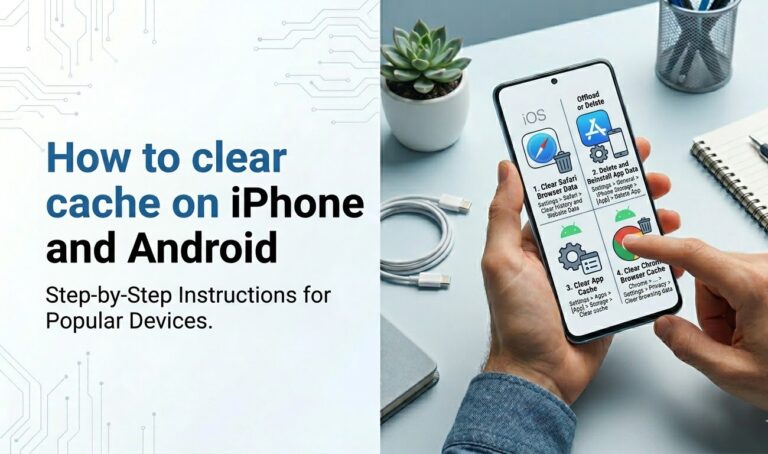
Every app stores a cache — a collection of temporary files designed to make the app load faster. Images your browser has loaded, video thumbnails, map tiles, and search results are all cached. Over time these grow large and can become bloated or partially corrupted, causing the app to slow down or behave erratically.
Clearing the cache is completely safe. The app will rebuild it the next time you use it. You will not lose any personal data, login sessions, or settings. (This is different from clearing app data, which resets the app to its freshly installed state and does delete your settings and login — do not confuse the two.)
Which apps accumulate the most cache?
The worst offenders are typically: Chrome or your default browser, Facebook, Instagram, TikTok, Snapchat, Google Maps, Spotify, and Samsung Internet. These apps regularly accumulate caches of 500 MB to several gigabytes.
How to clear cache for individual apps
- Go to Settings → Apps (or Application Manager on older Samsung devices)
- Tap the app you want to clear
- Tap Storage (or Storage & cache)
- Tap Clear cache — not Clear storage
- Repeat for each heavy app
Samsung shortcut: Settings → Battery and device care → Storage → Clean Now. This clears temporary files across all apps in one tap, though it is less thorough than clearing individual app caches.
Restrict background activity per app
Some apps run background services constantly even when you are not using them — syncing data, checking for notifications, or refreshing content. You can restrict this without uninstalling the app.
- Settings → Apps → tap the app
- Tap Battery
- Select Restricted (Android 12+) or turn off Allow background activity
Good candidates for background restriction: social media apps (Facebook, Instagram, Twitter/X), news apps, and any shopping or deal-finding apps. These do not need to run background processes — they can fetch new content when you open them.
Android 12+ App Hibernation
Android 12 and later introduced automatic app hibernation. Apps you have not used for a few months automatically have their permissions revoked and background activity stopped. You do not need to do anything to enable this — but you can check which apps have been hibernated at Settings → Apps → Unused apps. If an app you actually use appears here, tap it and enable Remove permissions if app is unused to make sure it stays restricted.
Fix 5 — Disable bloatware and pre-installed apps
Difficulty: Easy–Intermediate | Time: 10–15 minutes | Works on: All Android phones | Impact: Very high on Samsung, Xiaomi, carrier-branded phones
Bloatware refers to apps that your phone manufacturer or mobile carrier pre-installed without your consent. These range from mildly annoying (a games store you never use) to genuinely harmful for performance (multiple background services that run constantly and cannot be stopped without disabling the app entirely).
Many users do not realise that even if they cannot uninstall a system app, they can disable it. A disabled app is completely frozen — it cannot run in the background, consume RAM, send notifications, or use battery.
How to disable pre-installed apps
- Go to Settings → Apps
- Tap the three-dot menu or filter icon and select Show system apps
- Browse the full list. Tap any app you want to disable
- Tap Disable (if the button says Uninstall, you can fully remove it instead — even better)
- Confirm the prompt. The app is now frozen and will not run until you re-enable it
Important: Do not disable apps you do not recognise. If you are unsure what an app does, search its package name online before disabling it. Disabling core system components can cause instability. If in doubt, stick to apps with clearly visible names and obvious purposes.
Safe-to-disable examples by manufacturer
Samsung (One UI):
- Samsung Daily / Bixby Home (the left-most home screen panel)
- Bixby Voice (if you never use Samsung’s assistant)
- Samsung Free (news and games feed)
- Facebook (if pre-installed — fully uninstall this one if possible)
- Samsung Pay Mini (if you use Google Pay instead)
- Game Launcher (if you do not use Samsung’s gaming features)
Xiaomi / MIUI:
- Mi Video / Mi Music (if you use Spotify, YouTube Music, etc.)
- GetApps (Xiaomi’s app store — safe to disable if you only use Google Play)
- Mi Browser (if you use Chrome)
- Themes (if you do not use MIUI themes)
- Feedback (telemetry app)
Stock Android / Pixel:
- Google One (if not a subscriber)
- Android Auto (if you never use it)
- Google TV / Movies & TV
Advanced: ADB removal (for technical users)
Some system apps cannot be disabled through the Settings UI — they have no Disable button. These can often be removed using Android Debug Bridge (ADB), a command-line tool that communicates with your phone from a PC. This method is more thorough but requires enabling Developer Options and connecting your phone via USB cable.
A full ADB debloat guide is beyond the scope of this article, but a good starting point is the Universal Android Debloater tool on GitHub, which provides a GUI interface and safe recommended removal lists for most major manufacturers.
Fix 6 — Speed up animations using Developer Options
Difficulty: Intermediate | Time: 5 minutes | Works on: All Android phones | Impact: Very high perceived speed improvement
This is the tip that most mainstream speed guides skip entirely — and it is arguably the single most impactful change you can make to how fast your Android phone feels.
By default, Android uses animation scales of 1x — meaning every transition, window opening, and app launch plays a full-length animation. Reducing these to 0.5x makes every interaction feel twice as snappy. The underlying hardware has not changed; Android is simply spending half the time on visual flourishes and the other half doing the actual work you asked for.
Before you start: Developer Options are hidden by default to prevent accidental changes to low-level settings. Unlocking them is safe and reversible — it simply reveals a menu that is always present but hidden.
Step 1 — Unlock Developer Options
- Go to Settings → About phone
- Find Build number (on Samsung it is under Software information → Build number; on Xiaomi it is directly in About phone)
- Tap Build number seven times in quick succession
- You will be asked for your PIN or fingerprint
- After the seventh tap, you will see the message: “You are now a developer!”
Developer Options will now appear in Settings — either directly in the Settings list or under Settings → System → Developer options, depending on your manufacturer.
Step 2 — Reduce the three animation scales
- Open Developer Options
- Scroll down to the Drawing section
- Find Window animation scale — tap it and change from 1x to 0.5x
- Find Transition animation scale — change to 0.5x
- Find Animator duration scale — change to 0.5x
Go back to your home screen and open a few apps. The difference is immediately noticeable — apps open faster, switching between them is snappier, and the phone feels significantly more responsive without any change to actual processing power.
Should you set animations to 0x (off entirely)? You can, and it makes the phone feel even faster, but some users find the abrupt transitions disorienting — apps and menus appear to “pop” in rather than slide. Try 0.5x first and only go to 0x if you want maximum speed over visual comfort.
Step 3 — Enable Force GPU rendering (optional)
Still in Developer Options, find Force GPU rendering under the Hardware accelerated rendering section and toggle it on. This forces all 2D drawing operations to use the GPU instead of the CPU, which can improve UI smoothness on older phones where the CPU is the bottleneck. On newer phones with capable CPUs it makes little difference, but on budget devices it is worth enabling.
Step 4 — Limit background processes (optional, with caution)
Find Background process limit in Developer Options. The default is Standard limit (Android manages this automatically). You can set it to At most 3 processes, which caps the number of apps that can run in the background simultaneously. This frees up RAM but means apps take longer to resume when you switch back to them. Only change this if you have 3 GB of RAM or less and are experiencing severe RAM pressure.
Important: Only change the three animation scales, Force GPU rendering, and Background process limit. Every other setting in Developer Options should be left at its default unless you are a software developer who knows exactly what each setting does. Changing unknown settings can destabilise your phone’s software.
Fix 7 — Update Android and apps (or roll back a bad one)
Difficulty: Easy | Time: 5 minutes + download time | Works on: All Android phones
Keep Android and system apps up to date
Android OS updates frequently include performance optimisations and memory management improvements. Google Play Services updates — which happen silently in the background — also affect the performance of every app on your phone. Keeping both current is important.
Check for Android updates: Settings → System → System update (or Software update on Samsung/Xiaomi).
Check for app updates: Open the Google Play Store → tap your profile photo → Manage apps & device → Updates available. Tap Update all. If you prefer more control, update apps individually and monitor whether a specific update causes problems.
What to do if a recent update caused slowdown
Occasionally a poorly optimised app update genuinely makes a phone slower. If you noticed the slowdown shortly after an update, this may be the cause.
How to roll back a single app:
- Open Google Play Store
- Search for the app and open its page
- Tap the three-dot menu (top right)
- If Uninstall updates appears, tap it to revert to the factory version
- After rolling back, go to the app’s Play Store page → three-dot menu → enable Auto-update off for this specific app until a fixed version is released
How to roll back a system app driver: Settings → Apps → show system apps → find the app → tap the three-dot menu → Uninstall updates. This is most useful for reverting Google Play Services, Google Chrome, or Google Maps if a bad update was the cause.
When your manufacturer stops providing updates
Most Android phones receive OS updates for 2–3 years (Samsung’s flagship range is an exception at 4–5 years). Once updates stop, your phone continues to work but will not receive performance optimisations from newer Android versions. Security patches also stop, which is a separate concern.
If your phone is no longer receiving OS updates, the most effective path to better performance is either a custom ROM (advanced — not covered in this guide) or replacing the phone. Section 10 covers the upgrade decision in detail.
Fix 8 — Switch to a lightweight launcher and clear your home screen
Difficulty: Intermediate | Time: 10–15 minutes | Works on: All Android phones (biggest impact on Samsung, Xiaomi, Oppo)
Your launcher is the app that powers your home screen, app drawer, and the transitions between them. Manufacturer launchers — Samsung One UI Home, MIUI Launcher, ColorOS Launcher — are built to showcase manufacturer features and animations. They are not optimised for speed on limited hardware.
A lightweight third-party launcher replaces all of this with a stripped-down, highly optimised alternative that uses a fraction of the RAM and CPU. On phones with 3 GB of RAM or less, this change can be transformative.
Remove home screen widgets first
Before changing your launcher, remove all widgets from your home screen. Long-press any widget → Remove. Widgets — especially weather, news feed, calendar, and clock widgets — poll for live data and re-render constantly. Each one you remove is background CPU activity eliminated.
Recommended lightweight launchers
| Launcher | Cost | Best for |
|---|---|---|
| Nova Launcher | Free (Prime £4.49 one-off) | Most users — excellent balance of speed and customisation |
| Lawnchair 2 | Free, open-source | Pixel-like experience on any Android phone, no cost |
| Microsoft Launcher | Free | Windows 11 users who want phone-PC integration |
| Simple App Launcher | Free, open-source | Very old or very low-spec phones — absolute minimum resource use |
How to install and set a new default launcher
- Download your chosen launcher from the Google Play Store
- Press the Home button. Android will ask which launcher to use
- Select the new launcher and tap Always
- If the prompt does not appear: Settings → Apps → Default apps → Home app → select your new launcher
Your existing apps remain unchanged — the launcher only changes the home screen, app drawer, and transition animations. All your installed apps, data, and settings are untouched.
Disable Bixby Home and Samsung Daily (Samsung users)
Samsung phones have a dedicated panel to the left of the main home screen that loads a live news feed and Bixby suggestions. This panel polls for content constantly. To disable it: pinch on the home screen to enter edit mode → swipe to the leftmost panel → toggle it off. This is separate from uninstalling Bixby and can be done without changing anything else.
Fix 9 — Factory reset: the nuclear option
Difficulty: Intermediate | Time: 1–2 hours (including backup and setup) | Works on: All Android phones | Impact: Restores out-of-box performance
A factory reset wipes everything on your phone — all apps, photos, messages, accounts, and settings — and returns it to the exact state it was in when it left the factory. Every software performance issue is resolved, every accumulated cache is cleared, and every bloatware service is restored to its original (disableable) state.
It is the most reliable software fix available, but it is also the most disruptive. Only do this after you have tried everything else in this guide.
Before you reset: full backup checklist
Going through this checklist before resetting takes 20–30 minutes. Skipping it risks losing data you cannot recover.
| What to back up | How to back it up |
|---|---|
| Photos & videos | Google Photos with backup & sync ON — confirm it says “Backup complete” |
| Contacts | Settings → Google → Backup — ensure contacts sync to Google account is on |
| WhatsApp messages | WhatsApp → Settings → Chats → Chat Backup → Back up now (to Google Drive) |
| Two-factor auth (2FA) | Export your Google Authenticator / Authy / 2FAS codes before resetting — this is critical |
| App data (games, etc.) | Settings → Google → Backup — turn on and run a manual backup |
| SMS messages | Install SMS Backup & Restore (free) if you want to keep your text message history |
| Browser bookmarks | Sign into Chrome with your Google account — bookmarks sync automatically |
How to factory reset
- Ensure your phone is charged above 50% or plugged in
- Go to Settings → General management → Reset → Factory data reset (Samsung)
- On stock Android: Settings → System → Reset options → Erase all data (factory reset)
- On Xiaomi: Settings → About phone → Factory reset
- Read the summary of what will be deleted, then tap Reset and enter your PIN
- The phone will reboot, wipe itself, and show the setup screen after 5–10 minutes
Post-reset: keep it fast this time
The worst thing you can do after a factory reset is immediately restore everything from a backup. Restoring from a full Android backup re-installs all your old apps, their cached data, and potentially the same conditions that caused the slowdown.
Instead: set up your Google account fresh, reinstall only the apps you actually need (not everything you had before), and let Google Photos restore your photos in the background. Use the clean slate as an opportunity to be selective about what goes back on the phone.
When nothing works — hardware limits and upgrade options
Applies to: Phones 3+ years old, phones with less than 3 GB RAM, phones that overheat regularly
If you have worked through every fix above — freed storage, disabled bloatware, reduced animations, cleared caches, and even done a factory reset — and your phone is still noticeably slow, the bottleneck is likely hardware. This is not a failure of the fixes; it is the reality of aging mobile hardware.
Signs that hardware is the limiting factor
- Phone gets noticeably warm during basic tasks like browsing or messaging
- Apps crash or close unexpectedly when switching between them (RAM exhaustion)
- Camera takes 5+ seconds to open or process a photo
- Web pages on Chrome frequently reload from scratch instead of resuming
- Phone has 2 GB of RAM or less — modern Android alone uses 1.5–2 GB at idle
eMMC vs UFS storage — why older phones feel permanently slow
Budget and older mid-range phones (typically 2018–2021 models under £200) used eMMC 5.1 flash storage. Current budget phones use UFS 2.2, which is approximately 3–4 times faster for random read operations — the type of access that matters most for loading apps. No software fix can bridge this gap. A current £130 phone with UFS 2.2 storage will load apps faster than a 2019 flagship with degraded eMMC.
Battery degradation and performance throttling
Android phones — like iPhones — throttle CPU performance when the battery can no longer deliver enough peak current to sustain full speed. This was publicised in Apple’s case but is equally present in Android. If your phone is 3+ years old and the battery has degraded to 70–80% health, replacing the battery can restore a significant amount of performance at a fraction of the cost of a new phone.
Battery replacement typically costs £20–£40 at a repair shop for most Android models and is often DIY-friendly. Check iFixit.com for a guide specific to your model.
Budget Android phones worth upgrading to
If replacement is the right call, you do not need to spend a lot. The current generation of budget Android phones offers flagship-tier performance by the standards of three years ago. Good options to consider (check current prices — these change frequently):
- Motorola Moto G series — consistently the best value Android phones, clean near-stock software, fast updates
- Xiaomi Redmi Note series — excellent display and camera at low price points; heavier MIUI software
- Poco X series — performance-focused budget phones with flagship chipsets
- Samsung Galaxy A series — reliable, good software support, familiar UI for Samsung users
All of the above start around £130–£180 new and represent a significant performance step up from any phone more than 3–4 years old.
Responsible disposal: Do not throw old phones in general waste. Electronic waste contains recoverable materials and hazardous components. Drop your old phone at any CEX, CeX, Carphone Warehouse, or major supermarket recycling point, or sell it on eBay/Vinted for parts even if the screen is cracked.
Frequently asked questions
Does clearing cache speed up Android?
Yes, for apps with large or corrupted caches. Clearing the cache for heavy apps like Chrome, Facebook, and Instagram can recover several gigabytes of storage and resolve sluggish behaviour in those specific apps. It will not dramatically speed up the entire phone on its own — combine it with freeing storage space and restricting background processes for best results. Clearing cache is always safe and does not delete any of your personal data or settings.
Why is my Android phone so slow even with plenty of storage?
Storage is not the only cause of Android slowdown. Other common causes include too many background apps consuming RAM, bloatware running persistent services, animation scales set to 1x or higher, a bad app or OS update, or simply aging hardware that can no longer run current apps at full speed. Start with Fix 1 (restart and close background apps), then move to Fix 5 (disable bloatware) and Fix 6 (Developer Options animation scales).
Will factory resetting an Android phone make it faster?
Yes — a factory reset restores out-of-box performance by eliminating all accumulated software bloat, corrupted caches, and background service creep. It is the most thorough software fix available. However, it only addresses software causes of slowdown. If the hardware itself is the bottleneck (too little RAM, degraded storage, old chipset), a factory reset will improve performance temporarily but the phone will slow down again as you reinstall apps. Always back up fully before resetting.
Does more RAM make Android faster?
Yes, up to a point. Android uses RAM to keep recently used apps in memory so they resume instantly when you switch back to them. With less RAM, Android has to reload apps from storage more frequently — causing the brief “white screen” pause you see when resuming an app. 4 GB is the comfortable minimum for modern Android; 6 GB allows smooth multitasking. Beyond 8 GB, additional RAM provides diminishing returns for typical phone usage. You cannot add RAM to an existing Android phone — it is soldered to the motherboard.
Is it safe to use Developer Options on Android?
Yes, with one important caveat: only change the settings covered in this guide (the three animation scales, Force GPU rendering, and optionally Background process limit). Developer Options contains many low-level settings that can destabilise your phone if changed incorrectly. Unlocking Developer Options itself is completely safe and fully reversible — you can disable the entire menu at the bottom of the Developer Options screen at any time.
How do I stop my Android phone from slowing down in the future?
The most effective habits are: keep at least 15% of your storage free at all times, restart the phone once a week, immediately disable or uninstall apps you stop using rather than leaving them installed, keep Android and apps updated, and avoid installing apps from unknown sources (which often bring bundled background services). Running the animation scales at 0.5x via Developer Options is a permanent change that keeps the phone feeling fast regardless of age.
Can I speed up an old Android phone that no longer gets updates?
Yes — all the software fixes in this guide work regardless of whether the phone still receives OS updates. The biggest gains on old phones typically come from freeing storage space, disabling bloatware, reducing animation scales in Developer Options, and switching to a lightweight launcher like Nova Launcher or Lawnchair. If the phone has a degraded battery, replacing it can also restore performance lost to CPU throttling. At some point, however, aging hardware simply cannot keep up with current apps, and upgrading becomes the better option.
Summary — your action plan by time available
Not everyone has an hour to spend on this. Here is the same advice organised by how much time you have.
You have 2 minutes
Restart your phone, close all background apps from the recents menu, and turn off any radios (Bluetooth, NFC) you are not actively using. This alone resolves a large percentage of “my phone is slow today” complaints.
You have 10 minutes
Do the above, then check your storage (Settings → Storage) and delete the obvious junk: Downloads folder, Google Photos local copies after backing up, and any apps you have not opened in a month. Then go into Developer Options and set all three animation scales to 0.5x. These two changes together will produce a noticeable, lasting improvement on almost any Android phone.
You have an hour
Work through the full guide in order. Free up storage thoroughly, clear heavy app caches, disable bloatware, install a lightweight launcher, and review your background app restrictions. For a phone 3+ years old, consider whether a factory reset is worth the setup time — it restores full out-of-box performance and starts the clock again.
Nothing helped
Check your battery health (third-party apps like AccuBattery can estimate this) and consider a battery replacement if the phone is 3+ years old. If the hardware itself is simply too old, the budget phones in Section 10 represent genuine step-change improvements for under £180.
Which fix worked for you?
Leave a comment below with your phone model and which section made the biggest difference — it helps other readers with the same device skip straight to what works.