DIY
DIY
Most Mac users interact with macOS through its beautiful graphical user interface (GUI). But beneath that polished surface lies the Terminal—arguably the single most powerful application on your Mac. The Terminal is a command-line interface (CLI) that gives you direct, unfiltered access to the UNIX foundation of macOS. This unlocks a level of speed, efficiency, and customization that the GUI simply can’t offer.
For tech-savvy users, the command line is often faster for complex tasks, offers powerful scripting capabilities, and provides access to hidden settings. Some tasks, in fact, can only be done through the Terminal.

This guide will walk you through 10 essential commands that will help you simplify daily tasks, run diagnostics, and unlock hidden features, transforming you into a true Mac power user.
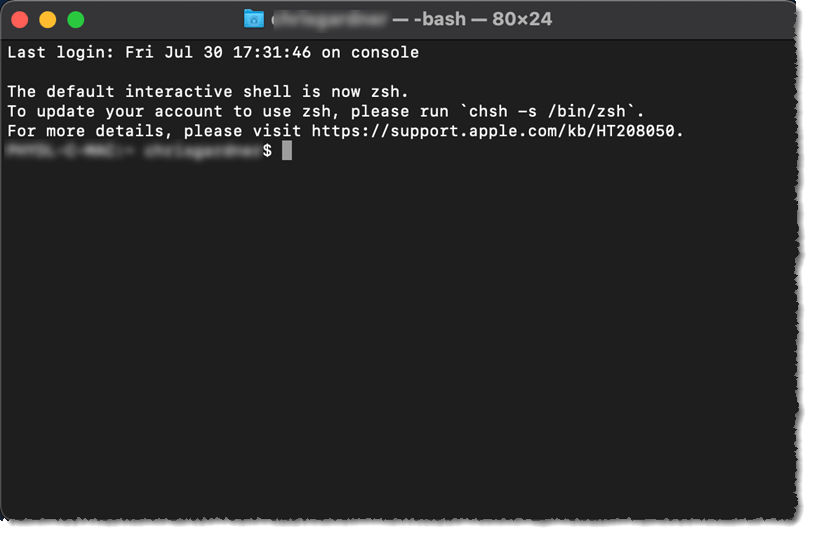
Accessing the Power: Terminal Basics and Safety
To get started, open the Terminal app. You can find it in Applications > Utilities, or just press Command + Spacebar to open Spotlight and type “Terminal.”
Admin Privileges (The Superuser Do)
Many powerful commands require administrator privileges. To run them, you prefix the command with sudo (short for “superuser do”). After you press Return, you’ll be prompted for your user password. Be careful: a sudo command executed incorrectly can damage your system. Always double-check what you’ve typed.
A Crucial Power User Tip: Drag and Drop Paths
Typing out long file paths is tedious and error-prone. Instead, type your command, and then drag any file or folder from Finder directly into the Terminal window. macOS will instantly paste its full, correct path.
10 Terminal Commands Every Mac Power User Should Know
-
Show Hidden Files and Folders
By default, macOS hides system files to prevent accidental modification. Power users often need to access these to troubleshoot issues or edit configuration files.
To show all hidden files in Finder:
defaults write com.apple.finder AppleShowAllFiles -bool TRUEFor the change to take effect, you must restart Finder:
killall FinderTo hide the files again, run the first command with
FALSEinstead ofTRUE. -
Prevent Your Mac from Sleeping (
caffeinate)Need your Mac to stay awake for a long download, backup, or process? The
caffeinatecommand tells your Mac not to sleep, without you having to change your Energy Saver settings.To keep your Mac awake indefinitely:
caffeinateTo keep it awake for a specific duration (e.g., 2 hours = 7200 seconds):
caffeinate -t 7200Simply press
Control + Cin the Terminal window to stop the command and allow your Mac to sleep normally again. -
Move and Copy Files Recursively (
mvandcp -R)While you can drag files in Finder, the Terminal is faster for complex jobs or when moving hidden files.
mvmoves a file or folder from a source to a destination. It can also be used to rename files.
Move a file:mv ~/Downloads/MyReport.pdf ~/Documents/
Rename a file:mv MyReport.pdf FinalReport.pdfcpcopies a file. To copy an entire directory and everything inside it, you must use the-R(recursive) flag.
Copy a directory:cp -R ~/Documents/ProjectA /Volumes/Backup/
-
Monitor System Performance in Real-Time (
top)Need a quick, live view of your system’s resource usage without opening Activity Monitor? The
topcommand provides a real-time list of your most demanding processes.To see all running processes, updated live:
topTo sort the list by CPU usage:
top -o cpuTo sort by memory usage:
top -o memPress
qto quit and return to the command line. -
Force Quit or Restart Processes (
killall)When an app freezes and won’t respond,
killallis the most direct way to terminate it. It’s also useful for restarting system processes that are acting up.To force quit a misbehaving application (e.g., Safari):
killall SafariTo restart a glitchy Finder:
killall Finder -
Download Files Without a Browser (
curl)The
curlcommand is a powerful tool for transferring data. You can use it to download a file directly to your current directory.First, navigate to your Downloads folder:
cd ~/Downloads/Then, download the file using its URL:
curl -O https://example.com/path/to/file.zipBonus Trick: You can even get a simple weather forecast!
curl wttr.in/yourcity -
Customize Your Login Window Message
Add a personal touch to your Mac’s login screen with a custom message. This could be a welcome greeting, contact info if the Mac is lost, or just a favorite quote.
To set the message:
sudo defaults write /Library/Preferences/com.apple.loginwindow LoginwindowText "Property of Jane Doe. If found, please call 555-1234."Log out to see your new message. To remove it, use the
defaults deletecommand. -
View Contents of Any File (
cat)If a file is corrupted or you don’t have the right app to open it,
cat(short for “concatenate”) lets you view its raw contents directly in the Terminal.To view file contents:
cat /path/to/your/file.txtWhile it might look like gibberish for complex files like videos, it can be surprisingly useful for text-based files, logs, or configuration files. Remember the drag-and-drop trick for the file path!
-
Set Your Mac to Auto-Restart After a Freeze
For users running critical servers or processes, a system freeze can be a disaster. You can configure macOS to automatically restart if the system becomes completely unresponsive.
To enable auto-restart on freeze:
sudo systemsetup -setrestartfreeze on -
Tweak Screenshot Defaults
By default, macOS screenshots of windows include a drop shadow. If you prefer clean, flat images for documentation or design work, you can disable this.
To disable screenshot shadows:
defaults write com.apple.screencapture disable-shadow -bool TRUEYou’ll need to restart the UI server for it to take effect:
killall SystemUIServerYou can use similar
defaults write com.apple.screencapturecommands to change the default file format (e.g., to JPG) or save location.
Beyond the Basics: Becoming a True Power User
Learning commands is only half the battle. To truly master the Terminal, embrace these habits:
- Recall Past Commands: Press the Up Arrow key to cycle through your previously used commands. This saves enormous amounts of re-typing.
- Read the Manual: Unsure what a command does or what options it has? Type
manfollowed by the command name (e.g.,man cp) to read its official “manual page.” This is the ultimate source of truth. - Automate with Scripts: As you become more advanced, you can chain these commands together into simple shell scripts to automate repetitive tasks, making you even more efficient.
Safety and Next Steps
The Terminal offers immense power, which demands caution. A typo in a destructive command like mv or rm (the remove command) can lead to accidental data loss. Always double-check your commands before pressing Return.
If you do accidentally lose data, don’t panic. Reputable data recovery software for Mac can often restore deleted files.
For those ready to move beyond the built-in Terminal app, alternative emulators like iTerm2 are highly recommended, offering features like split panes, searchable output, and extensive customization.
Mastering these commands is your first step toward unlocking the full potential of your Mac. Welcome to the world of the command line.