DIY
DIY
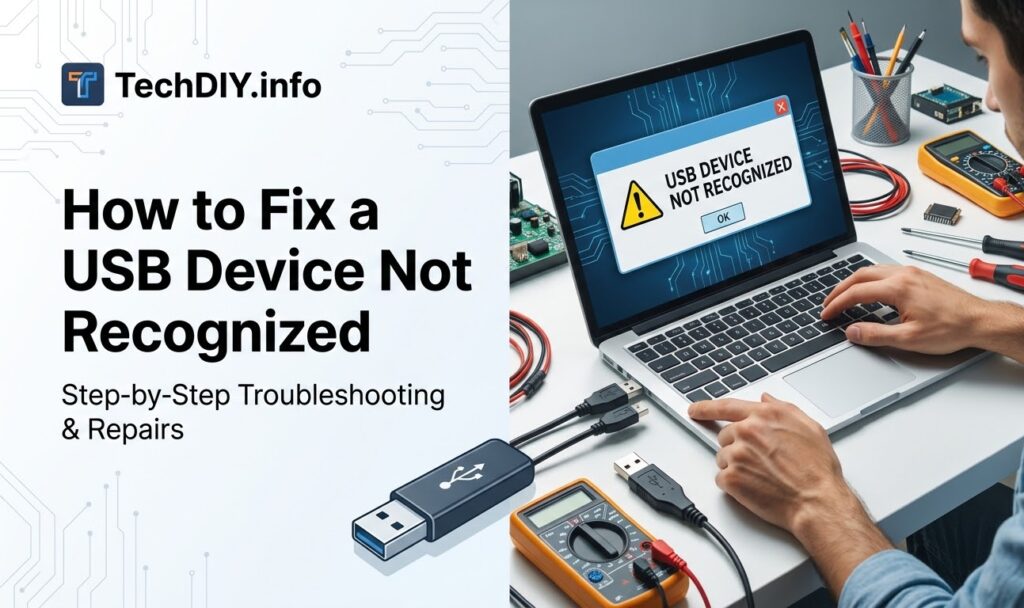
You plug in your USB drive and Windows pops up with a dreaded yellow warning: “USB Device Not Recognized.” The drive doesn’t appear in File Explorer, nothing responds, and you have no idea what went wrong. Don’t panic — this is one of the most common Windows errors, and in the vast majority of cases it’s fixable in under ten minutes without any technical background.
This guide covers every cause and every fix, step by step, for Windows 10, Windows 11, and macOS. Each fix is clearly labelled so you can skip straight to what applies to you.

⚡ Quick fixes — try these first
- Plug the USB into a different port on your computer
- Restart your computer and reconnect the device
- Update or reinstall the USB driver in Device Manager
- Assign a drive letter in Disk Management if the device isn’t visible
- Run the built-in Hardware Troubleshooter (Windows only)
Still not working after those? Keep reading — we’ll cover everything, including driver corruption, power management issues, and what to do when the device itself is faulty.
Why does “USB Device Not Recognized” happen?

When you plug in a USB device, your operating system runs through a short sequence: it detects the connection, loads the appropriate driver, and assigns the device a drive letter so it appears in File Explorer. The “not recognized” error means something broke at one of those stages. The four most common culprits are:
- Driver failure — the USB driver is corrupted, outdated, or conflicting with a recent Windows update
- Physical damage — a bent pin in the port, a damaged cable, or a failing flash chip inside the drive
- Power delivery issue — the port or USB hub isn’t supplying enough power for the device to initialise
- File system problem — the drive’s partition is unformatted, RAW, or missing a drive letter
Quick self-diagnosis: Before anything else, plug the USB into a different computer. If the same error appears on another machine, the device itself is likely faulty. If it works fine elsewhere, the problem is with your computer’s software or ports — and this guide will fix it.
On macOS: The equivalent error appears as the device not mounting in Finder. Check System Information → USB to see if the system detects the hardware at all. If it shows up there but not in Finder, jump straight to the Disk Utility section below.
Step 1 — Basic checks before anything else
These take less than two minutes and solve the problem for most people. Work through them in order.
Try a different USB port
USB 3.0 ports (usually blue) and USB 2.0 ports have separate controllers. If one controller has a glitch, the other may work fine. On a desktop, try the ports on the rear panel — they connect directly to the motherboard rather than through a front-panel cable, making them more reliable.
Try a different cable or device
Swap the USB cable if your device uses a detachable one. Try a different flash drive or external drive to confirm whether the problem follows the device or stays with your computer.
Restart your computer
A full restart clears the USB controller’s state in memory. A fast-startup shutdown on Windows 11/10 does not do the same thing — make sure you choose Restart, not Shut Down.
Check Device Manager for error codes
- Press
Win + Xand click Device Manager - Expand Universal Serial Bus controllers
- Look for any entry with a yellow exclamation mark (!)
- Right-click that entry and choose Properties to see the error code
Common error codes: Code 43 = device reported a failure (usually hardware or driver); Code 28 = no driver installed; Code 10 = device failed to start. Note your code — it helps narrow down the right fix below.
Check USB power management
Windows can cut power to USB ports to save energy, which sometimes prevents recognition:
- In Device Manager, expand Universal Serial Bus controllers
- Right-click USB Root Hub → Properties
- Go to the Power Management tab
- Uncheck “Allow the computer to turn off this device to save power”
- Click OK and repeat for all USB Root Hub entries
Fix 1 — Update or reinstall USB drivers
Driver issues are the single most common cause of this error, especially after a Windows Update. Follow these steps in order.
Update the driver automatically (Windows)
- Open Device Manager (
Win + X→ Device Manager) - Expand Universal Serial Bus controllers
- Right-click the device showing an error → Update driver
- Choose “Search automatically for drivers”
- Restart your computer when prompted
Uninstall and reinstall the driver
If updating didn’t help, a clean reinstall often does:
- In Device Manager, right-click the USB device → Uninstall device
- Check “Delete the driver software for this device” if the option appears
- Click Uninstall
- Restart your PC — Windows will automatically reinstall the correct driver on boot
Roll back the driver (if the error started after a Windows Update)
- In Device Manager, right-click the USB controller → Properties
- Click the Driver tab
- Click Roll Back Driver (greyed out if no previous driver is saved)
- Select a reason when prompted and confirm
macOS — no driver install needed
macOS manages USB drivers automatically. If your device isn’t detected, open Apple Menu → System Information → USB and check whether the hardware appears in the USB device tree. If it does not appear at all, the device or cable is the likely fault. If it does appear, proceed to the Disk Utility fix in section 6 below.
Still failing? Download the USB 3.0 driver directly from your chipset manufacturer — Intel, AMD, or ASMedia. Open Device Manager, right-click your motherboard’s USB controller, choose Properties → Details → Hardware IDs to identify your chipset, then search for that specific driver on the manufacturer’s support site.
Fix 2 — Run the Windows troubleshooter and system repair tools
Windows includes built-in diagnostics that most users never find. These can automatically detect and repair USB issues caused by corrupted system files.
Hardware and Devices troubleshooter
Windows 10: Settings → Update & Security → Troubleshoot → Additional troubleshooters → Hardware and Devices → Run the troubleshooter
Windows 11: The Hardware and Devices troubleshooter was removed from the Settings UI but still runs via Command Prompt. Paste this into the Run dialog (Win + R) and press Enter:
System File Checker (SFC)
Corrupted Windows system files can block USB drivers from loading correctly. Open Command Prompt as Administrator (search “cmd” → right-click → Run as administrator) and run:
Wait for the scan to complete (5–10 minutes). If it reports “Windows Resource Protection found corrupt files and repaired them,” restart and test your USB again.
DISM repair
If SFC couldn’t fix everything, DISM repairs the underlying Windows image:
This requires an internet connection and takes 10–20 minutes. Restart when it finishes, then run sfc /scannow one more time.
Fix 3 — Assign a drive letter (USB detected but not visible in File Explorer)
If your USB device shows up in Device Manager without errors but doesn’t appear in File Explorer, the problem is almost always a missing drive letter. This is common with drives formatted on Linux or macOS, or drives previously used on another system.
Windows — Disk Management
- Press
Win + X→ Disk Management - Look for a disk labelled Removable or showing without a drive letter
- Right-click the volume → Change Drive Letter and Paths
- Click Add, choose an unused letter (e.g. E:, F:, G:), click OK
- Open File Explorer — the drive should now appear
⚠ Drive shows as RAW? If Disk Management shows the file system as “RAW” instead of NTFS or exFAT, the partition table is corrupted. Do not format yet if you have important files — first try a free recovery tool like Recuva or TestDisk to retrieve your data. After recovery, right-click the volume → Format → choose NTFS (Windows) or exFAT (cross-platform) → Quick Format.
macOS — Disk Utility
- Open Disk Utility (Applications → Utilities → Disk Utility)
- Look for your USB drive in the left sidebar
- Select it and click First Aid → Run to check for and repair errors
- If the drive is greyed out or won’t mount, select it and click Mount
- If it still won’t mount, choose Erase and select exFAT for cross-platform compatibility
Fix 4 — USB keeps disconnecting and reconnecting
If your USB device connects briefly then drops out repeatedly, the cause is usually a power issue rather than a driver problem.
Disable USB selective suspend
- Open Control Panel → Power Options
- Click Change plan settings next to your active plan
- Click Change advanced power settings
- Expand USB settings → USB selective suspend setting
- Set both On battery and Plugged in to Disabled
- Click OK and reconnect your USB device
Use a powered USB hub
Standard (unpowered) USB hubs share the power budget from a single port. External hard drives, high-speed flash drives, and some peripherals need more power than a passive hub can deliver. Replace your hub with a powered USB hub (one with its own AC adapter) and reconnect your device.
Check BIOS/UEFI USB settings
- Restart your PC and enter BIOS/UEFI (usually Delete, F2, or F10 during boot)
- Navigate to Advanced → USB Configuration
- Enable USB Legacy Support and ensure XHCI Hand-off is enabled
- Save and exit
When the USB device itself is faulty
If you have worked through every fix above and the device still isn’t recognized on any computer, the hardware itself has likely failed.
Signs of physical failure
- The drive is not detected on any computer, including with different cables and ports
- Visible damage: bent pins, cracked casing, burn marks, or a melted smell
- The drive gets unusually hot within seconds of connection
- A faint clicking or grinding sound from a mechanical external drive
Data recovery options
If the drive contains important files that you haven’t backed up, avoid further DIY fixes — additional activity can make professional recovery harder. Data recovery services such as Ontrack and DriveSavers can recover data from physically damaged drives. For less critical cases, free tools worth trying first include Recuva (Windows) and PhotoRec (cross-platform).
Check your warranty
Most USB flash drives carry a 2–5 year manufacturer warranty. If your drive shows clear signs of hardware failure without physical damage caused by the user, check the manufacturer’s website with your drive’s model number and purchase date — you may be eligible for a free replacement.
Summary — which fix to use
| Symptom | Likely cause | Go to |
|---|---|---|
| Error on one port, not another | Faulty USB port | Step 1 — Basic checks |
| Yellow (!) in Device Manager | Driver corruption | Fix 1 — Update drivers |
| Detected in Device Manager but missing from File Explorer | No drive letter assigned | Fix 3 — Disk Management |
| Drive shows as RAW | Corrupted file system | Fix 3 — RAW note |
| Connects then immediately disconnects | Power management / hub | Fix 4 — Power issues |
| Not detected on any PC | Hardware failure | Hardware fault section |
Frequently asked questions
Why does my USB keep disconnecting and reconnecting?
This is almost always caused by Windows’ USB selective suspend feature cutting power to the port, or by an underpowered USB hub. Disable selective suspend in your Power Options advanced settings (see Fix 4), or replace your passive hub with a powered one that has its own AC adapter.
How do I reinstall USB drivers without losing data?
Uninstalling a USB driver in Device Manager does not delete any data on connected drives. The driver is just the software that lets Windows communicate with the hardware — uninstalling and reinstalling it is completely safe and often resolves Code 43 and Code 28 errors.
My USB is detected in Device Manager but files don’t show up — why?
The drive is recognised by Windows but hasn’t been assigned a drive letter, so File Explorer has nowhere to display it. Open Disk Management (Win + X → Disk Management), find the drive, right-click its volume, and choose Change Drive Letter and Paths → Add.
Will these fixes work on macOS?
Yes — sections covering macOS are labelled throughout the guide. The key tools on Mac are System Information (to confirm hardware detection), Disk Utility First Aid (to repair file system errors), and SMC reset (for persistent power-related issues). macOS does not require manual driver installation for standard USB devices.
Will fixing the USB error delete my data?
No — driver updates, reinstalls, and troubleshooter scans do not touch any data on the drive. The only step that risks data loss is formatting a RAW partition. If your drive shows as RAW, attempt data recovery with a tool like Recuva before reformatting.
Still stuck? Drop your Windows error code (e.g. Code 43, Code 28) in the comments below and we’ll help you diagnose the specific issue. Include your Windows version and whether the drive is detected in Device Manager.