DIY
DIY
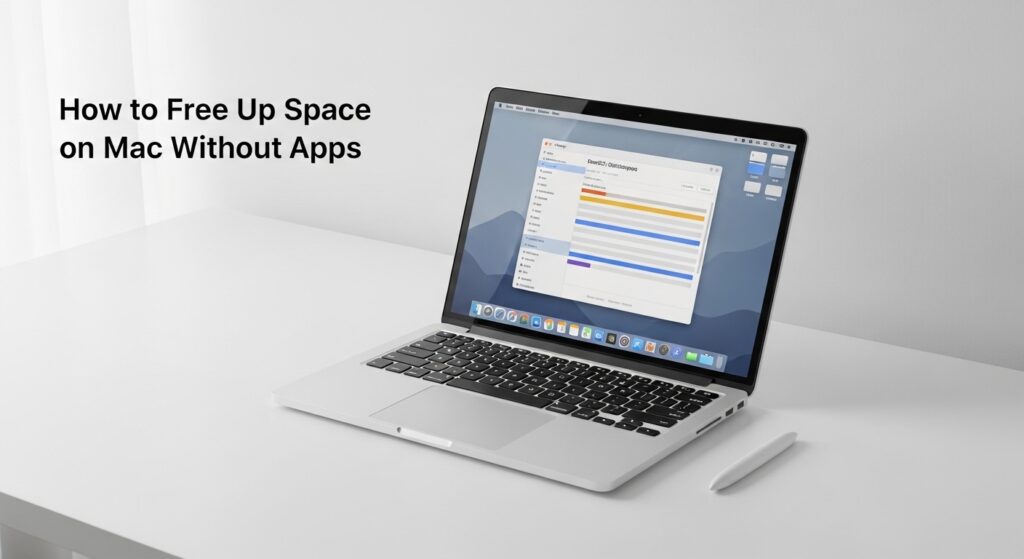
You just got the dreaded alert: “Your startup disk is almost full.” Your first instinct might be to download a cleanup app — but here’s the truth: you don’t need one. macOS comes packed with powerful built-in tools that let you free up space on your Mac without apps, subscriptions, or any third-party software whatsoever.
In this guide, we’ll walk through 10 proven manual methods to reclaim gigabytes of storage on your Mac — step by step, no technical experience required.

1. Check What’s Actually Using Your Storage
Before deleting anything, get a clear picture of where your storage is going. macOS gives you a built-in breakdown that most users never look at.
How to do it:
- Click the Apple menu (top-left corner) and select About This Mac.
- Click the Storage tab (on macOS Ventura and later: go to System Settings → General → Storage).
- Hover over each colour segment to see what category is eating your disk space.
You’ll see categories like Apps, Documents, Photos, System Data, and Other. The “Other” category is often the biggest surprise — it holds caches, logs, temporary files, and app leftovers. That’s exactly what we’ll be tackling below.
On a typical Mac, “Other” storage can balloon to 20–40 GB — most of it is safe to clear manually.
2. Empty the Trash (All of It)
It sounds obvious, but a surprisingly large amount of storage is locked in the Trash waiting to be permanently deleted. Many users move files to the Trash and forget they’re still taking up space until they empty it.
Steps:
- Right-click the Trash icon in your Dock.
- Select Empty Trash and confirm.
Don’t forget app-specific Trash folders:
- Photos app: Open Photos → Albums → Recently Deleted → Delete All.
- Mail app: Open Mail → Mailbox → Erase Deleted Items.
These are completely separate from your main Trash bin and are easy to overlook.
3. Find and Delete Large Files with Finder
One of the most effective ways to free up space on your Mac without any apps is to hunt down the biggest files taking up room — using Finder’s built-in search.
Method 1 — Find large files by size:
- Open Finder and press ⌘ + F to open a search.
- Click the Kind dropdown and change it to File Size.
- Set the condition to “is greater than” and type 500 MB.
- Finder will list all files over 500 MB anywhere on your Mac.
- Review the results — old disk images (.dmg), videos, and archived backups are common culprits.
Method 2 — Sort your Downloads folder:
- Open Finder → Downloads.
- Switch to List view (⌘ + 2).
- Click Size in the column header to sort by largest first.
- Delete anything you no longer need — installers, old ZIP files, and downloaded videos add up quickly.
Tip: Old .dmg disk image files left in Downloads are notorious space wasters. Once an app is installed, the original installer is useless — delete it.
4. Clear System and App Caches
Your Mac stores temporary cache files to speed things up — but over time these caches can swell to several gigabytes and become more of a burden than a benefit.
How to access and clear your cache manually:
- In Finder, click Go → Go to Folder (or press ⇧ + ⌘ + G).
- Type
~/Library/Cachesand press Enter. - You’ll see a list of folders — one for each app that stores cache data.
- Open each folder and delete the contents inside the folder — not the folder itself.
What’s safe to delete? The contents of most app cache folders are safe to remove. The worst that happens is an app rebuilds its cache and loads a little slower the next time it opens. However, avoid deleting anything inside com.apple.Safari if you use Safari with saved passwords — clear those through Safari’s own preferences instead.
Clear browser caches without any extra tools:
- Safari: Safari menu → Settings → Privacy → Manage Website Data → Remove All.
- Chrome: Settings → Privacy and Security → Clear Browsing Data → Cached images and files.
- Firefox: Settings → Privacy & Security → Cookies and Site Data → Clear Data.
5. Delete Old iPhone and iPad Backups
Every time you back up your iPhone or iPad to your Mac, macOS saves a full snapshot of your device. These backups can easily be 5 to 20 GB each, and old ones from previous devices or earlier iOS versions pile up silently.
How to delete old device backups:
- Open Finder and connect your device, or look in the sidebar under Locations.
- If no device is connected, open Finder → Preferences — on macOS Monterey and earlier use iTunes.
- On macOS Ventura+: Go to System Settings → General → Storage → iOS Files.
- You’ll see a list of all device backups with their sizes.
- Click a backup and choose Delete to remove ones you no longer need.
When is it safe? It’s safe to delete a backup if you have a more recent one for the same device, or if the device is no longer yours. Always make sure you have at least one current backup (preferably iCloud Backup as well) before deleting anything.
6. Remove Unused Apps and Their Leftover Files
Dragging an app to the Trash removes the application itself, but it almost always leaves behind a trail of support files, preferences, and logs stored in your Library folder. These can add up to hundreds of megabytes per app.
Step 1 — Remove the app:
- Open Finder → Applications folder.
- Identify apps you never use. Sort by “Date Last Opened” to find the dustiest ones.
- Drag unwanted apps to the Trash (or right-click → Move to Trash).
Step 2 — Remove leftover files manually:
- Press ⇧ + ⌘ + G and go to
~/Library/Application Support. - Look for folders matching the app’s name or developer. Delete them.
- Repeat for
~/Library/Preferencesand~/Library/Caches.
Biggest space savers to consider removing:
- Xcode — the app alone is ~7 GB, plus simulators can add 10–15 GB more.
- GarageBand — factory sound library is ~1.5 GB and often unused.
- iMovie — project render files and libraries can balloon to many gigabytes.
- Steam games — installed games that you’ve finished playing.
7. Delete Time Machine Local Snapshots
If you use Time Machine, macOS stores local snapshots of your drive — essentially mini-backups kept directly on your Mac for times when your external drive isn’t connected. These are incredibly useful, but they can silently consume several gigabytes of storage.
macOS will automatically delete local snapshots when your disk gets critically full, but you can speed up the process manually.
How to delete Time Machine local snapshots via Terminal:
- Open Terminal (Applications → Utilities → Terminal).
- Type the following command and press Enter to list all snapshots:
tmutil listlocalsnapshots / - To delete all local snapshots at once, run:
sudo tmutil deletelocalsnapshots / - Enter your Mac password when prompted.
Is it safe? Yes. Local snapshots are separate from your full Time Machine backup on your external drive. Deleting them doesn’t affect your main backup — it only removes the temporary local copies stored on your internal drive.
8. Use macOS Built-in Optimise Storage Tools
Apple quietly built a suite of storage management tools directly into macOS. Most people have never opened them. Here’s where to find them and what each option does.
To access them:
- Go to Apple menu → About This Mac → Storage → Manage (or on Ventura+: System Settings → General → Storage).
You’ll see four main tools:
- Store in iCloud: Moves your Desktop, Documents, and Photos to iCloud, keeping only recently accessed files on your Mac. Files download on demand when you open them.
- Optimise Storage: Automatically removes iTunes and Apple TV movies and shows you’ve already watched, replacing them with lightweight placeholders.
- Empty Trash Automatically: Permanently deletes files that have been in the Trash for more than 30 days.
- Reduce Clutter: Opens a file browser sorted by size and category — ideal for a quick manual review of what to delete.
Recommendation: Enable Empty Trash Automatically and Optimise Storage as a minimum. These two settings alone can prevent storage from filling up again in the future.
9. Find and Remove Duplicate Files
Duplicate files — multiple copies of the same photo, document, or downloaded file — are one of the sneakiest storage drains on any Mac. The good news is macOS has a few native tricks to surface them.
Duplicates in Photos:
- Open the Photos app.
- In the left sidebar, scroll down to find Duplicates (available on macOS Ventura and later).
- Click Merge next to each duplicate group. Photos intelligently keeps the highest-quality version and removes the rest.
Duplicate downloads and documents:
- Open Finder and press ⌘ + F.
- Search for
(2)orcopy— macOS often appends these to duplicated filenames automatically. - Review results and delete the copies you don’t need.
Screenshots folder: Check your Desktop and ~/Pictures/Screenshots — these accumulate rapidly and are rarely reviewed. A few minutes sorting through them can free hundreds of megabytes.
10. Move Files to External Storage or Cloud
Sometimes freeing up Mac storage isn’t about deleting — it’s about moving files somewhere else so your internal drive has more breathing room.
Option A — iCloud Drive: If you’re already paying for iCloud storage, this is the simplest route. Enable Store in iCloud (see Section 8) and your files stay accessible while taking up almost no local space.
Option B — Google Drive or Dropbox: Both offer a desktop app that syncs files to the cloud and can be set to “cloud-only” mode, keeping your local drive clear. Free tiers offer 15 GB (Google) and 2 GB (Dropbox).
Option C — External SSD or USB drive: For large media libraries — photos, video projects, music — an external SSD is often the most cost-effective long-term solution. Move your entire Photos or iMovie library to the external drive by holding ⌘ while dragging it in Finder to move rather than copy.
| Option | Best for | Cost | Accessibility |
|---|---|---|---|
| iCloud Drive | Documents, Desktop files | From free (5 GB) | Any Apple device |
| Google Drive | Cross-platform files | Free up to 15 GB | Any device/browser |
| External SSD | Large media libraries | One-time purchase | Physical drive needed |
| Dropbox | Shared team files | Free up to 2 GB | Any device/browser |
Quick Summary: How Much Space Can You Reclaim?
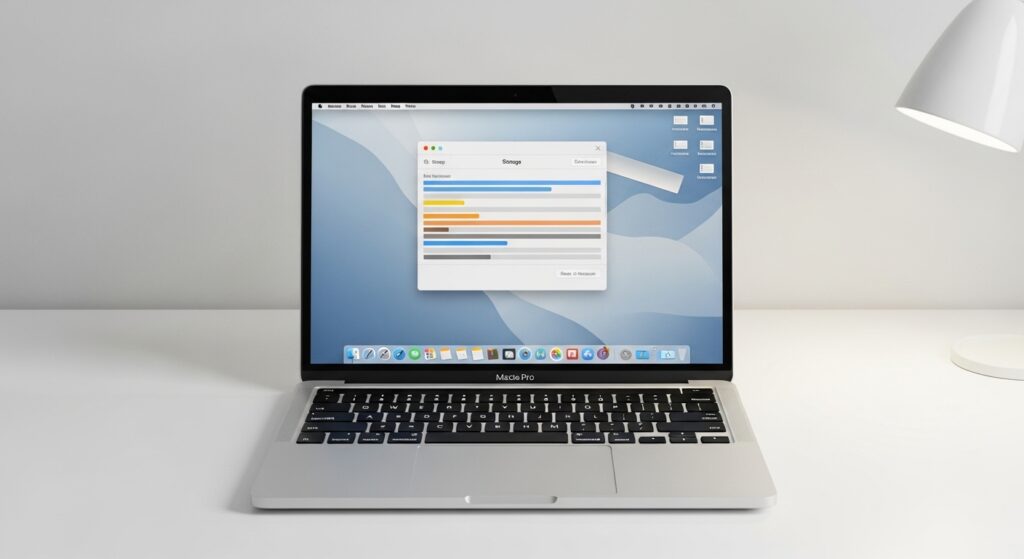
Here’s a realistic overview of what each method typically frees up on an average Mac:
| Method | Typical Space Saved | Difficulty |
|---|---|---|
| Empty Trash + app Trash | 0.5 – 5 GB | Easy |
| Large file cleanup | 1 – 20+ GB | Easy |
| Clear caches | 1 – 8 GB | Easy |
| Delete iOS backups | 5 – 20 GB | Easy |
| Remove unused apps + leftovers | 2 – 15 GB | Medium |
| Delete Time Machine snapshots | 2 – 10 GB | Medium |
| Built-in Optimise Storage | Ongoing | Easy (automated) |
| Duplicate photo cleanup | 0.5 – 5 GB | Easy |
| Move files to cloud/external | 10 – 100+ GB | Easy |
Frequently Asked Questions
How do I free up space on my Mac quickly?
The fastest wins are: empty your Trash (including Photos and Mail trash), delete old iPhone/iPad backups via Finder, and clear app caches in ~/Library/Caches. These three steps alone can recover 10–30 GB on a typical Mac in under 15 minutes.
What is “Other” storage on Mac and can I delete it?
“Other” storage on Mac is a catch-all category that includes caches, logs, system files, browser data, app support files, and temporary files that don’t fit neatly into the other categories. Most of it is safe to clear manually using the cache-clearing and app leftover removal steps in this guide.
Does clearing cache speed up my Mac?
Clearing cache can free up storage, which in turn can improve performance — especially on Macs with less than 10% free disk space. However, clearing cache doesn’t directly speed up your Mac the way more RAM or a faster processor would. The primary benefit is reclaimed storage space.
Is it safe to delete files from ~/Library/Caches?
Yes, it is generally safe to delete the contents inside cache folders (not the folders themselves). Apps will rebuild their caches on next launch. The only exception is avoiding manual deletion of Safari’s WebKit cache — use Safari’s built-in privacy settings to clear that instead.
Do I really need a Mac cleanup app?
No. Every cleanup task performed by apps like CleanMyMac or CCleaner can be done manually using the built-in macOS tools covered in this guide. Paid cleanup apps can be convenient, but they aren’t necessary — and some of them are overly aggressive in what they mark for deletion. Doing it manually gives you full control.
Final Thoughts
Freeing up space on your Mac without apps is completely achievable using macOS’s own built-in tools. By working through this checklist — clearing caches, deleting old backups, removing unused apps and their leftovers, and enabling Optimise Storage — most users can reclaim 20 to 50 GB or more in a single session.
Make it a habit: run through these steps every one to two months and you’ll rarely see that “startup disk is full” warning again.