DIY
DIY
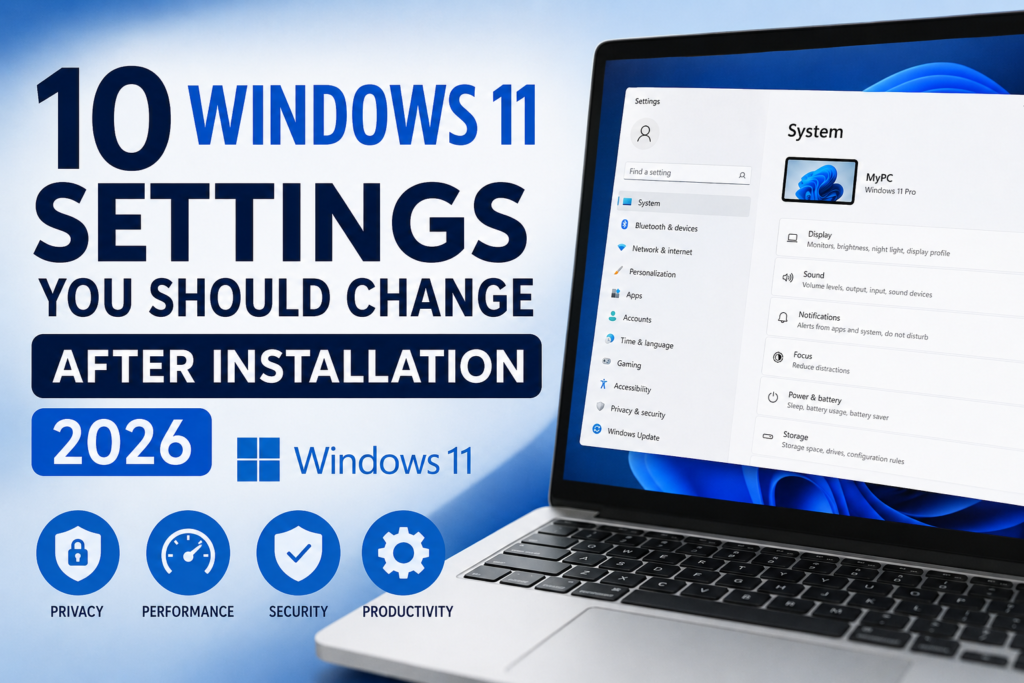
Getting a new computer or installing Windows 11 is exciting, but the default settings aren’t always the best choice. Several features prioritize convenience over privacy, performance, or battery life. By adjusting a few important Windows 11 settings after installation, you can make your PC faster, more secure, and easier to use. In this guide, you’ll discover the first 10 settings worth changing in 2026, along with simple explanations of why each one matters.
10 Windows 11 Settings You Should Change
1. Install the Latest Windows Updates
The first thing you should do is check for Windows updates. Even if your installation is new, Microsoft may have released security patches, driver updates, or performance improvements since the installation media was created.

Open Settings > Windows Update and click Check for updates. Install everything available and restart your PC if required.
Keeping Windows updated helps protect your system against newly discovered security issues while improving stability and compatibility with modern hardware and software.
2. Turn On Storage Sense
Over time, Windows collects temporary files, update leftovers, and items stored in the Recycle Bin. These files can slowly consume valuable storage space.
Go to Settings > System > Storage and enable Storage Sense. You can choose how often Windows automatically removes temporary files and empties the Recycle Bin.
This simple feature keeps your storage organized without requiring manual cleanup, especially if you’re using a laptop with limited SSD space.
3. Review Privacy Settings
Windows 11 gives you control over what information apps can access. After installation, it’s worth reviewing these permissions to make sure they match your preferences.
Navigate to Settings > Privacy & security and review permissions such as:
- Location
- Camera
- Microphone
- Contacts
- Calendar
- Diagnostic data
If you don’t use certain features, consider disabling their permissions.
Taking a few minutes to review these settings can reduce unnecessary data sharing and improve your overall privacy.
4. Enable Device Encryption
If your PC supports Device Encryption, turning it on is highly recommended.
Open Settings > Privacy & security > Device encryption.
Encryption protects your files if your computer is ever lost or stolen. Without your login credentials, it becomes much harder for someone else to access your personal data.
Many newer laptops support this feature automatically, making it an easy way to improve security.
5. Manage Startup Apps
Many applications automatically launch whenever Windows starts. While convenient for some programs, too many startup apps can noticeably slow boot times.
Go to Settings > Apps > Startup.
Review the list and disable applications you don’t need immediately after signing in. Examples may include music players, gaming launchers, messaging apps, or software you rarely use.
Reducing startup programs often results in a faster and smoother Windows experience.
6. Adjust Power Mode
Windows 11 lets you choose between performance and battery efficiency depending on your needs.
Visit Settings > System > Power & battery.
Choose from options such as:
- Best Performance
- Balanced
- Best Power Efficiency
Desktop users usually benefit from higher performance settings, while laptop users may prefer balanced mode to extend battery life.
Selecting the right power mode helps your computer perform the way you expect.
7. Enable Clipboard History
Clipboard History is one of Windows 11’s most useful productivity features, yet many people never turn it on.
Open Settings > System > Clipboard and enable Clipboard History.
Once enabled, press Windows + V to see previously copied text, links, and supported images.
Instead of copying the same information repeatedly, you can quickly access your clipboard history whenever you need it.
8. Reduce Notification Distractions
Notifications are useful, but too many can interrupt your work or become distracting.
Navigate to Settings > System > Notifications.
Disable notifications from apps that aren’t important while keeping alerts from email, security software, or other essential applications.
A cleaner notification experience helps you stay focused throughout the day.
9. Check Windows Security
Windows Security has become one of the strongest built-in security tools available for everyday users.
Open Windows Security and confirm that:
- Real-time protection is enabled
- Firewall protection is active
- Virus definitions are up to date
Run a Quick Scan after installation to ensure your computer starts with a clean system.
For most home users, Windows Security provides excellent protection without requiring additional antivirus software.
10. Create a System Restore Point
Once you’ve finished configuring Windows and installing important drivers, create a restore point.
Search for Create a Restore Point using the Start menu.
Enable System Protection if necessary, then create a restore point before installing additional software or making major changes.
If something later causes instability, you can restore Windows to a previous working state without affecting your personal files.
Bonus Tips
After completing these settings, consider making a few additional improvements:
- Install the latest graphics drivers from your hardware manufacturer.
- Remove applications you don’t plan to use.
- Choose your preferred default browser.
- Enable Night Light to reduce eye strain during evening use.
- Personalize your desktop with your favorite wallpaper and theme.
- Pin your most-used apps to the taskbar for quicker access.
- Configure OneDrive if you want automatic cloud backups for important files.
These small adjustments make Windows feel more personalized while improving your overall experience.
Final Thoughts
Windows 11 works well immediately after installation, but a few simple changes can significantly improve your experience. Updating Windows, reviewing privacy settings, enabling security features, managing startup programs, and configuring storage are all quick tasks that provide long-term benefits.
Whether you’re setting up a brand-new PC or reinstalling Windows on an older machine, taking the time to review these settings can help improve performance, strengthen security, reduce distractions, and make everyday computing more enjoyable.
By following these ten recommendations, you’ll have a Windows 11 installation that’s optimized for speed, privacy, and productivity throughout 2026.