DIY
DIY
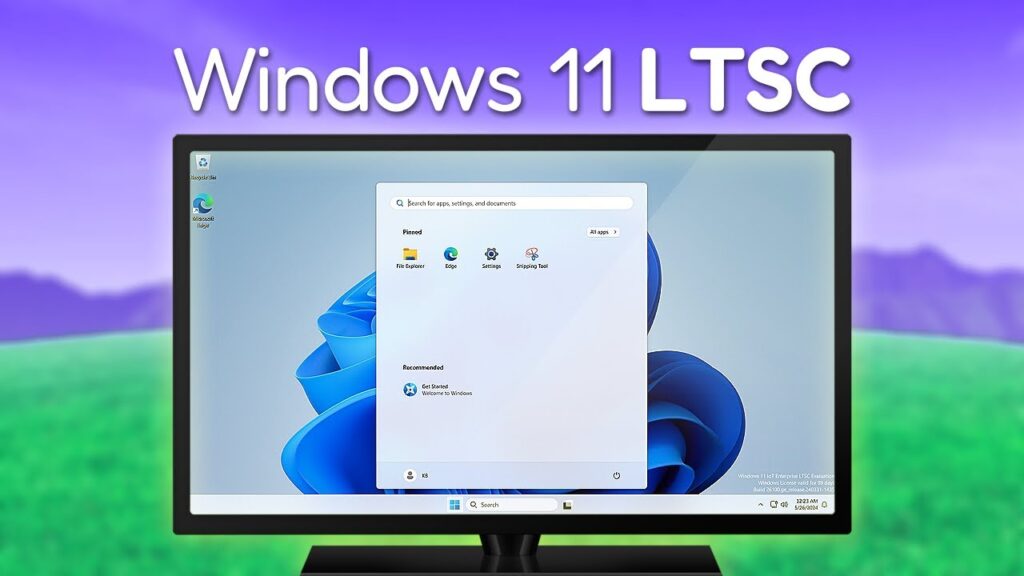
Windows 11 LTSC (Long-Term Servicing Channel) is the cleanest, most bloat-free version of Windows 11 you can run. No Cortana, no forced Microsoft Account, no constant feature-update disruptions — just a lean, stable OS built for long-term use. This guide walks you through everything: what LTSC is, how to install it, and exactly what to do after setup.
What Is Windows 11 LTSC?
Windows 11 LTSC (Long-Term Servicing Channel) is a special edition of Windows 11 designed for stability over features. Instead of receiving annual feature updates like Windows 11 Home or Pro, LTSC only gets major feature updates every 2–3 years, while still receiving monthly security patches throughout its full support lifecycle.

Microsoft offers two LTSC editions:
- Windows 11 Enterprise LTSC — 5-year support lifecycle, requires volume licensing
- Windows 11 IoT Enterprise LTSC — 10-year support lifecycle, can be downloaded as a free evaluation ISO directly from Microsoft
Who Should Use LTSC?
- Power users who want a clean, bloat-free desktop
- Older PCs that need a lightweight OS (IoT edition has relaxed TPM/Secure Boot requirements)
- Businesses and developers needing a stable, predictable environment
- Gamers and productivity users who hate the constant Windows 11 Home/Pro feature churn
Windows 11 LTSC System Requirements
Before you begin, check that your PC meets the minimum requirements. Note that Windows 11 IoT Enterprise LTSC has more relaxed requirements — no mandatory TPM 2.0 or Secure Boot.
| Requirement | Enterprise LTSC | IoT Enterprise LTSC |
|---|---|---|
| Processor | 1 GHz, 2 Cores | 1 GHz, 2 Cores |
| RAM | 4 GB | 4 GB |
| Storage | 64 GB | 64 GB |
| Firmware | UEFI only | UEFI or Legacy BIOS |
| TPM | TPM 2.0 required | Optional |
| Secure Boot | Required | Optional |
| DirectX | DirectX 12 | DirectX 10+ (Optional) |
| Support Lifecycle | 5 years | 10 years |
Step 1: Download the Windows 11 LTSC ISO
Microsoft offers a free 90-day evaluation ISO of Windows 11 IoT Enterprise LTSC directly from their official Evaluation Center — no purchase required.
- Go to Microsoft Evaluation Center — Windows 11 IoT Enterprise LTSC
- Click “Download the ISO” and fill in the short registration form
- Select your language and click Download Now
- Save the
.isofile to your PC (it’s roughly 5–6 GB)
💡 Tip: If you prefer not to use the evaluation copy, Windows 11 LTSC is available through Microsoft’s volume licensing program for businesses. You can also find legitimate product keys from authorized resellers.
Step 2: Create a Bootable USB Drive
You’ll need a USB flash drive (8 GB or larger). The easiest free tool for this is Rufus.
- Download Rufus (free, no install needed)
- Insert your USB drive and open Rufus
- Under Device, select your USB drive
- Under Boot selection, click SELECT and choose your downloaded LTSC
.isofile - Leave Partition scheme as GPT and Target system as UEFI (non CSM) — or choose MBR if your PC uses Legacy BIOS
- Click START — all data on the USB will be erased
- Wait for Rufus to finish — usually 5–10 minutes
⚠️ Warning: Creating the bootable USB will wipe all data on that drive. Back up anything important first.
Step 3: Boot From the USB & Install Windows 11 LTSC
Now it’s time to boot your PC from the USB and walk through the installer. Make sure you’ve backed up all important files — this is a clean install that will wipe your current drive.
Accessing the Boot Menu
Restart your PC and press the boot key repeatedly as it powers on. Common keys by brand:
- Dell: F12
- HP: F9 or Esc
- Lenovo: F12 or F1
- ASUS / MSI: F8 or Del
- Generic BIOS/UEFI: Del, F2, or F10
Installation Steps
- Select your USB drive from the boot menu and press Enter
- Press any key when prompted to boot from USB
- Choose your language, time format, and keyboard — click Next
- Select “Install Windows 11” and check “I agree everything will be deleted”

- Click “I don’t have a product key” to continue

- Select “Windows 11 Enterprise LTSC” (or IoT Enterprise LTSC) from the list
- Click Next, then Accept the license agreement
- Choose “Custom: Install Windows only (advanced)”
- Select each partition on your target drive and click Delete (usually Drive 0)
- Select Drive 0 Unallocated Space and click Next
- Click Install — your PC will restart several times during the process
Step 4: Initial Setup (OOBE) — Skip the Microsoft Account
After installation, Windows will launch the Out-of-Box Experience (OOBE). Here’s how to set up a local account instead of logging in with a Microsoft account:
- Select your country/region and click Yes
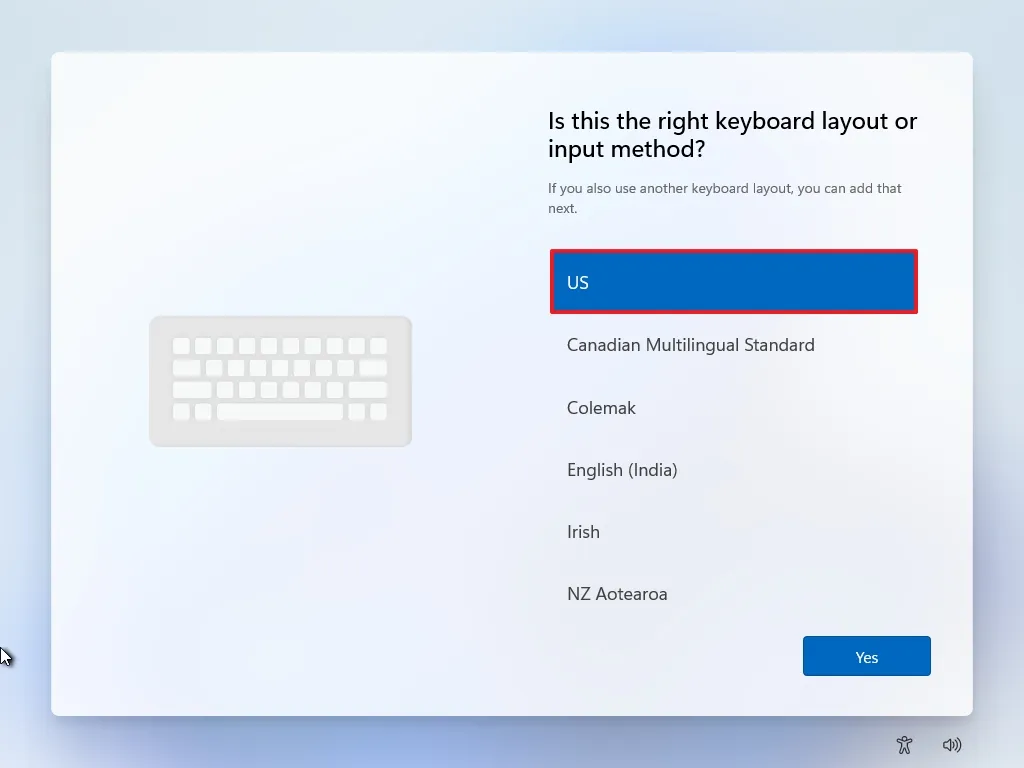
- Choose your keyboard layout and click Yes, then Skip for second layout
- On the sign-in screen, click “Sign-in options”
- Click “Domain join instead” — this bypasses the Microsoft Account requirement
- Enter your desired local account username and click Next
- Set a password and click Next (confirm it on the next screen)
- Complete the three security questions for account recovery
- Choose your privacy settings — it’s recommended to turn off most toggles — and click Accept
Your Windows 11 LTSC desktop will now load. Welcome to a clean, bloat-free Windows experience.
Step 5: First Things to Do After Installing Windows 11 LTSC
Out of the box, Windows 11 LTSC is missing some apps that are standard in other Windows editions. Here’s your essential post-install checklist.
✅ 1. Check for Windows Updates
Go to Settings → Windows Update and click Check for updates. Install all available security and driver updates before doing anything else.
✅ 2. Update Device Drivers
Open Device Manager (right-click Start → Device Manager). Look for any devices with a yellow warning icon and update their drivers. Alternatively, visit your motherboard or laptop manufacturer’s website to download the latest chipset, audio, and GPU drivers.
✅ 3. Install Essential Missing Apps
LTSC ships without the Microsoft Store and many common apps. You can install them manually from the Microsoft Store website or via direct download. Here are the most important ones:
| App | Why You Need It | Download Link |
|---|---|---|
| Windows Media Player | Play local audio & video files | Get it |
| Snipping Tool | Screenshots & screen recording | Get it |
| Paint | Quick image editing | Get it |
| Windows Calculator | Standard calculator | Get it |
| Notepad | Quick text editing | Get it |
| Microsoft Photos | Modern photo viewer | Get it |
| Sticky Notes | Quick desktop notes | Get it |
✅ 4. Install Core Visual C++ & .NET Runtimes
Many applications require these runtimes to function. Without them, you’ll see errors when running software. Download and install both:
- Visual C++ Redistributable — Install both x64 and x86 versions
- .NET Framework — Download the latest version for legacy app compatibility
- .NET 8/9 — For modern .NET apps
- DirectX — Required for games and multimedia apps
✅ 5. Install the Media Feature Pack
LTSC lacks media playback codecs by default. Install the Media Feature Pack for Windows 10/11 to enable codec support for MP3, MP4, WMV, and more.
✅ 6. Optionally Restore the Microsoft Store
If you want access to the Microsoft Store, you can restore it via a single command. Open PowerShell as Administrator and run:
wsreset.exe -iWait a few minutes and then restart your computer. The Microsoft Store will appear in your Start menu.
✅ 7. Activate Windows 11 LTSC
If you’re using the evaluation ISO, Windows will run for 90 days without activation. To activate permanently, you’ll need a valid product key. Go to Settings → System → Activation and enter your key. If you’re using a volume license key through your organization, contact your IT admin.
✅ 8. Privacy Tweaks — Recommended Settings to Change
LTSC is already more privacy-respecting than other editions, but these additional settings are worth checking:
- Settings → Privacy & security → Diagnostics & feedback — Set to Required diagnostic data only
- Settings → Privacy & security → Activity history — Turn off activity history storage
- Settings → Privacy & security → Search permissions — Disable SafeSearch cloud results if not needed
- Settings → Personalization → Start — Turn off “Show recently added apps” and “Show recommendations”
✅ 9. Install Your Productivity & Browser Apps
LTSC comes with Microsoft Edge pre-installed. If you prefer another browser, now is the time to install it. Also consider these essential tools that most users need:
- Google Chrome or Firefox — Alternative browsers
- 7-Zip — Free archive tool (zip, rar, 7z)
- VLC Media Player — Plays virtually any video format
- Microsoft PowerToys — Power user utilities (FancyZones, PowerRename, etc.)
- WinRAR or NanaZip — Archive management
- O&O ShutUp10++ — Advanced privacy settings GUI
Frequently Asked Questions
Can I use Windows 11 LTSC for gaming?
Yes — many users report excellent gaming performance on LTSC due to its lightweight nature and lack of background telemetry services. However, some games using Xbox Game Bar or GamePass features may require additional setup, as those aren’t pre-installed. The Xbox PC App can be added separately from the Microsoft Store.
Is Windows 11 LTSC free?
A free 90-day evaluation ISO is available directly from Microsoft’s Evaluation Center. Beyond the trial, a paid license is required — either through Microsoft’s volume licensing program or an authorized third-party reseller.
Can I install Windows 11 LTSC on an older PC without TPM 2.0?
Yes — specifically with the IoT Enterprise LTSC edition. Unlike standard Windows 11 and the Enterprise LTSC edition, IoT Enterprise LTSC does not require TPM 2.0 or Secure Boot, making it an excellent choice for older hardware that can’t run standard Windows 11.
Will Windows 11 LTSC receive feature updates?
No — and that’s the point. LTSC only receives security and critical updates. Major feature updates arrive only every 2–3 years, keeping your system stable and predictable. This is ideal for workstations, kiosks, and environments where stability is critical.
Final Thoughts
Windows 11 LTSC is one of the best Windows experiences available in 2026 — especially if you’re tired of Microsoft pushing AI features, ads in the Start menu, and bloatware onto your machine. With a clean install and the post-setup steps above, you’ll have a fast, stable, privacy-respecting desktop that will stay consistent for years. Whether you’re setting it up on a productivity workstation, an older laptop, or a gaming rig, LTSC delivers where the consumer editions fall short.