DIY
DIY

First: Understand Which Type of Slow Startup You Have
Not all slow startups are the same problem. Before you change anything, it helps to know exactly what type of delay you are dealing with, because each one has a different root cause.
- Slow cold boot: Your PC was fully powered off and you pressed the power button. This is the longest and most revealing startup path. If this is slow, it is usually startup apps, services, or storage.
- Slow restart: You chose Restart from the Start menu. A restart fully reloads Windows without cutting full power. If your restart is slow but cold boot feels similar, the issue is usually a software or driver problem.
- Slow resume from sleep or hibernation: This is not a true boot. If sleep resume is slow but cold boot feels normal, your issue is with hibernate file size or memory management, not startup at all.
- Desktop appears but system feels frozen or sluggish: This is a different problem from a slow boot screen. The boot itself may be fine, but background processes are competing for resources after the desktop loads. This is called high BootPostBootTime and has its own set of causes.
Quick diagnostic: If your PC is slow after shutdown and power on, but noticeably faster after choosing Restart, Fast Startup is likely masking the real problem. Keep reading — Fix 3 addresses this directly.
How to Measure Your Boot Time Before Making Changes
Most guides tell you to make changes and hope for the best. A smarter approach is to measure your current boot time first, so you can confirm which fixes actually helped. Here are three ways to do that.

Method 1 — Event Viewer (most accurate)
Open the Start menu and search for Event Viewer. In the left panel, navigate to: Applications and Services Logs → Microsoft → Windows → Diagnostics-Performance → Operational. Look for Event ID 100. This entry shows your total Boot Duration in milliseconds. The value labelled MainPathBootTime is the time from power-on to the desktop appearing. The value labelled BootPostBootTime is the time until the system is actually usable. Note both numbers before making any changes.
Method 2 — Task Manager Startup tab (quick visual check)
Open Task Manager with Ctrl + Shift + Esc, click the Startup apps tab, and look at the Startup impact column. Any app listed as High impact is worth investigating immediately.
Method 3 — Reliability Monitor (shows when the problem started)
Search for Reliability Monitor in the Start menu. This tool shows a timeline of system events including updates, installs, and errors. If your slow boot started on a specific date, the Reliability Monitor will often show you exactly what changed that day.
Fix 1: Disable Startup Apps
This is the most common cause of slow Windows 11 boot times and the easiest fix. Many applications configure themselves to launch automatically when Windows starts, and their combined load time adds up quickly.
Open Task Manager with Ctrl + Shift + Esc and click the Startup apps tab. Sort the list by the Startup impact column. Right-click any app listed as High impact and choose Disable.
Apps that are generally safe to disable at startup:
- Game launchers such as Steam, Epic Games Launcher, and EA App
- OEM update utilities from laptop or PC manufacturers
- RGB lighting control software
- Media players and streaming apps
- Cloud storage sync tools (unless you need real-time sync from the moment you log in)
- Communication apps such as Slack, Teams, or Discord (launch them when you actually need them)
Apps you should leave enabled:
- Your antivirus or security software
- Hardware drivers including touchpad, keyboard, and audio software
- OneDrive or cloud backup if your workflow depends on immediate sync
Important: Disabling a startup app does not uninstall it. It simply means the app will not launch automatically — you can still open it manually whenever you need it. This is one of the most common fears that stops people making this change, and it is completely unfounded.
Fix 2: Check for Scheduled Tasks Running at Login
This is one of the most overlooked causes of slow Windows 11 startup and is missing from most popular guides on this topic. While Task Manager shows startup apps, it does not show Scheduled Tasks that are configured to run at logon — and these are often more damaging than standard startup apps.
Press Win + S and search for Task Scheduler. In the left panel, click Task Scheduler Library. Look through the list for tasks with a Trigger set to At log on or At startup. Common offenders include OEM diagnostic tools, manufacturer telemetry collectors, and update checkers that run PowerShell or command-line scripts in the background.
To test whether a task is causing delays, right-click it and choose Disable rather than Delete. Reboot and measure your boot time again. If the time improves, you have found one of your culprits. If it makes no difference, re-enable the task and move on.
Fix 3: Decide Whether Fast Startup Should Be On or Off
Almost every guide on this topic says “enable Fast Startup.” That advice is only half correct. Fast Startup is useful in most situations, but it can also cause problems — and understanding the difference matters.
Fast Startup works by saving a snapshot of the Windows kernel to your drive when you shut down, then loading that snapshot the next time you power on. This makes shutdown-and-power-on faster than a full cold boot. However, this also means your PC is never doing a true cold boot when Fast Startup is enabled, which can mask driver issues and cause inconsistent boot behaviour over time.
To toggle Fast Startup, go to Control Panel → Power Options → Choose what the power buttons do. Under Shutdown settings, check or uncheck Turn on fast startup.
Enable Fast Startup if:
- Your boot times are consistently slow and you want a quick improvement
- You are on a laptop where startup speed matters in daily use
Disable Fast Startup if:
- Your boot times are unpredictable — sometimes fast, sometimes very slow
- You are running a dual-boot setup with Linux or another Windows installation
- You are actively troubleshooting a driver or hardware issue
- Your desktop appears but the system remains unresponsive for a long time after login
Tip: When troubleshooting, always disable Fast Startup temporarily and perform two or three full cold boots before drawing conclusions. This ensures you are measuring real cold boot performance rather than a hibernation resume.
Fix 4: Update or Roll Back Drivers
Drivers for storage, network, graphics, and chipset components are loaded very early in the Windows boot sequence. A problematic driver can stall the entire process at the spinning dots or black screen stage.
Open Device Manager by right-clicking the Start button. Look for any devices showing a yellow warning icon. These indicate driver problems that are almost certainly contributing to slow boot times.
For updating drivers, go to your hardware manufacturer’s website directly rather than relying solely on Windows Update. This is especially important for storage controllers and chipset drivers, which have the greatest impact on boot speed.
When to roll back instead of update: if your slow startup began immediately after a driver update, rolling back is the correct first step. In Device Manager, right-click the device, choose Properties, go to the Driver tab, and click Roll Back Driver if the option is available.
Laptop owners note: OEM-supplied drivers from your manufacturer sometimes block Windows from using its own optimised drivers. If your device supports it, check whether a generic manufacturer driver from Intel, AMD, or NVIDIA performs better than the vendor-packaged version.
Fix 5: Clean Up Background Services
Beyond startup apps and scheduled tasks, Windows also loads background services at boot. Many third-party applications install their own services that run constantly in the background, even if you rarely use the application itself.
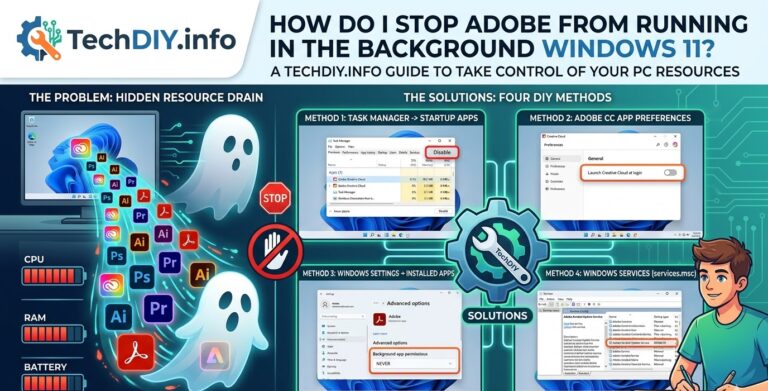
Press Win + R, type msconfig, and press Enter. Click the Services tab. Check the box labelled Hide all Microsoft services first — this is important. You should only ever disable non-Microsoft services through this tool. Look through what remains and uncheck services tied to software you do not use regularly.
Services that are generally safe to disable if you do not use the associated software:
- Adobe Acrobat Update Service (if you rarely use Acrobat)
- OEM PC health and diagnostic services from your laptop manufacturer
- Game platform overlay services for platforms you do not use
Services you should never disable:
- Windows Update and Windows Defender related services
- Print Spooler if you use a printer
- SysMain (Superfetch) if your system has an HDD — this service optimises performance on mechanical drives and disabling it often makes things worse, not better
- Any service with a name you do not recognise — look it up before disabling it
Best practice: Disable one group of services at a time, reboot, and measure before disabling more. Bulk changes make it impossible to identify what actually helped.
Fix 6: Address Third-Party Antivirus Slowing Boot
Most guides on slow Windows 11 startup focus on malware as a potential cause. The far more common issue is the antivirus software itself. Many third-party security suites are not optimised for Windows 11 boot performance and run aggressive scanning routines during startup that significantly delay usability.
The key symptom is a high BootPostBootTime value in Event Viewer — meaning your desktop appears quickly, but the system remains slow and unresponsive for a minute or more after login. This is almost always background processes competing for disk and CPU at startup, and antivirus is the most frequent cause.
What you can do:
- Open your antivirus settings and look for a boot-time scan or startup scan option — delay or disable it so the scan runs after the system is fully loaded rather than during boot
- Check whether you have more than one security product installed. Running two antivirus tools simultaneously is one of the single biggest causes of slow boot times and general Windows performance issues
- Consider switching to Windows Defender exclusively. For most home users it provides strong protection and is specifically optimised to minimise impact on Windows 11 startup and performance
Fix 7: Run SFC and DISM to Repair System Files
If your boot times are inconsistent — sometimes fast, sometimes very slow — corrupted system files are a likely cause. Windows may be retrying failed processes at every boot, which adds unpredictable delays.
Open Command Prompt as an administrator by right-clicking the Start button and selecting Terminal (Admin). Run the following commands in order:
Step 1 — SFC scan:
sfc /scannowThis scans protected Windows system files and replaces any corrupted ones. The scan takes 10 to 20 minutes. Do not close the window until it completes.
Step 2 — DISM repair:
DISM /Online /Cleanup-Image /RestoreHealthThis repairs the Windows component store, which SFC relies on for replacements. Run this if SFC reports errors it could not fix. It requires an internet connection and takes 15 to 30 minutes.
Reboot after both commands complete and measure your boot time again using Event Viewer.
Fix 8: Adjust Visual Effects and Power Plan
This fix has the greatest impact on older hardware, laptops with 4 to 8GB of RAM, and systems with integrated graphics. On fast modern hardware it is cosmetic, but on lower-spec systems it can make a noticeable difference.
To adjust visual effects, search for Adjust the appearance and performance of Windows in the Start menu. In the dialog that opens, select Adjust for best performance to turn off all animations, or choose Custom and manually uncheck individual effects like window animations and transparency.
To change your power plan, go to Control Panel → Power Options. Select Balanced or High Performance. Avoid leaving a desktop PC on Power Saver mode — it throttles CPU performance including during the boot sequence.
Fix 9: Check Storage Health and Consider an SSD Upgrade
This section addresses the question most guides avoid: how do you know whether your slow boot is a software problem or a hardware problem?
Open Task Manager with Ctrl + Shift + Esc and click the Performance tab. Select Disk. Watch the disk activity graph during a boot — if it is running at or near 100% usage consistently for more than 30 seconds after login, your storage device is a bottleneck.
To check your drive’s health, search for Defragment and Optimize Drives in the Start menu. The Status column shows whether your drive is healthy or has issues. For a more detailed health check, use a free tool such as CrystalDiskInfo, which reads SMART data from your drive and flags early warning signs of failure.
Signs that your storage device may be failing or severely underperforming:
- Boot times that gradually get worse over weeks or months
- Event Viewer showing disk-related error events around the same time as your slow boot entries
- Reliability Monitor warnings about hard disk problems
- Consistent 100% disk usage in Task Manager even on a light system
If you are still running Windows 11 on a mechanical hard drive (HDD), it is worth understanding that a startup time of 60 to 90 seconds is not unusual — it is a natural limitation of the hardware. Windows 11 is designed and optimised for SSDs. Upgrading to a modern SSD is the single highest-impact hardware change available for a slow-booting system, often cutting boot time from 90 seconds down to under 20 seconds.
Fix 10: Check BIOS and Firmware Settings
If you have worked through all the fixes above and your PC is still slow at the black screen or spinning dots stage — before Windows even begins loading — the issue is likely in your firmware settings rather than Windows itself.
Restart your PC and enter the BIOS or UEFI settings. The key to enter this screen is usually Delete, F2, or F10 depending on your manufacturer — it will typically flash on screen briefly during the first second of power-on.
Things to check inside BIOS or UEFI:
- Boot device order: Make sure your SSD or main drive is listed first. If the system is scanning USB drives, network boot options, or optical drives before your main drive, this adds seconds to every boot
- Fast Boot (BIOS setting): This is separate from Windows Fast Startup. Most modern motherboards and laptops have a Fast Boot option in firmware — ensure it is enabled
- UEFI vs Legacy/CSM mode: Windows 11 is designed for UEFI with Secure Boot enabled. If your system is running in Legacy or CSM mode, switching to UEFI can improve both boot speed and security
- Firmware updates: Check your motherboard or laptop manufacturer’s website for BIOS or UEFI firmware updates. Firmware updates sometimes include boot performance improvements and compatibility fixes
Verdict
Most slow Windows 11 startup problems are fixable without reinstalling Windows or buying new hardware. The key is to identify which type of slow startup you have, measure your baseline boot time, and work through fixes methodically rather than randomly changing settings and hoping for the best.
For the majority of users, the solution will be found in the first four or five fixes: disabling startup apps, clearing scheduled tasks at logon, reviewing Fast Startup behaviour, and addressing antivirus boot scans. Hardware-level fixes are only necessary if software changes have not helped after thorough testing.
If you have worked through every fix in this guide and boot times are still unacceptable, the final software option is an in-place Windows repair. Go to Settings → System → Recovery and choose Repair this PC without removing your files. This reinstalls Windows while keeping your personal data and most applications intact.
FAQ
Why is Windows 11 slow to start after an update?
Windows updates often schedule background tasks such as indexing, telemetry reporting, and component cleanup that run during the first one or two boots after installation. In most cases, boot times return to normal after two or three reboots. If they do not, run DISM as described in Fix 7 to check for any corruption introduced by the update.
Does more RAM help with slow Windows 11 startup?
Yes, especially if your system has 8GB or less. When Windows runs out of available RAM at boot, it begins paging data to your storage drive, which adds significant delays — particularly on HDDs. Upgrading from 8GB to 16GB of RAM often dramatically improves usability in the first minute after login, even if raw boot time does not change much.
Should I enable or disable Fast Startup in Windows 11?
Enable it for everyday use in most situations. Disable it temporarily when troubleshooting inconsistent boot times, when using a dual-boot setup, or when a driver or hardware issue is suspected.
How do I know if my SSD is causing my slow boot?
Watch disk usage in Task Manager during boot. Consistent 100% disk activity for more than 30 seconds after login points to a storage bottleneck. Use CrystalDiskInfo to read SMART health data and check Reliability Monitor for disk error events.
Is a 30-second boot time normal for Windows 11?
Yes. A boot time of 15 to 30 seconds on a modern SSD is normal and expected. 30 to 45 seconds suggests something worth investigating. 60 seconds or more indicates a real issue that the fixes in this guide should resolve. 90 seconds or more points to either a hardware problem or a very heavy startup load.
Will disabling startup apps cause problems?
No. Disabling a startup app only prevents it from launching automatically when Windows starts. The app is still installed and works normally when you open it manually. You can re-enable any startup app at any time through Task Manager.
What is the single fastest fix for slow Windows 11 startup?
For most users it is disabling high-impact startup apps in Task Manager. For users still on a mechanical hard drive, upgrading to an SSD is by far the most impactful single change available.