DIY
DIY

Over 2,200 data breaches were reported in 2025 — and the majority of stolen files were completely unencrypted. Whether it is tax documents, client contracts, passwords, or personal photos, the files on your Windows PC are vulnerable the moment someone gets physical or remote access to your device.
The good news: Windows has two powerful built-in encryption tools, plus three excellent free third-party options that work on every Windows edition including Home. This guide walks you through all five methods with clear step-by-step instructions, so you can start protecting your files today — no technical expertise required.

⚡ QUICK METHOD FINDER:
- Easiest built-in method (Windows Pro): EFS — right-click any file to encrypt instantly
- Full drive / USB protection: BitLocker — encrypts everything, even if drive is stolen
- Best free tool (all Windows editions): VeraCrypt — AES-256, open-source, trusted worldwide
- Best for sharing encrypted files: 7-Zip — password-protected archives, free forever
- Best for individual files: AxCrypt — right-click encryption, simple and fast
Table of Contents
- Why you should encrypt files on Windows
- Which Windows editions support encryption?
- Method 1: EFS — built-in Windows Pro encryption
- Method 2: BitLocker — full drive encryption
- Method 3: VeraCrypt — best free tool
- Method 4: 7-Zip — encrypt files for sharing
- Method 5: AxCrypt — individual file encryption
- Comparison: which method should you use?
- How to encrypt USB drives and external storage
- Encryption best practices
- Frequently asked questions
Why You Should Encrypt Files on Windows
Encryption converts your readable files into scrambled data that is completely unreadable without the correct key or password. Even if a thief steals your laptop, copies your hard drive, or gains remote access to your system — encrypted files are useless to them.
Here are the most common real-world reasons to encrypt your Windows files:
- Laptop theft: Over 600,000 laptops are stolen every year — unencrypted files are immediately accessible to the thief
- Data breach protection: If hackers access your PC remotely, encrypted files cannot be read even if copied
- GDPR & HIPAA compliance: Businesses handling personal or medical data are legally required to encrypt sensitive files
- Personal privacy: Tax returns, passwords, financial records, and private photos deserve protection
- Shared computers: Encrypt sensitive folders so other users on the same PC cannot access them
- Cloud storage safety: OneDrive and Google Drive can access your files — encrypt before uploading for true privacy
💡 How encryption works (simply): Encryption uses a mathematical algorithm (AES-256 is the current standard) to scramble file data using a key derived from your password. Without the exact password, decrypting the file would take longer than the age of the universe with current computing power.
Which Windows Editions Support Built-in Encryption?
Windows built-in encryption tools are only available on certain editions. Check your edition at Settings → System → About before you start:
| Feature | Windows 10/11 Home | Windows 10/11 Pro | Windows Enterprise |
|---|---|---|---|
| EFS (file/folder encryption) | ✕ Not available | ✓ Yes | ✓ Yes |
| BitLocker (full drive) | ✕ Not available | ✓ Yes | ✓ Yes |
| Device Encryption (basic) | △ Limited (TPM required) | ✓ Yes | ✓ Yes |
| Third-party tools (VeraCrypt, 7-Zip, AxCrypt) | ✓ Yes | ✓ Yes | ✓ Yes |
⚠️ Windows Home users: EFS and BitLocker are not available on Windows 10/11 Home. Use VeraCrypt (Method 3), 7-Zip (Method 4), or AxCrypt (Method 5) instead — all are free and work just as effectively.
Method 1: EFS (Encrypting File System) — Built-in Windows Pro
📢 Works on: Windows 10/11 Pro, Enterprise, Education | Skill level: Beginner | Cost: Free (built-in)
EFS (Encrypting File System) is Windows’ built-in file and folder encryption tool, available since Windows 2000. It encrypts files transparently — you can still open, edit, and save them normally while logged in, but anyone else who tries to access the files (on a different account or after removing the drive) sees only scrambled data.
How to encrypt a file or folder with EFS:
1
Open File Explorer and navigate to your file or folder
Find the file or folder you want to encrypt. EFS works on individual files or entire folders on NTFS-formatted drives.
2
Right-click → Properties → Advanced
Right-click the file or folder, select Properties, then click the Advanced button at the bottom of the General tab.
3
Check “Encrypt contents to secure data”
Tick the checkbox labelled Encrypt contents to secure data in the Advanced Attributes window, then click OK.
4
Click Apply and choose your encryption scope
Click Apply on the Properties window. A dialog asks: Apply changes to this folder only or Apply changes to this folder, subfolders and files. Select the second option for full folder protection.
5
Back up your EFS certificate immediately
Windows will show a notification prompting you to back up your encryption certificate. Do not skip this. Click the notification, follow the wizard, and save the certificate to a USB drive stored safely offline.
🛑 Critical warning: EFS is tied to your Windows user account certificate. If you reinstall Windows, reset your PC, or your user account is corrupted without a certificate backup — your EFS-encrypted files become permanently inaccessible. Always export and back up your EFS certificate to a USB drive before relying on EFS.
Method 2: BitLocker — Full Drive Encryption
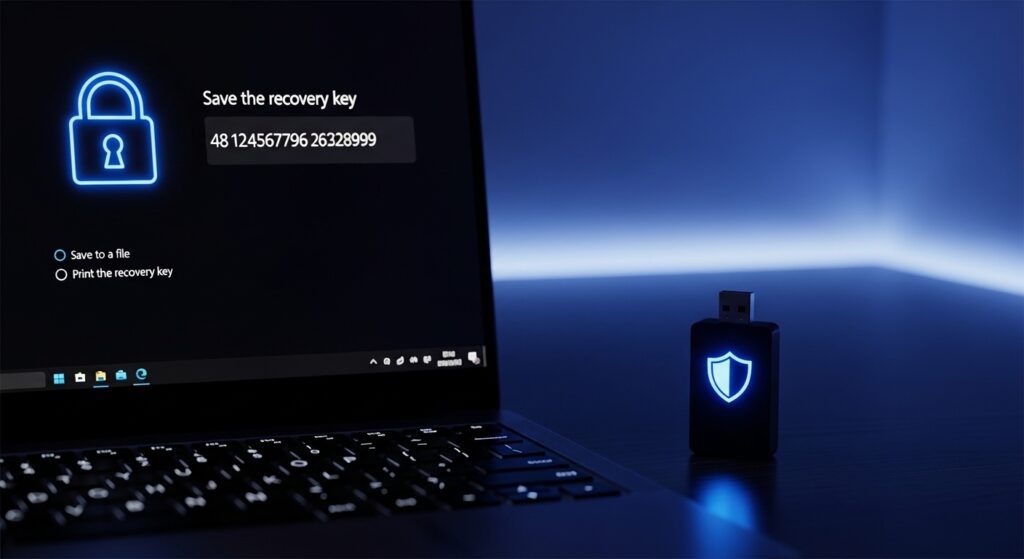
📢 Works on: Windows 10/11 Pro, Enterprise | Skill level: Beginner | Cost: Free (built-in)
BitLocker encrypts an entire drive — your C: drive, a second internal drive, or an external USB stick. Unlike EFS which encrypts individual files, BitLocker protects everything on the drive. If someone steals your laptop and removes the hard drive, the data is completely unreadable without your BitLocker password or recovery key.
How to enable BitLocker on a drive:
1
Open File Explorer and right-click the target drive
In File Explorer, right-click the drive you want to encrypt (e.g., C: or D:) and select Turn on BitLocker. If you do not see this option, your edition does not support BitLocker.
2
Choose how to unlock the drive
Select Use a password to unlock the drive. Enter a strong password (12+ characters). Alternatively, use a smart card if your organisation provides one.
3
Save your recovery key — this step is critical
Choose to save the 48-digit recovery key to your Microsoft account, a file, or print it. If you forget your password and lose the recovery key, the drive is permanently unrecoverable. Save to at least two locations.
4
Choose encryption scope
Select Encrypt used disk space only for new or empty drives (faster). Select Encrypt entire drive for drives already in use (more thorough, takes longer).
5
Choose encryption mode
Select New encryption mode (XTS-AES) for internal drives on Windows 10/11. Select Compatible mode for USB drives you will use on older Windows versions.
6
Click “Start Encrypting” and wait
Encryption begins. A progress bar shows the status. For a 1TB drive, this can take 1–3 hours. Do not shut down or restart during encryption — BitLocker can resume if interrupted, but it is safest to let it finish.
💡 BitLocker To Go (USB drives): The same process works for USB flash drives and external hard drives. Right-click the USB drive in File Explorer → Turn on BitLocker. The encrypted drive will ask for a password every time it is inserted on any PC.
Method 3: VeraCrypt — Best Free Third-Party Tool
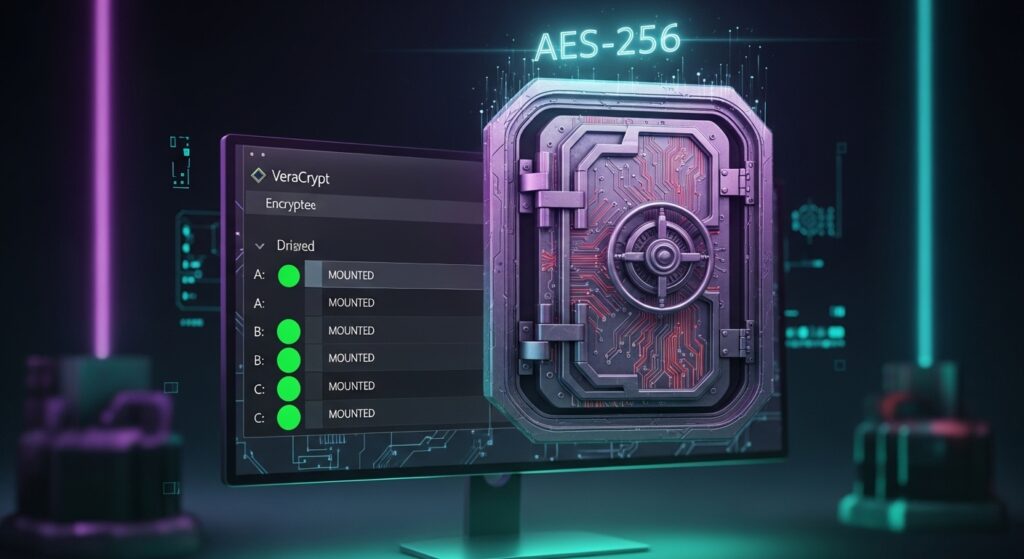
📢 Works on: ALL Windows editions including Home | Skill level: Beginner–Intermediate | Cost: 100% Free (open-source)
VeraCrypt is the most trusted free encryption tool available for Windows. It is the successor to TrueCrypt and uses AES-256 encryption — the same standard used by governments, banks, and the military. VeraCrypt works on all Windows editions including Home, making it the best alternative for users who cannot access BitLocker or EFS.
The most practical VeraCrypt feature for everyday use is the encrypted container — a single file on your PC that acts as a secure vault. You mount it like a drive, drag files in, then dismount it when done. Anyone who finds the container file without your password cannot open it.
How to create an encrypted vault with VeraCrypt:
1
Download and install VeraCrypt
Go to veracrypt.fr and download the latest Windows installer. Install with default settings.
2
Open VeraCrypt and click “Create Volume”
Launch VeraCrypt and click the Create Volume button to start the Volume Creation Wizard.
3
Select “Create an encrypted file container”
Choose the first option: Create an encrypted file container. Click Next, then select Standard VeraCrypt volume. Click Next again.
4
Choose the file location and name
Click Select File, navigate to where you want to save your vault (e.g., Documents folder), and enter a filename like MyVault. The file extension does not matter. Click Next.
5
Select encryption algorithm: AES + SHA-512
Keep the defaults: AES for encryption algorithm and SHA-512 for hash algorithm. These are the strongest standard options. Click Next.
6
Set the container size
Enter how large you want your vault to be — e.g., 500 MB for documents, 10 GB for photos and videos. Note: the container file will occupy this space immediately on your drive.
7
Set a strong password
Enter a password of at least 20 characters. Use a mix of uppercase, lowercase, numbers, and symbols. VeraCrypt will warn you if it is too short. Click Next.
8
Move your mouse randomly, then click Format
Move your mouse randomly around the VeraCrypt window for at least 30 seconds — this generates cryptographically strong random keys. The longer you move, the stronger the encryption. Then click Format to create the volume.
9
Mount the volume and start using it
Back in the main VeraCrypt window, click Select File, choose your vault file, select a drive letter, then click Mount. Enter your password. The vault appears as a new drive in File Explorer — drag your files into it.
10
Always Dismount when finished
When done working with your files, return to VeraCrypt and click Dismount. This locks the vault. Anyone accessing your PC after dismounting cannot see or open the encrypted files.
💡 Think of it like a safe: Mounting the VeraCrypt volume is like opening a physical safe. Dismounting is like closing and locking it. Always dismount before stepping away from your PC or putting it to sleep.
Method 4: 7-Zip — Fastest Way to Encrypt Files for Sharing
📢 Works on: ALL Windows editions including Home | Skill level: Beginner | Cost: 100% Free
7-Zip is a free file archiver that includes built-in AES-256 encryption. It is the quickest way to create a password-protected encrypted archive from any file or folder — perfect for sending sensitive documents via email, uploading to cloud storage, or transferring files on USB. The recipient needs 7-Zip and your password to open it.
How to encrypt files with 7-Zip:
1
Download and install 7-Zip
Download the free installer from 7-zip.org. Choose the correct version for your system (64-bit for most modern PCs).
2
Right-click your file or folder → 7-Zip → Add to archive
Right-click the file or folder you want to encrypt, hover over 7-Zip in the context menu, and select Add to archive…
3
Set the archive format to 7z
In the Add to Archive window, set Archive format to 7z. The 7z format uses stronger encryption than ZIP and also compresses better.
4
Enter your password and set AES-256
In the Encryption section on the right, enter a strong password. Make sure Encryption method is set to AES-256. Optionally tick Encrypt file names for added security.
5
Click OK — your encrypted archive is ready
Click OK. A .7z file is created in the same folder. This is your encrypted archive. You can email it, upload it to cloud storage, or copy it to USB safely.
⚠️ Sharing tip: Never send the password in the same email as the encrypted file. Share the password through a separate channel — a phone call, SMS, Signal message, or WhatsApp. This way, intercepting the email gives attackers the file but not the key to open it.
Method 5: AxCrypt — Simplest Individual File Encryption
📢 Works on: ALL Windows editions including Home | Skill level: Beginner | Cost: Free (premium from $3.99/mo)
AxCrypt is the most beginner-friendly file encryption app for Windows. After installation, it adds an Encrypt option to your right-click menu. One click encrypts any file with AES-128 (free) or AES-256 (premium). The encrypted file gets an .axx extension and can only be opened by someone with AxCrypt and your password.
How to encrypt files with AxCrypt:
1
Download and install AxCrypt
Go to axcrypt.net, download the free version and install it. Create a free AxCrypt account with your email address.
2
Right-click any file → AxCrypt → Encrypt
Right-click the file you want to encrypt, hover over AxCrypt, and click Encrypt. The file is encrypted instantly and gets a .axx extension.
3
Open or share the encrypted file
To open: double-click the .axx file and enter your AxCrypt password. To share: send the .axx file to a colleague. They need AxCrypt installed and your password to open it.
4
Decrypt when done
To permanently decrypt: right-click the .axx file → AxCrypt → Decrypt. This restores the original file and removes the encryption.
Comparison: Which Encryption Method Should You Use?
| Method | Windows Home? | AES-256? | Password Protected? | Skill Level | Best Use Case |
|---|---|---|---|---|---|
| EFS | ✕ | ✓ | Account-based | Beginner | Quick folder encryption on Pro |
| BitLocker | ✕ | ✓ | ✓ | Beginner | Full drive & USB encryption |
| VeraCrypt | ✓ | ✓ | ✓ | Intermediate | Secure vaults, all Windows editions |
| 7-Zip | ✓ | ✓ | ✓ | Beginner | Sharing encrypted files via email |
| AxCrypt | ✓ | Premium only | ✓ | Beginner | Quick individual file encryption |
How to Encrypt USB Drives and External Storage
USB drives are one of the most common ways sensitive data is lost or stolen. A single misplaced unencrypted USB stick can expose thousands of files. Here are the three best methods for USB encryption on Windows:
BitLocker To Go (Pro only)
Right-click USB in File Explorer → Turn on BitLocker. Set a password, save recovery key. The USB will ask for a password on every PC it is plugged into.
Best for: Windows Pro users wanting the easiest built-in solution
VeraCrypt on USB
Create a VeraCrypt encrypted container directly on the USB drive. VeraCrypt portable mode allows you to carry VeraCrypt on the USB itself — no installation needed on the host PC.
Best for: All Windows editions, cross-platform use (also works on Mac & Linux)
7-Zip Encrypted Archive on USB
Create an AES-256 encrypted .7z archive and store it on the USB. The simplest option — no special software needed on the host PC to store the file (only to open it).
Best for: Occasional use, sending USB to someone else
🛑 Before encrypting a USB drive with BitLocker: Back up all files on the drive first. BitLocker To Go reformats the drive during setup, which erases all existing data. Encrypt new or freshly formatted drives only.
Encryption Best Practices
Encryption is only as strong as the practices around it. Follow these six rules to make sure your encrypted files stay truly secure:
🔐 Use strong passwords
Use at least 20 characters with mixed case, numbers, and symbols. Never use dictionary words or personal info. Use a password manager like Bitwarden (free) to store complex passwords securely.
💾 Back up recovery keys offline
Store your BitLocker recovery key and VeraCrypt password in a physical location — written on paper, stored in a safe, or on an offline USB. Losing the key means losing the data permanently.
☁️ Encrypt before uploading to cloud
OneDrive, Google Drive, and Dropbox can scan your files. Encrypt sensitive files with VeraCrypt or 7-Zip before uploading to ensure only you can read them — even if the cloud provider is breached.
📧 Never share passwords via email
Email is not secure. If you share an encrypted file via email, share the password through a different channel — phone call, Signal, or WhatsApp. Never in the same email as the file.
🔒 Always use AES-256 not AES-128
AES-256 provides 2^256 possible keys vs AES-128’s 2^128. In practical terms, AES-256 is the unbreakable standard for 2026 and beyond. Always choose AES-256 when given the option.
🏗️ Combine methods for critical files
For your most sensitive files, use layered encryption: BitLocker the whole drive + store your most critical files inside a VeraCrypt container on that drive. Two layers means two separate keys must be broken.
Frequently Asked Questions
Start Protecting Your Files Today
VeraCrypt and 7-Zip are 100% free, work on all Windows editions, and take under 10 minutes to set up. No excuses to leave your files unprotected.