DIY
DIY
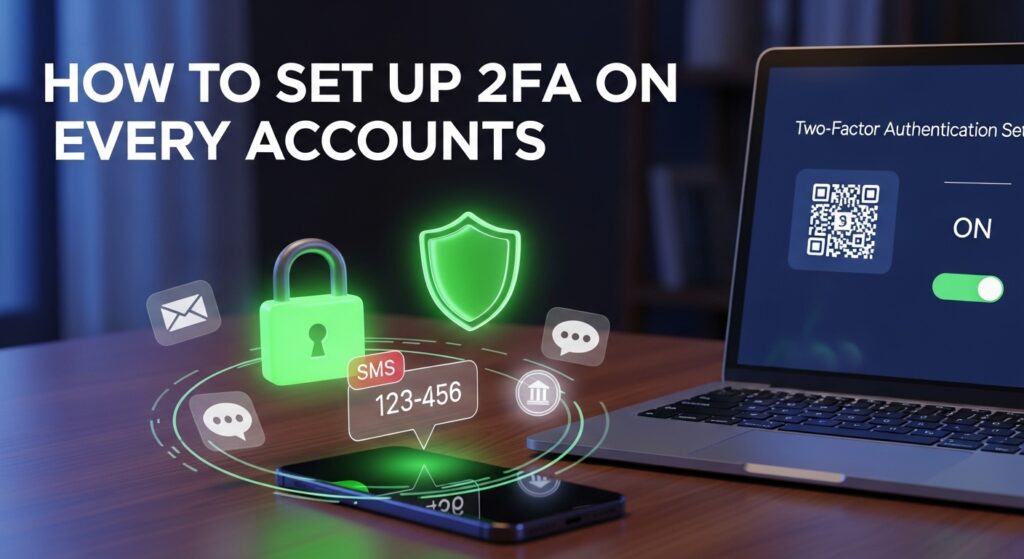
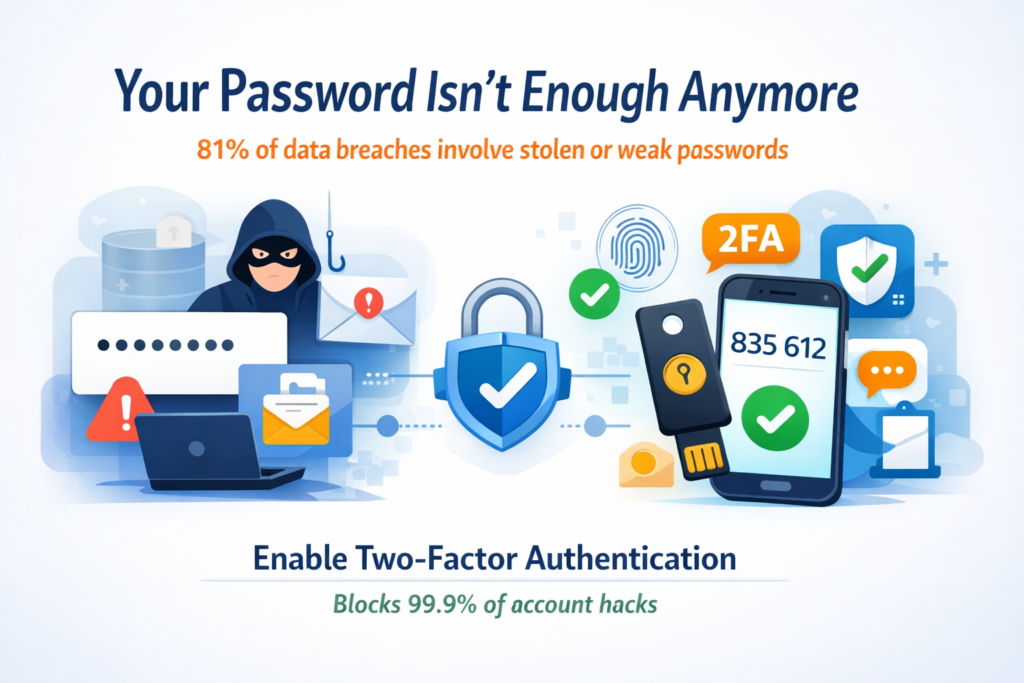
Your password isn’t enough anymore. In 2024, 81% of data breaches involved stolen or weak passwords — and that number hasn’t improved. Credential stuffing bots hammer millions of accounts every hour, phishing emails fool even experienced users, and data dumps from old breaches put your login details on sale for a few dollars.
The good news: there’s a single habit that makes you dramatically harder to hack. Two-factor authentication (2FA) blocks 99.9% of automated account-takeover attacks, according to Microsoft’s own data. It takes two to five minutes to set up per account — and you only have to do it once.

In this guide you’ll learn exactly how to set up two-factor authentication on every account that matters: Google, Microsoft, Apple, Facebook, GitHub, Amazon, cloud storage, and your password manager. We’ll cover all four 2FA methods ranked by security, compare the best authenticator apps, explain passkeys, and tell you what to do with your backup codes.
Let’s lock things down.
What Is Two-Factor Authentication?
Two-factor authentication (2FA) is a security method that requires you to prove your identity in two separate ways before letting you into an account. The idea is simple: even if an attacker steals your password, they can’t get in without the second factor — which only you have.
Think of it like your bank card. The card itself is something you have. Your PIN is something you know. Neither alone is enough to make a payment. 2FA works the same way for your online accounts.
The three categories of authentication factors are:
- Something you know — a password or PIN
- Something you have — a phone, hardware key, or authentication app
- Something you are — a fingerprint or Face ID scan
2FA means using any two of these together. Multi-factor authentication (MFA) is the broader umbrella term — 2FA is simply MFA with exactly two factors.
How 2FA works — step by step
- You enter your username and password as usual.
- The server recognises your password is correct — but instead of granting access immediately, it sends a second challenge.
- You provide the second factor: a 6-digit code from your app, a tap on a push notification, a physical key tap, or a fingerprint.
- Only then does the server grant access.
Even if a hacker has your password — from a phishing email, a previous data breach, or a keylogger — they’re stopped at step 3. They don’t have your phone. They don’t have your hardware key. They can’t pass.
2FA vs MFA: You’ll see both terms used interchangeably. Technically, MFA means two or more factors. 2FA is MFA with exactly two. For most consumer accounts, 2FA is what’s available and what this guide covers.
2FA Methods Ranked by Security
Not all 2FA is created equal. Here are the four types you’ll encounter, ranked from strongest to weakest.
|
🥇 Hardware Security Key (strongest) YubiKey, Google Titan Key A physical USB or NFC device you plug in or tap against your phone. Uses the FIDO2/WebAuthn standard — cryptographically proven and completely phishing-proof. Even a fake login page can’t steal your credentials because the key verifies the actual domain it’s talking to. Best for: Your email, password manager, and any account that would cause serious damage if compromised. Get two — keep one as a backup. |
|
🥈 Authenticator App (recommended) Google Authenticator, Authy, Aegis, Microsoft Authenticator Generates a time-based one-time password (TOTP) — a 6-digit code that refreshes every 30 seconds. Works offline, doesn’t depend on your carrier, and is vastly more secure than SMS. This is what we recommend for most users. Best for: Every important account where a hardware key isn’t practical. Set this up everywhere. |
|
🥉 Push Notification (good) Duo Security, Microsoft Authenticator You receive a push notification on your phone asking “Was this you? Approve / Deny.” Convenient and generally strong — but vulnerable to MFA fatigue attacks, where hackers spam approval requests hoping you’ll tap “yes” by mistake. Best for: Workplace accounts where your IT team has deployed Duo or Microsoft Authenticator. Enable number matching if available. |
|
⚠️ SMS Text Code (weakest — but still worth using) One-time code sent by text message A 6-digit code sent to your phone number. The weakest 2FA option: vulnerable to SIM-swapping (criminals convincing your carrier to transfer your number to their SIM) and SS7 protocol exploits. High-profile accounts have been compromised this way. Bottom line: SMS 2FA is still far better than no 2FA. If it’s the only option available, enable it. Then upgrade to an authenticator app when possible. |
How to Set Up Two-Factor Authentication: Step-by-Step Guides
Below are setup instructions for the eight most important account types. We recommend working through them in this order — saving your password manager for last so you can use it to store the backup codes you’ll generate along the way.
1. Google Account / Gmail
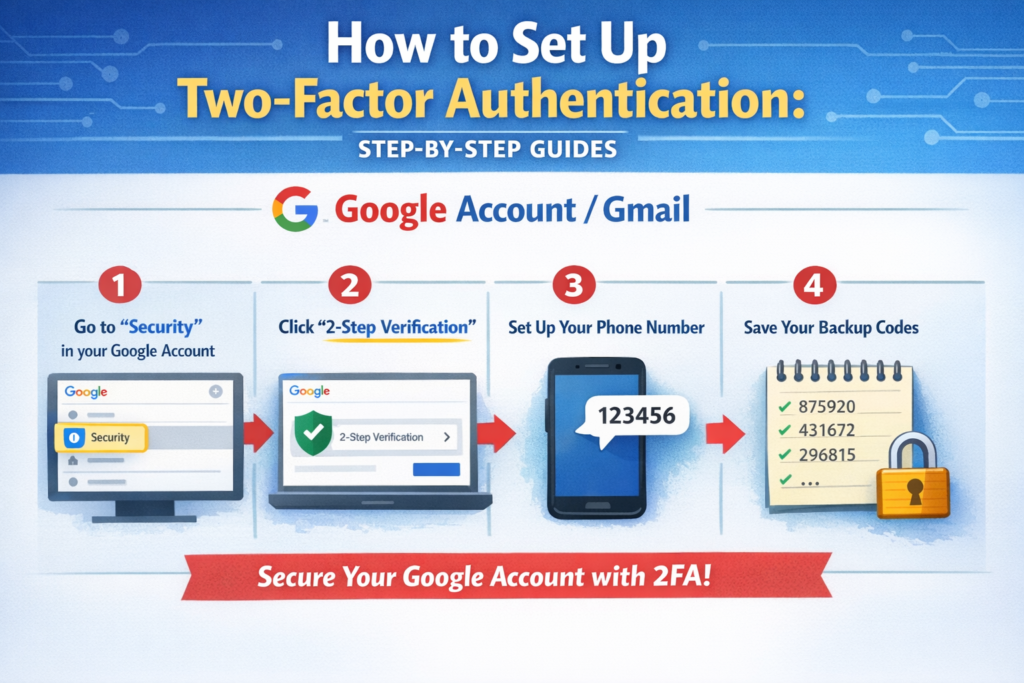
Google is often the master key to your digital life — your Gmail address is probably linked to dozens of other accounts. Securing it should be your first priority.
- Go to myaccount.google.com and sign in.
- Click Security in the left-hand menu.
- Scroll to the “How you sign in to Google” section and click 2-Step Verification.
- Click Get started and follow the prompt.
- Google will suggest a phone prompt by default. For stronger security, scroll down and choose Authenticator app or Security key.
- Scan the QR code with your authenticator app (e.g. Authy), enter the 6-digit code to confirm, and click Turn on.
- Download and save your backup codes — store them in your password manager.
💡 Pro tip: After enabling 2FA, consider enrolling in Google’s Advanced Protection Program if you’re a journalist, activist, or anyone at elevated risk. It requires a hardware key and adds extra phishing defences.
2. Microsoft Account / Outlook
- Go to account.microsoft.com and sign in.
- Click Security in the top navigation bar.
- Click Advanced security options.
- Under “Two-step verification”, click Turn on.
- Follow the wizard — you can choose the Microsoft Authenticator app (recommended), any TOTP-compatible app, email, or phone.
- If using an authenticator app, select “Use an app”, then scan the QR code.
- Enter the verification code and click Next to finish.
- Note your recovery code — save it somewhere safe.
💡 Pro tip: Microsoft 365 business accounts are managed separately via the admin portal. If your IT team hasn’t enforced 2FA yet, ask them about enabling Security Defaults or Conditional Access policies.
3. Apple ID / iCloud
Apple bakes two-factor authentication deeply into its ecosystem — once enabled, you’ll receive approval prompts directly on your trusted Apple devices.
On iPhone or iPad:
- Open Settings and tap your name at the top.
- Tap Password & Security.
- Tap Turn On Two-Factor Authentication.
- Tap Continue and enter a trusted phone number.
- Verify the number with the code Apple sends you.
On Mac:
- Open System Settings → click your Apple ID.
- Click Password & Security.
- Next to “Two-Factor Authentication”, click Turn On…
- Follow the prompts to add a trusted phone number.
💡 Pro tip: Apple’s 2FA uses trusted devices rather than a traditional authenticator app. If you lose all your trusted devices and your trusted phone number, account recovery can take several days. Make sure your trusted phone number is always current.
4. Facebook and Instagram
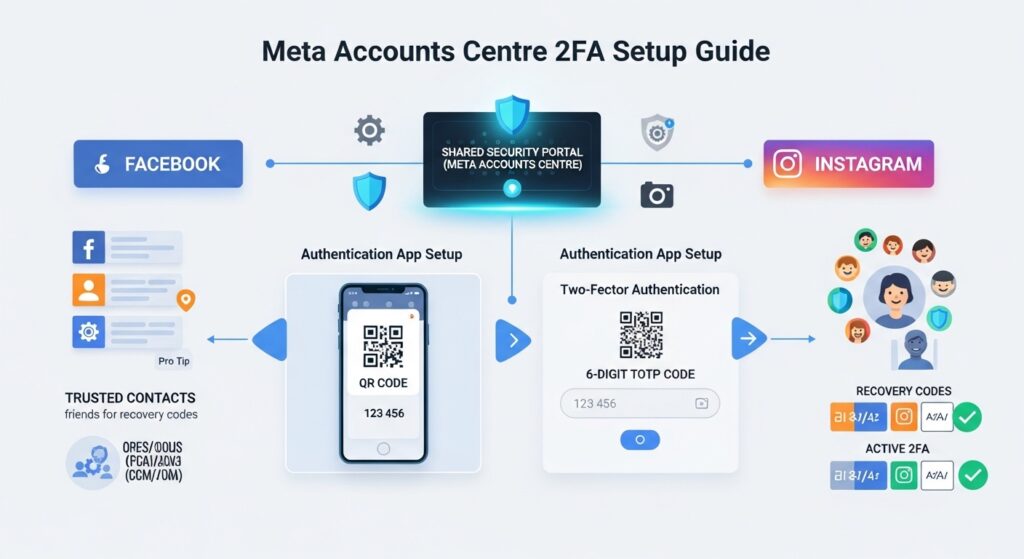
Meta manages 2FA through a shared security portal that covers both Facebook and Instagram.
Facebook:
- Click the profile menu (top-right) → Settings & privacy → Settings.
- Click Accounts Centre in the left sidebar.
- Click Password and security → Two-factor authentication.
- Select your account and choose your preferred method.
- Select Authentication app, scan the QR code, and enter the confirmation code.
- Save your recovery codes.
Instagram (app):
- Tap your profile picture → the hamburger menu (☰) → Accounts Centre.
- Tap Password and security → Two-factor authentication.
- Select your Instagram account and follow the same steps as above.
💡 Pro tip: Facebook also lets you designate Trusted Contacts — friends who can send you recovery codes if you’re locked out. Set up 3–5 trusted contacts as an extra safety net.
5. GitHub
GitHub made 2FA mandatory for all contributors in 2023 — so if you haven’t set it up yet, you may already be blocked from pushing code. Here’s how to do it properly.
- Click your profile photo (top-right) → Settings.
- In the left sidebar, click Password and security.
- Under “Two-factor authentication”, click Enable two-factor authentication.
- Choose your preferred method. We recommend TOTP app — select “Set up using an app”.
- Scan the QR code with your authenticator app and enter the 6-digit code.
- Download, print, or copy your recovery codes — GitHub shows them once. Store them in your password manager.
- Click I have saved my recovery codes to confirm.
💡 Pro tip: GitHub also supports hardware security keys and passkeys. If you work in a team or maintain open source projects, a YubiKey is worth the investment — it’s the most phishing-resistant option available.
6. Amazon
Your Amazon account likely has a stored payment method — keeping it secure is worth the two minutes it takes.
- Go to amazon.com and hover over “Account & Lists” → click Account.
- Click Login & security.
- Next to “Two-Step Verification (2SV) Settings”, click Edit.
- Click Get Started.
- Choose Authenticator app (recommended) or your phone number.
- Scan the QR code and enter the confirmation code.
- Optionally add a backup phone number, then click Done.
💡 Pro tip: Amazon also lets you enable the option to “Require OTP on all devices” — turn this on to prevent already-logged-in sessions from being trusted indefinitely.
7. Dropbox and Google Drive
Dropbox:
- Click your account avatar (top-right) → Settings.
- Click the Security tab.
- Under “Two-step verification”, click Enable.
- Click Get started, enter your password, and choose Use a mobile app.
- Scan the QR code, enter the 6-digit code, and save your emergency backup code.
Google Drive is protected by your Google Account 2FA — if you’ve completed step 1 in this guide, Google Drive is already covered. No separate setup is needed.
💡 Pro tip: Cloud storage accounts often hold sensitive documents — tax returns, ID scans, contracts. Treat them with the same priority as your email account.
8. Your Password Manager — the most critical account of all
|
⚠️ This is the most important 2FA you’ll ever set up. Your password manager holds the keys to every other account. If it’s compromised, everything is compromised. Use a hardware security key here if you use one anywhere. |
1Password:
- Sign in at 1password.com → click your name → My Profile.
- Click More Actions → Manage Two-Factor Authentication.
- Click Set Up App and scan the QR code with your authenticator app.
- Enter the 6-digit code and click Confirm.
Bitwarden:
- Log in at vault.bitwarden.com → click your name → Account Settings.
- Click Security → Two-step login.
- Click Manage next to “Authenticator App” (or “FIDO2 WebAuthn” for a hardware key).
- Scan the QR code, enter the code, and click Enable.
- View and save your recovery code before closing.
💡 Pro tip: Bitwarden’s free tier supports TOTP-based 2FA. For hardware key support (FIDO2/WebAuthn), you’ll need the $10/year premium plan — easily the best security upgrade for the price.
Best Authenticator Apps in 2026 — Full Comparison
All four apps below generate standard TOTP codes and work with any 2FA-compatible service. The differences come down to backup, multi-device sync, and whether you trust a cloud provider with your seeds.
| App | Platform | Cloud backup | Multi-device | Open source | Price |
|---|---|---|---|---|---|
| Google Authenticator | iOS, Android | ✅ Google account | ✅ | ❌ | Free |
| Authy | iOS, Android, Desktop | ✅ Encrypted | ✅ | ❌ | Free |
| Microsoft Authenticator | iOS, Android | ✅ MS account | ✅ | ❌ | Free |
| Aegis | Android only | ⚠️ Local export only | ❌ | ✅ | Free |
Our pick: Authy for most users — encrypted multi-device backup means you won’t lose access if your phone is lost or broken. Aegis is the best choice for Android users who prefer fully open-source software and control their own backups.
Passkeys — The Future Beyond 2FA
Passkeys are the next evolution of login security — and in 2026, they’re gaining serious traction. Google, Apple, Microsoft, GitHub, and Shopify all support them now.
How passkeys work
When you create a passkey, your device generates a cryptographic key pair:
- The private key stays on your device, locked behind your biometrics (Face ID, fingerprint) or PIN.
- The public key is stored on the website’s server.
When you log in, the site sends a challenge. Your device signs it with the private key. The server verifies it with the public key. No password is ever transmitted — or even created.
Why passkeys are more secure than 2FA
- Phishing-proof by design: There’s no password to steal. Even a perfect fake login page gets nothing.
- No shared secret: If the website is breached, the attacker gets a public key — useless without your device.
- One step, not two: A passkey replaces both your password and your 2FA code with a single biometric approval.
Should you use passkeys now?
Yes — where available, enable passkeys. But passkeys don’t cover everything yet. For any account that still requires a password, pair it with an authenticator app. The two approaches complement each other perfectly during this transition period.
Backup Codes — What to Do With Them
Every time you set up 2FA, the service offers you a set of backup codes — usually 8 to 12 single-use codes. These are your lifeline if you ever lose access to your authenticator app or hardware key.
When would you need backup codes?
- Your phone is lost, stolen, or broken
- You’ve wiped your phone and forgot to export your authenticator
- You’re locked out of your hardware key
- You switch to a new phone and haven’t transferred your authenticator yet
Where to store backup codes safely
| Storage method | Recommended? | Notes |
|---|---|---|
| Password manager secure note | ✅ Best option | Label each note by service (e.g. “Google backup codes”) |
| Printed paper, fireproof safe | ✅ Good for critical accounts | Offline = can’t be hacked. Ideal for email and bank accounts. |
| Plain text file on desktop | ❌ Never | First thing malware looks for |
| Unencrypted cloud storage (Drive, Dropbox) | ❌ Never | If the cloud account is breached, your backup codes are too |
💡 Important: Backup codes are single-use. Once you use one, it’s gone. After using a code, regenerate your full set immediately. And if you’ve never saved your backup codes from previous 2FA setups — go do it now, before you read any further.
2FA for Businesses — How to Enforce It Across Your Team
One compromised employee account is all it takes to expose an entire organisation. Enforcing 2FA company-wide is one of the highest-ROI security measures available — and in many industries, it’s now a compliance requirement.
Use an Identity Provider (IdP)
For teams of any size, the cleanest approach is centralising authentication through an Identity Provider like Okta, Microsoft Entra ID (formerly Azure AD), or Google Workspace. These let you enforce MFA policies across every connected app from a single dashboard — so it’s not left to each employee to opt in.
Platform-specific enforcement
Google Workspace (Admin): Go to Admin console → Security → Authentication → 2-Step Verification → select your enforcement policy. You can require 2FA for all users, specific organisational units, or apply a grace period for new enrollments.
Microsoft 365: Enable Security Defaults in the Entra ID portal for a simple on/off enforcement. For more control, use Conditional Access policies to require specific 2FA methods (e.g. require hardware keys for admin accounts).
GitHub (organisations): Go to your org Settings → Authentication security → check “Require two-factor authentication for everyone in your organisation.” Members without 2FA enabled will lose access until they comply.
Recommended policy for teams
- All staff: authenticator app as minimum
- IT admins, finance, executives: hardware security key required
- New employee onboarding: 2FA enrollment completed before day-1 access is granted
- Service accounts and shared logins: replaced with SSO + individual MFA wherever possible
Compliance note: Phishing-resistant MFA (hardware key or passkey) is now required for US federal contractors under OMB M-22-09. The EU’s NIS2 Directive also mandates MFA for organisations managing critical infrastructure.
Frequently Asked Questions
Can I get locked out of my account if I lose my phone?
Yes — which is exactly why backup codes exist. Store them in your password manager and/or printed in a safe before you need them. Most major services also offer account recovery via a backup email or trusted phone number, though this process can take several days for high-security accounts. Set up recovery options now, not when you’re panicking at 11pm.
Is SMS 2FA better than no 2FA at all?
Absolutely, yes. SMS 2FA is vulnerable to SIM-swapping and SS7 exploits — but these are targeted attacks that require effort. SMS still blocks the vast majority of automated credential-stuffing attacks and opportunistic hackers. Enable SMS 2FA today, then upgrade to an authenticator app when you can.
Does 2FA slow down my login?
It adds roughly 5–10 seconds. Most services offer a “remember this device for 30 days” option which reduces friction for your regular devices significantly. The trade-off is worth it. For frequent logins, hardware keys are actually faster than typing a TOTP code — just tap and go.
What’s the difference between 2FA and MFA?
MFA (Multi-Factor Authentication) is the broader category — it means authenticating with two or more factors. 2FA (Two-Factor Authentication) is MFA with exactly two factors. In practice the terms are used interchangeably, and for most consumer accounts, two factors is the maximum available. You’ll also see “2-Step Verification” — this is the same thing, just Google’s preferred branding.
Can hackers bypass 2FA?
In theory, yes — through real-time phishing (an attacker relays your credentials and 2FA code simultaneously to the real site), SIM-swapping (targeting SMS codes), or MFA fatigue attacks (spamming push notifications). In practice, these require targeted effort. The solution is to use the strongest 2FA type available: a hardware security key or passkey is immune to all of the above attack vectors.
Should I use the same authenticator app for all my accounts?
Yes. Keeping all your TOTP codes in one app (with encrypted cloud backup, like Authy) is both more secure and more manageable than spreading them across multiple apps. The risk of a single app being compromised is lower than the risk of losing access to codes spread across apps you’ve forgotten about.
Our Recommended 2FA Tools
After testing options across dozens of accounts, these are the two tools we’d tell our friends to use first.
|
|