DIY
DIY

Your Android phone shows the Wi-Fi icon, the signal bars look fine, but nothing loads. Or maybe it stopped connecting to your home network entirely — even though the password hasn’t changed. Perhaps it connects for a few seconds, then drops. Whatever the symptom, a Wi-Fi reset on Android is almost always the fix, and you usually don’t need to wipe your phone to do it.
This guide covers four reset methods in order from quickest to most thorough, with step-by-step paths for stock Android, Pixel, and Samsung One UI (Android 12, 13, and 14). Start at Method 1 and work down only if needed — most people are done by Method 2.

⚡ Quick fixes — try these first
- Forget the Wi-Fi network and reconnect with the password
- Toggle airplane mode off and on to reset all radios
- Reset network settings — clears all Wi-Fi, Bluetooth and mobile data configs
- Factory reset — last resort only, after backing up your data
Before you start: Try connecting a second device (laptop, tablet) to the same Wi-Fi network. If that device also can’t connect, restart your router first — the problem is with the router, not your phone, and no amount of phone-side resets will fix it.
Why does Android lose its Wi-Fi connection?
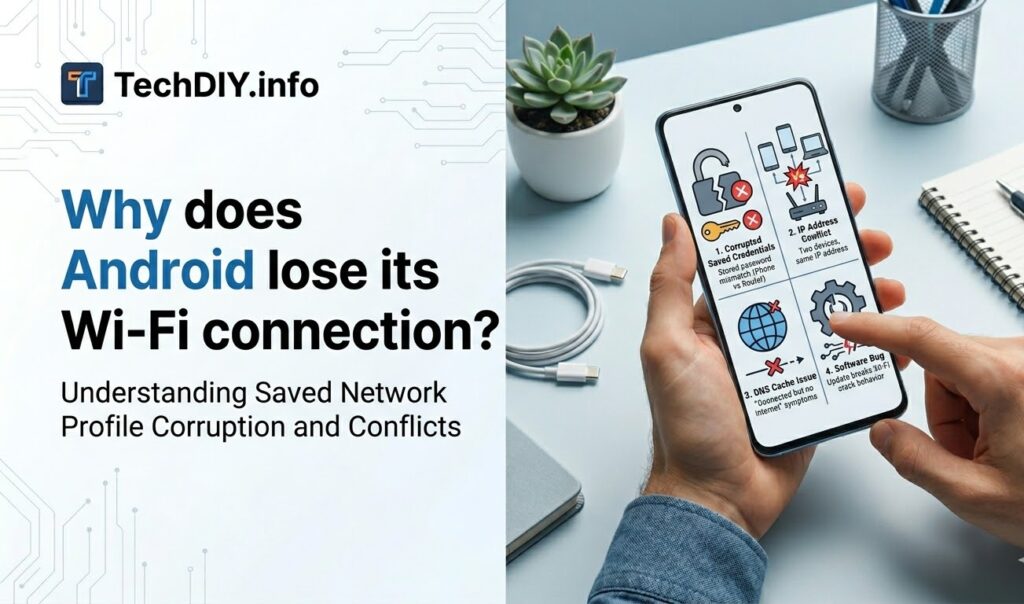
Android stores a profile for every Wi-Fi network you’ve ever connected to — the network name (SSID), password, IP settings, and security type. When any part of that profile becomes corrupted or outdated, the connection breaks even though your password is correct. The four most common causes are:
- Corrupted saved credentials — the stored password or authentication token no longer matches the router
- IP address conflict — another device on the network was assigned the same IP as your phone
- DNS cache issue — stale DNS records cause “connected but no internet” symptoms
- Software bug — a system update changed the Wi-Fi stack behaviour, breaking existing connections
Understanding which category applies helps you pick the right fix. The table at the end of this article maps symptoms to methods, but the general rule is: if only one network is affected, start with Method 1. If all Wi-Fi networks are broken, go straight to Method 3.
Note on Android skins: Samsung One UI, Pixel UI, OnePlus OxygenOS, and Xiaomi MIUI all place the same settings in different locations. Where paths differ, this guide provides separate instructions for Samsung and stock Android / Pixel. For other brands, look under Settings → System → Reset or Settings → General management → Reset.
Method 1 — Forget the Wi-Fi network and reconnect
This is the right starting point when your phone won’t connect to one specific network — your home Wi-Fi, work network, or a network it used to connect to automatically. Forgetting a network deletes the saved profile entirely and forces your phone to perform a clean authentication handshake when you reconnect.
Before you forget the network: Make sure you know the Wi-Fi password. On Android 10 and above, go to Settings → Network & internet → Internet, tap the gear icon next to the network, then tap Share to see or share the password as a QR code. On Samsung, go to Settings → Connections → Wi-Fi, tap the gear icon, then QR code.
Stock Android / Pixel
- Open Settings
- Tap Network & internet → Internet
- Find your Wi-Fi network in the list
- Long-press the network name, or tap the gear icon beside it
- Tap Forget
- Tap the network again, enter your password, and tap Connect
Samsung One UI
- Open Settings
- Tap Connections → Wi-Fi
- Tap the gear icon next to your network name
- Tap Forget
- Tap the network in the list, enter your password, and tap Connect
If the connection is stable after reconnecting, you’re done. If it drops again or still refuses to connect, move to Method 2.
Method 2 — Toggle airplane mode
This takes 30 seconds and fixes transient radio glitches — cases where the Wi-Fi hardware got stuck in a bad state but the saved network profile is fine. Airplane mode cuts power to all wireless radios simultaneously; disabling it restarts them cleanly.
- Swipe down from the top of your screen to open the notification shade
- Tap the Airplane mode tile (aeroplane icon) to enable it
- Wait 10–15 seconds
- Tap Airplane mode again to disable it
- Wait for Wi-Fi to reconnect automatically
If the Airplane mode tile isn’t visible, swipe down a second time to expand the full quick-settings panel, or swipe left to find it on a second page.
Equivalent fix: A full phone restart achieves the same radio reset. Hold the power button → tap Restart (not Power off — a cold boot is slower to clear radio state). If you haven’t restarted your phone in several days, do this instead.
Airplane mode toggle fixes connection glitches but won’t help if the underlying network profile is corrupted. If the problem returns within minutes, proceed to Method 3.
Method 3 — Reset network settings
This is the most effective software-level fix and the one most IT professionals reach for first. It wipes all saved network configurations — Wi-Fi passwords, Bluetooth pairings, VPN profiles, and mobile data APN settings — and returns them to factory defaults. Your personal data (photos, apps, contacts, messages, accounts) is completely untouched.
⚠ What gets deleted by this reset:
- All saved Wi-Fi networks and passwords
- All Bluetooth device pairings
- VPN configurations
- Mobile data APN settings (usually auto-restored by carrier)
What is NOT deleted: photos, videos, apps, contacts, messages, emails, accounts, and all other personal data.
Prepare before resetting
Write down or photograph your Wi-Fi passwords before proceeding. On Android 10+, go to Settings → Network & internet → Internet, tap the gear icon next to each saved network, and tap Share to display the password or QR code. If you can’t retrieve passwords this way, log into your router’s admin panel (usually at 192.168.1.1 or 192.168.0.1) to find them.
Stock Android / Pixel
- Open Settings
- Tap System
- Tap Reset options
- Tap Reset Wi-Fi, mobile & Bluetooth
- Tap Reset settings
- Enter your PIN, pattern, or password if prompted
- Tap Reset settings again to confirm
Samsung One UI
- Open Settings
- Tap General management
- Tap Reset
- Tap Reset network settings
- Tap Reset settings
- Enter your Samsung PIN if prompted and confirm
After the reset
Your phone will restart automatically. Once it boots:
- Go to Settings → Wi-Fi and reconnect to your network by entering the password
- Re-pair any Bluetooth devices (headphones, smartwatch, car audio)
- If mobile data stops working, go to Settings → Mobile network → Access point names and tap the three-dot menu → Reset to default — your carrier’s APN settings will be restored
For the vast majority of users, this resolves the issue permanently. If Wi-Fi problems persist across multiple networks even after this reset, proceed to Method 4.
Method 4 — Advanced fixes for persistent Wi-Fi problems
If your Wi-Fi connects but the internet doesn’t work, or the connection keeps dropping despite a network settings reset, the cause is usually a DNS conflict, an IP address collision, or Android’s adaptive connectivity switching you off Wi-Fi without telling you. Here’s how to fix each one.
Change the DNS server
Symptom: Wi-Fi shows “Connected” but websites won’t load or load very slowly.
Your phone may be using a slow or broken DNS server assigned by your router. Switching to a public DNS fixes this:
- Go to Settings → Network & internet → Internet (stock) or Settings → Connections → Wi-Fi (Samsung)
- Long-press your network name → Modify network (or tap the gear icon → Advanced)
- Change IP settings from DHCP to Static
- Leave the IP address and gateway as they are
- Change DNS 1 to
8.8.8.8(Google) or1.1.1.1(Cloudflare) - Change DNS 2 to
8.8.4.4(Google) or1.0.0.1(Cloudflare) - Tap Save
Faster alternative: On Android 9 and above, go to Settings → Network & internet → Private DNS and enter dns.google or one.one.one.one. This applies the custom DNS to all networks at once without changing individual profiles.
Set a static IP address
Symptom: Phone connects briefly then drops, or shows “Connected, no internet” intermittently.
Two devices on your network may have been assigned the same IP address by the router. Giving your phone a fixed IP outside the router’s automatic range prevents this conflict:
- Follow steps 1–3 from the DNS section above to open the static IP settings
- Note the current IP address shown (e.g.
192.168.1.45) - Change the last number to something high, like
192.168.1.200, to avoid the router’s automatic assignment range - Keep the gateway and subnet mask unchanged
- Tap Save and reconnect
Disable Wi-Fi auto-switch / adaptive connectivity
Symptom: Android switches to mobile data without warning, even when Wi-Fi signal looks strong.
Android has a feature that automatically switches to mobile data when it decides Wi-Fi quality is too low. This can cause apparent disconnections when you’re deliberately on Wi-Fi.
Samsung One UI: Settings → Connections → Wi-Fi → Advanced → Switch to mobile data → toggle Off
Stock Android / Pixel: Settings → Network & internet → Adaptive connectivity → toggle Off
Check for a pending system update
If Wi-Fi problems started after an Android update, a follow-up patch may already be available. Go to Settings → System → System update (or Settings → Software update on Samsung) and install any available update. Wi-Fi regression bugs are commonly patched within a few weeks of a major Android release.
Last resort — factory reset
A factory reset erases everything on your phone and restores it to the state it was in when it left the factory. This fixes Wi-Fi problems caused by deep software corruption that a network settings reset can’t reach — but it should only be considered when all other methods have failed.
⚠ A factory reset deletes everything: apps, photos, messages, settings, and accounts. Do not proceed without backing up first.
Back up before you reset — checklist
- Google account sync: Settings → Google → Backup → tap Back up now. This saves contacts, calendar, Gmail, and most app data.
- Photos & videos: Open Google Photos → tap your profile picture → Photos settings → Google Photos backup → confirm it is enabled and synced.
- WhatsApp: Open WhatsApp → Settings → Chats → Chat backup → Back up.
- Other apps: Note any apps that use their own login (banking apps, authenticator apps). Screenshot your authenticator codes or disable 2FA temporarily before resetting.
- Wi-Fi passwords: Screenshot or write down all saved passwords as described in the Method 3 section.
Stock Android / Pixel
- Open Settings
- Tap System → Reset options
- Tap Erase all data (factory reset)
- Tap Erase all data
- Enter your PIN and confirm
Samsung One UI
- Open Settings
- Tap General management → Reset
- Tap Factory data reset
- Scroll down and tap Reset
- Enter your Samsung PIN and tap Delete all
After the factory reset
Your phone will restart and show the initial setup wizard. Sign back into your Google account — Android will automatically restore most apps, settings, and data from your Google Backup. Restore WhatsApp from Google Drive when prompted during the WhatsApp setup. Wi-Fi networks will need to be added manually.
Summary — which method to use
| Symptom | Best method | Time needed | Data lost? |
|---|---|---|---|
| Won’t connect to one specific network | Method 1 — Forget & reconnect | 1 min | That network’s password only |
| Random drops, radio glitch | Method 2 — Airplane mode toggle | 30 sec | Nothing |
| All Wi-Fi networks broken | Method 3 — Reset network settings | 3 min | All Wi-Fi passwords & BT pairings |
| Connected but no internet / slow | Method 4 — Change DNS | 3 min | Nothing |
| Keeps switching to mobile data | Method 4 — Disable adaptive connectivity | 2 min | Nothing |
| Nothing else worked | Factory reset (last resort) | 30+ min | Everything (back up first) |
Frequently asked questions
Will resetting network settings delete my photos and contacts?
No. Resetting network settings only removes saved Wi-Fi passwords, Bluetooth pairings, and VPN profiles. It does not touch photos, videos, contacts, messages, app data, or any other personal files. Only a factory reset deletes personal data, which is why this guide lists it as the final option only.
How do I find my saved Wi-Fi password on Android before resetting?
On Android 10 and above, go to Settings → Network & internet → Internet, tap the gear icon next to your connected network, then tap Share. Your password appears as a QR code and as plain text below it. On Samsung, go to Settings → Connections → Wi-Fi, tap the gear icon next to the network, then tap QR code. On Android 9 and earlier, saved passwords are not viewable on the phone — check your router’s admin panel instead.
Why does my Android keep forgetting Wi-Fi networks?
The most common cause is the phone’s battery optimisation aggressively suspending Wi-Fi while the screen is off. Go to Settings → Battery → Battery optimisation, find the Wi-Fi or connectivity service, and set it to Not optimised. On Samsung, check Settings → Device care → Battery → Background usage limits and ensure Wi-Fi is not listed as a sleeping app. A second cause is the network settings reset happening due to a failed system update — check for available updates in Settings → System → System update.
Do these steps work on Samsung Galaxy phones?
Yes. Samsung-specific paths are provided separately throughout this guide for every method. Samsung One UI uses different menu labels (Connections instead of Network & internet, General management instead of System) but the underlying settings are identical. The steps were tested on Samsung Galaxy S23 and A54 running One UI 6.
What is the difference between resetting network settings and a factory reset?
A network settings reset removes only wireless configuration data — Wi-Fi passwords, Bluetooth pairings, VPN profiles, and APN settings. All personal data stays intact. A factory reset erases absolutely everything on the phone — apps, photos, messages, accounts, and all settings — and restores it to the state it was in when it left the factory. Always try a network settings reset before considering a factory reset.
Still not connecting? Drop your Android model, Android version, and a description of the error in the comments below — we respond to every question. Including whether the problem affects all Wi-Fi networks or just one will help us give you the fastest answer.