DIY
DIY
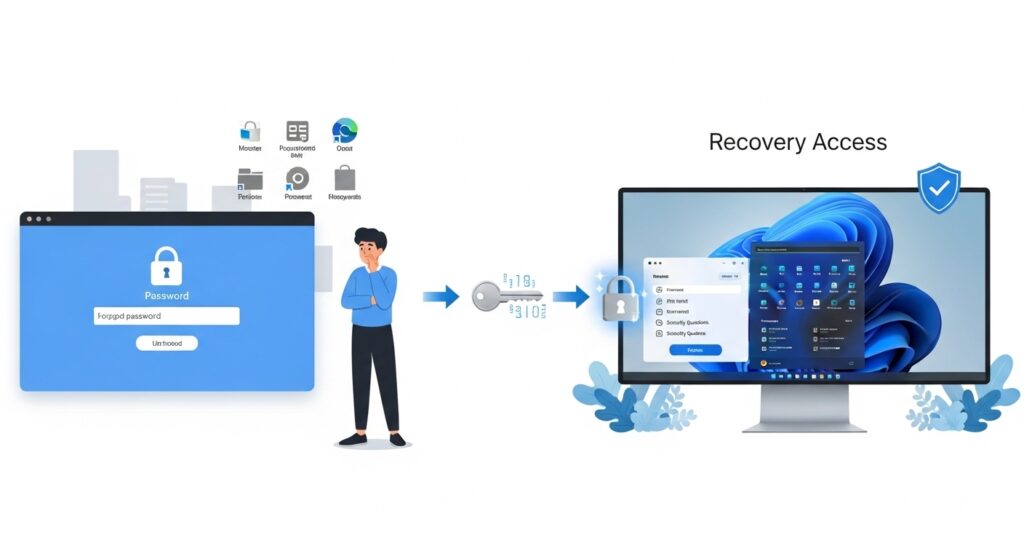
Being locked out of your own Windows PC is one of the most frustrating tech problems — especially because the fix is usually simple once you know which type of account you have. The good news is that in almost every case, your files are completely safe and you can regain access without wiping or reinstalling anything.
The correct method depends on two things: whether your Windows account is linked to a Microsoft account or is a local account, and whether you have another way to verify your identity. This guide walks through every scenario in plain language, starting with the easiest fixes and working through to advanced recovery options.

Start Here: Identify Your Account Type
Before trying any fix, take thirty seconds to identify what type of account is on your login screen. This single step determines which method will work for you and saves you from trying the wrong approach.
| What your login screen shows | Account type | Where to go |
|---|---|---|
| An email address (e.g. [email protected]) | Microsoft account | Method 2: Reset online |
| Just a name with no email (e.g. “John” or “Admin”) | Local account | Method 3: Security questions or advanced recovery |
| A 6-digit PIN prompt | PIN — not a forgotten password | Method 1: Reset your PIN first |
| A name plus the word “Administrator” | Built-in admin account | Method 5: Enable hidden admin account |
| A company or school email address | Domain or work account | Method 7: Contact your IT department |
Method 1: Forgot Your PIN, Not Your Password?
Many users think they have forgotten their Windows password when they have actually forgotten their PIN. These are two completely separate credentials with two completely separate reset flows — and confusing them is one of the most common reasons people spend an hour on the wrong fix.
A PIN is a short numeric code tied to one specific device. Your Microsoft account password is different — it works across all your devices and on the web. If your login screen shows a PIN prompt and you cannot remember the PIN, here is the fastest resolution:
- On the PIN entry screen, click I forgot my PIN below the entry box
- Windows will ask you to verify your identity using your Microsoft account password or a verification code sent to your email or phone
- Complete the verification and set a new PIN immediately
If you remember your Microsoft account password but not your PIN, this is all you need. You do not need any of the advanced methods further down this page.
If you have forgotten both your PIN and your Microsoft account password, continue to Method 2 to reset your Microsoft account password first, then return here to reset the PIN.
Method 2: Microsoft Account — Reset Your Password Online
If your login screen shows an email address, you have a Microsoft account. This is the most common setup for Windows 10 and Windows 11 home users, and it is also the easiest to recover from — because you can reset the password from any browser on any device without touching the locked PC.
Step-by-step reset via any phone, tablet, or other computer:
- Open a browser and go to account.live.com/password/reset
- Select I forgot my password and enter your Microsoft account email address
- Choose a verification method — a code sent to your recovery email address, your registered phone number, or a Microsoft Authenticator app notification
- Enter the verification code
- Choose and confirm your new password
- Return to your locked PC, enter the new password, and sign in — it may take up to a minute to sync
What if you cannot access your recovery email or phone?
This is where most guides stop, but it is also where many users get stuck. If you no longer have access to the email address or phone number on your Microsoft account, you have two options:
- Microsoft Account Recovery Form: Go to account.live.com/acsr. You will be asked to provide account history including previous passwords, billing information, and other details to prove ownership. Microsoft reviews these requests manually and the process takes 24 to 72 hours. Approval is not guaranteed but succeeds for most legitimate account holders.
- Trusted Contact: If you previously set up a trusted contact in your Microsoft account security settings, that person can generate a one-time recovery code and send it to you.
Method 3: Local Account With Security Questions
If your login screen shows just a name without an email address, you have a local account. Windows 10 and Windows 11 added security questions as a built-in recovery option for local accounts, and if you set them up during account creation, this is a quick and clean fix.
- On the login screen, enter any incorrect password and press Enter
- Windows displays “The password is incorrect” — look below the password box for a Reset password link and click it
- Answer your three security questions correctly
- Enter and confirm a new password
- Sign in with the new password
Already inside Windows but forgot your local password? If you are currently signed in with a PIN but cannot remember your local account password, go to Settings → Accounts → Sign-in options → Password → Change. This lets you set a new local password from within Windows without any recovery tools.
If the Reset password link does not appear after entering a wrong password, your local account was not set up with security questions. In that case, continue to Method 4 or Method 5.
Method 4: Local Account — Advanced Reset Using Windows Recovery Environment
If you have a local account without security questions, this method uses Windows Recovery Environment and Command Prompt to reset the password. It works on Windows 10 and Windows 11 and does not delete your files.
Before you begin: check for BitLocker encryption
Windows 11 enables BitLocker drive encryption by default on many modern laptops and devices, including most Surface devices and premium OEM laptops. If your drive is BitLocker-encrypted, this method will be blocked until you unlock the drive first.
Signs your drive may be BitLocker-encrypted:
- You see a BitLocker recovery screen when booting from a USB drive
- Your Microsoft account login screen showed a lock icon next to the drive in File Explorer
- Your laptop came with Windows 11 Home pre-installed (BitLocker is often enabled automatically on OEM devices)
If your drive is BitLocker-encrypted, find your recovery key at account.microsoft.com/devices/recoverykey on another device before continuing. You will need it during the boot process. If you cannot find the recovery key, skip to Method 6 for BitLocker-specific guidance.
What you need
A Windows 10 or Windows 11 installation USB drive. You can create one free using the Media Creation Tool from Microsoft’s official website on any other PC.
Step-by-step
- Insert the Windows installation USB and restart your PC. Boot from the USB drive — press F12, F2, or Delete during startup to access the boot menu (the key varies by manufacturer)
- When the Windows Setup screen appears showing language options, press Shift + F10 to open a Command Prompt window
- Type the following to find which drive letter Windows is installed on:
diskpart
list volume
exit
Look for the volume labelled Windows — it is usually C: or D: when booted from USB
- Navigate to the System32 folder (replace C: with your actual Windows drive letter if different):
cd C:\Windows\System32 - Rename the Ease of Access utility and replace it temporarily with Command Prompt:
ren Utilman.exe Utilman.exe.bak copy cmd.exe Utilman.exe - Remove the USB drive and restart your PC normally:
wpeutil reboot - At the Windows login screen, click the Accessibility icon in the bottom-right corner. This will now open a Command Prompt window instead of the accessibility menu
- Type the following command, replacing YourUsername with your actual Windows username:
net user YourUsername *Press Enter, then type your new password twice when prompted
- Close the Command Prompt and sign in with your new password
Critical step — restore the original file after signing in
Once you are back inside Windows, you must reverse the file change you made. Leaving cmd.exe in place of Utilman.exe is a serious security vulnerability that would allow anyone with physical access to your PC to open a Command Prompt from the login screen.
Open Command Prompt as Administrator and run:
cd C:\Windows\System32
del Utilman.exe
ren Utilman.exe.bak Utilman.exe
Method 5: Enable the Hidden Built-in Administrator Account
Windows has a built-in Administrator account that is hidden and disabled by default. Enabling it from the recovery environment gives you a clean login path to reset any other user account’s password — and it is a safer and less invasive alternative to the file-renaming method above.
- Boot from your Windows installation USB and press Shift + F10 to open Command Prompt
- Identify your Windows drive letter using diskpart as described in Method 4
- Enable the built-in Administrator account:
net user Administrator /active:yes - Restart your PC without the USB drive
- On the login screen, you will now see an Administrator account — click it. It has no password by default
- Once inside Windows, open Control Panel → User Accounts → Manage another account, select your locked account, and click Change the password
- Set a new password and sign out
- Sign back in with your account using the new password
- Disable the built-in Administrator account again immediately: Open Command Prompt as Administrator and run:
net user Administrator /active:no
Method 6: What to Do If Your Drive Is BitLocker Encrypted
BitLocker encryption is one of the most common reasons standard password recovery guides fail without explaining why. If your drive is BitLocker-encrypted, Methods 4 and 5 above will be blocked at the boot stage. You need your BitLocker recovery key before anything else.
Where to find your BitLocker recovery key
- Microsoft account (most common): Sign into account.microsoft.com/devices/recoverykey on any other device. If BitLocker was set up automatically by Windows, the key is almost certainly stored here
- USB drive: If you chose to save the key to a USB drive during BitLocker setup, plug it in when prompted during boot
- Printed copy: If you printed the recovery key during setup, locate that printed document
- Azure Active Directory: If your PC is joined to a work or school account, your IT administrator can retrieve the key from the Azure portal
If you cannot find the recovery key
If you have exhausted all options for finding the BitLocker recovery key, your recovery options become very limited. Microsoft support can sometimes assist, but without the recovery key, the encrypted data on the drive cannot be accessed through standard means. This is by design — BitLocker exists precisely to prevent unauthorised access.
This is why saving your BitLocker recovery key at setup is not optional on a modern Windows 11 device. If you are reading this before being locked out, check right now that your key is saved at account.microsoft.com/devices/recoverykey.
Method 7: Work, School, or Domain Account
If your PC is joined to a company network, a school domain, or a Microsoft 365 organisation, your password is managed by your organisation’s IT department — not by your local Windows installation or personal Microsoft account. None of the local account recovery methods in this guide will apply.
What to do:
- Contact your IT helpdesk or IT administrator and ask them to reset your account password
- Ask whether your organisation has a self-service password reset portal (SSPR) — many Microsoft 365 organisations set these up so employees can reset their own passwords without calling IT
- For Microsoft 365 or Azure AD accounts, your IT admin can reset the password directly from the Azure or Microsoft 365 admin portal within minutes
Important: Do not attempt Command Prompt or file-based password reset methods on a managed work device. Doing so may violate your organisation’s security policy and could trigger a security alert to your IT team.
Method 8: Safe Mode Recovery
Booting into Safe Mode is a cleaner and less invasive recovery option that works in a specific scenario: if your PC has a second administrator account that does not require a PIN. Safe Mode sometimes surfaces the built-in Administrator account or other admin accounts on the login screen that do not appear during a normal boot.
- At the Windows login screen, hold Shift and click Power → Restart
- In the blue boot menu that appears, go to Troubleshoot → Advanced options → Startup Settings → Restart
- Press F4 to boot into Safe Mode
- If a second administrator account or the built-in Administrator account appears, log in and go to Settings → Accounts or Computer Management → Local Users and Groups to reset the locked account’s password
Third-Party Recovery Tools
If you are not comfortable with Command Prompt methods, several reputable free tools can reset a local Windows account password by booting from a USB drive. These are the most well-established options:
- Lazesoft Recover My Password (free home edition): The most beginner-friendly option. Download from the official Lazesoft website, create a bootable USB, and follow the graphical interface to reset the password without any command-line knowledge
- Offline NT Password and Registry Editor: Completely free and open source. Command-line based and less beginner-friendly, but highly reliable and does not require installation on another Windows PC to create the boot media
- Hiren’s BootCD PE: A broader system recovery toolkit that includes password reset tools alongside disk utilities, antivirus scanners, and other repair options — useful if you are dealing with multiple issues at once
Safety warning: Only download these tools from their official websites. Many search results for “Windows password recovery tool” lead to sites distributing malware bundled with the tool. Search for the exact tool name and navigate to the official project page directly.
These tools work on local accounts only. They cannot reset a Microsoft account password — for that, Method 2 is the only correct approach.
Once You Are Back In: Protect Yourself for Next Time
Once you have regained access to your PC, take ten minutes to set up proper recovery options so this never happens again. Most people who get locked out once get locked out again within a year — and it is always preventable.
- Save your BitLocker recovery key: Open a browser and go to account.microsoft.com/devices/recoverykey. Confirm your key is listed there. If it is not, search for “Manage BitLocker” in the Start menu and back up the key now
- Add a recovery email and phone to your Microsoft account: Go to account.microsoft.com → Security → Update your security info and make sure both a recovery email and a phone number are current
- Set up or update security questions (local account): Press Win + R, type
ms-cxh://setsqsalocalonly, and press Enter to set up three security questions for your local account - Create a PIN as a backup sign-in method: Go to Settings → Accounts → Sign-in options → PIN. A PIN is faster to reset than a forgotten password and adds a convenient fallback
- Create a password reset disk (local account only): Plug in a USB drive, search for Create a password reset disk in the Start menu, and follow the two-minute wizard. Store the USB somewhere safe
- Store your password in a password manager: Bitwarden is free, open source, and works across all your devices. Even using your browser’s built-in password manager is significantly better than relying on memory alone
Verdict
Being locked out of Windows is almost always fixable without losing your data. The fastest path is through your Microsoft account — any phone or second device is all you need. Local account recovery takes a few more steps but is well within reach for most users following the methods in this guide.
The only genuinely difficult scenario is a BitLocker-encrypted drive without a saved recovery key. That situation has no easy solution, which is exactly why saving the key at setup is so important. If you are reading this before being locked out, go to account.microsoft.com/devices/recoverykey right now and check that your key is there.
FAQ
Can I reset a Windows password without losing my data?
Yes. None of the methods in this guide delete your personal files. Password reset is completely separate from resetting or reinstalling Windows. Your documents, photos, and installed applications are not affected.
What if I forgot both my Windows password and my PIN?
If you have a Microsoft account, reset the password first using Method 2 on any other device. Once you have a working Microsoft account password, return to the locked PC and use the “I forgot my PIN” option on the PIN entry screen to set a new PIN using your newly reset password.
Can I reset a Windows 11 password without a USB drive?
Yes — if you have a Microsoft account, you can reset it entirely through a browser on any other device. No USB drive or installation media is needed. Local accounts without security questions do require a USB drive for the advanced recovery methods.
Does resetting a Windows password delete my files?
No. Resetting a password does not touch your files or applications in any way. The only exception would be if you choose Reset this PC rather than a password reset — but that is a separate process entirely and this guide does not recommend it.
What is the fastest way to reset a forgotten Windows password?
For Microsoft account users: visit account.live.com/password/reset from any browser on any device. For local account users with security questions set up: enter a wrong password at the login screen and click Reset password. Both methods take under five minutes.
Will these methods work on Windows 10 as well as Windows 11?
Yes. All methods in this guide apply to both Windows 10 and Windows 11. The screens and menus look slightly different in Windows 10, but the underlying steps and commands are identical.
My PC is from work and I forgot the password — what do I do?
Contact your IT helpdesk. Work and school devices are managed by your organisation’s IT department, and the password needs to be reset by an administrator on their end. Do not attempt Command Prompt recovery methods on a managed work device.