DIY
DIY
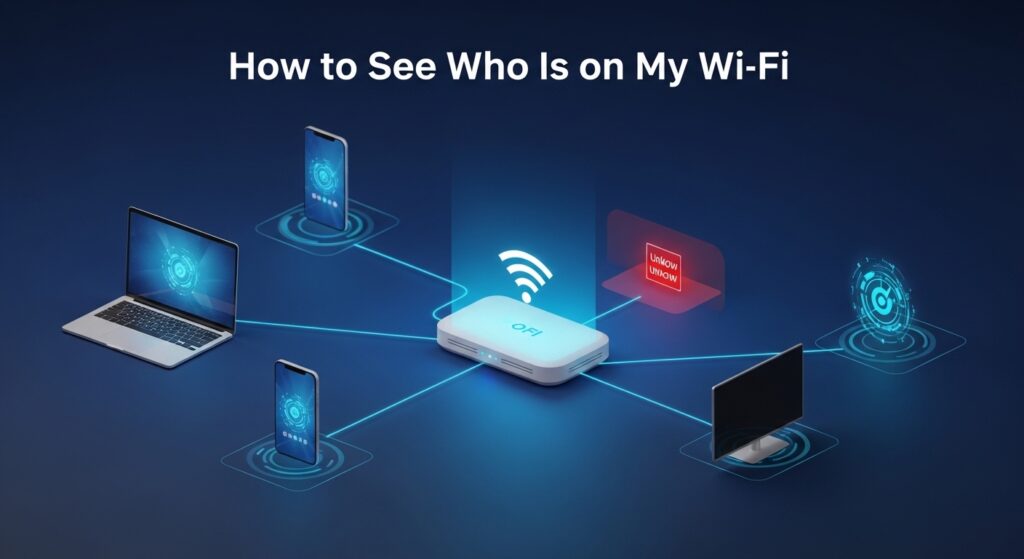
If your broadband feels sluggish, your data allowance is disappearing faster than usual, or you simply want to know what is connected to your home network — you are in the right place. In this guide we cover five ways to see who is on your Wi-Fi, from a two-minute router check to dedicated apps, covering Windows, Mac, iPhone, and Android. No technical background needed.
Let’s start.

Quick navigation
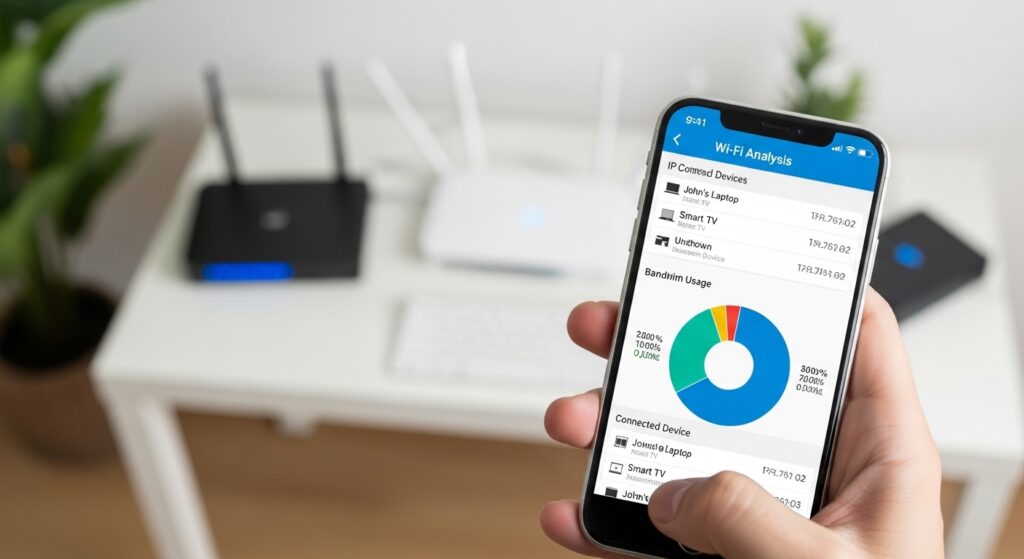
Why you should check who’s on your Wi-Fi
Most people never look at the connected device list on their router — until something goes wrong. Here are the main reasons it is worth a quick check:
- Bandwidth theft. An unauthorised user streaming video or downloading large files can noticeably slow down your connection for everyone in the house.
- Security risk. An unknown device on your network could potentially access shared files, printers, and smart home devices.
- Spotting forgotten gadgets. Old smart bulbs, baby monitors, and games consoles that you no longer use are still taking up IP addresses and occasionally chatting to the internet.
- Peace of mind. Knowing exactly what is on your network takes 2–3 minutes and requires no specialist tools.
Method 1 — Check your router’s admin panel (works on any router)
This is the most reliable method because it works on every router, regardless of brand or age. Your router keeps a live list of every device it has assigned an IP address to — you just need to log in and find it.
Step-by-step
- Connect to your home Wi-Fi on any device (phone, laptop, tablet).
- Open a web browser and type your router’s IP address into the address bar. The most common addresses are:
192.168.1.1192.168.0.1192.168.1.254(common on BT and Sky routers)
Not sure which one? On Windows, open Command Prompt and type
ipconfig. Look for Default Gateway — that is your router’s IP address. - Log in with your router’s admin username and password. If you have never changed these, check the sticker on the back or bottom of your router.
- Find the connected devices section. The exact location varies by brand, but look for labels like:
- Connected Devices
- DHCP Client List
- Attached Devices
- Device Manager
- LAN > DHCP Clients
- You will see a list showing each device’s name, IP address, and MAC address.
Default login addresses for popular router brands
| Router brand | Default admin IP | Default username | Default password |
|---|---|---|---|
| TP-Link | 192.168.0.1 | admin | admin |
| Netgear | 192.168.1.1 or routerlogin.net | admin | password |
| ASUS | 192.168.1.1 | admin | admin |
| BT Smart Hub | 192.168.1.254 | (not required) | Check hub sticker |
| Sky Hub | 192.168.0.1 | admin | sky |
| Virgin Media Hub | 192.168.0.1 | admin | changeme |
| Linksys | 192.168.1.1 | admin | (blank) |
| D-Link | 192.168.0.1 | admin | (blank) |
⚠ Security tip: If you are still using the default admin password on your router, change it now. Anyone on your network could log into the admin panel with a quick Google search.
Method 2 — Use your router manufacturer’s app
Most modern router brands offer a free smartphone app that gives you a clean, user-friendly view of every connected device. This is the easiest option if you are on your phone and do not want to deal with admin panel logins.
Popular router apps
- TP-Link Tether (iOS & Android) — Works with all TP-Link Archer and Deco routers. Shows device name, connection type, and real-time speed usage per device.
- Netgear Nighthawk (iOS & Android) — Covers all Nighthawk and Orbi routers. Includes parental controls and the ability to pause a device’s internet access with one tap.
- ASUS Router (iOS & Android) — Full featured app for ASUS routers. Displays a live network map and allows you to block devices directly.
- BT Smart Hub app (iOS & Android) — Manage your BT broadband, view connected devices, and run speed tests.
- Google Home (iOS & Android) — If you have a Google Nest Wi-Fi or Google Wi-Fi router, the Google Home app lists every device and lets you pause individual devices.
How to use the app
- Download your router brand’s app from the App Store or Google Play.
- Open the app and follow the on-screen setup (you will need your router’s serial number or admin password on first run).
- Look for a section called Connected Devices, Clients, or Network Map.
- You will see a list of every device currently connected, usually with device names and connection type (2.4 GHz or 5 GHz).
Method 3 — Use a free Wi-Fi scanner app
If you want more detail than your router provides — such as device manufacturer info, open ports, or alerts when a new device joins your network — a dedicated network scanner is the right tool.
Best free Wi-Fi scanner apps
| App | Platforms | Free tier | Real-time alerts | Best for |
|---|---|---|---|---|
| Fing | iOS, Android, Windows, Mac | Yes | Yes (free, limited) | Most home users — easiest to use |
| Advanced IP Scanner | Windows only | Yes (fully free) | No | Windows power users |
| LanScan | Mac only | Yes (basic) | No | Mac users wanting a quick scan |
| Angry IP Scanner | Windows, Mac, Linux | Yes (open source) | No | Cross-platform / advanced users |
How to use Fing (recommended for most people)
- Download Fing from the App Store or Google Play (it is free).
- Make sure your phone is connected to the Wi-Fi network you want to scan.
- Open Fing and tap Scan for devices.
- Within a few seconds, Fing shows every device on your network with its IP address, MAC address, and — in most cases — the manufacturer’s name (e.g. “Apple”, “Samsung”, “Amazon”).
- Tap any device for more detail, or use the Network Alerts feature to get notified when a new device joins your network in future.
Method 4 — Check on Windows without any extra apps
If you are on a Windows PC and would rather not download anything, you can get a quick list of network devices using a built-in command.
Using Command Prompt (arp -a)
- Press Windows key + R, type
cmd, and press Enter. - In the Command Prompt window, type the following and press Enter:
arp -a - You will see a list of IP addresses and their corresponding MAC addresses currently in your PC’s ARP cache. Every IP in the
192.168.x.xrange is a device on your local network.
Internet Address Physical Address Type
192.168.1.1 d4-6e-0e-xx-xx-xx dynamic ← your router
192.168.1.102 b8-27-eb-xx-xx-xx dynamic
192.168.1.105 3c-22-fb-xx-xx-xx dynamic
192.168.1.255 ff-ff-ff-ff-ff-ff static ← broadcast, ignore
Note: arp -a only shows devices that your PC has recently communicated with, so it may not catch every single device on the network. For a complete list, use your router admin panel (Method 1) or Fing (Method 3).
Using PowerShell for a cleaner result
- Press Windows key + X and choose Windows PowerShell.
- Type the following command and press Enter:
Get-NetNeighbor -AddressFamily IPv4 | Where-Object {$_.State -eq "Reachable"} - This shows only active, reachable devices with their IP and MAC address in a clean table format.
Method 5 — Check on Mac, iPhone, or iPad
On a Mac
- Click the Apple menu → System Settings (or System Preferences on older macOS).
- Click Network → select your Wi-Fi connection → click Details.
- Note the Router IP address listed (e.g. 192.168.1.1).
- Open Safari, type that IP into the address bar, and log into your router admin panel as described in Method 1.
Alternatively, open Terminal (Applications → Utilities → Terminal) and run:
arp -aThis works exactly the same as on Windows and lists active devices on your network.
On iPhone or iPad
iOS does not include a built-in network scanner, but you have two good options:
- Use the Fing app (free, App Store) — the quickest option. Open the app, tap Scan, and you’ll have a full device list in under 30 seconds.
- Use your router app (TP-Link Tether, Netgear Nighthawk, etc.) as described in Method 2.
How to identify unknown devices on your network
You have run a scan and there are one or two devices with names like 192.168.1.107 or DESKTOP-A3F92X that you do not recognise. Here is how to work out what they are.
Step 1 — Check the device name
Many devices broadcast a hostname. Common patterns:
- iPhone-of-Sarah or Sarahs-iPhone — an iOS device
- DESKTOP-XXXXXX or LAPTOP-XXXXXX — a Windows PC
- android-XXXXXXXX — an Android phone or tablet
- Philips-HueXXXXXX, Ring-XXXXXX, Amazon-XXXXXX — smart home devices
- ESP_XXXXXX — a cheap IoT device or smart plug built on an ESP chip
Step 2 — Look up the MAC address manufacturer
Every network device has a MAC address (a 12-character code like b8:27:eb:xx:xx:xx). The first six characters identify the manufacturer. You can look this up for free:
- Copy the first six characters of the MAC address (e.g.
b8:27:eb). - Go to maclookup.app or search “MAC address lookup”.
- Paste the first six characters. The result will tell you the manufacturer — for example, Raspberry Pi Foundation, Samsung Electronics, or Amazon Technologies.
Step 3 — Rename devices in your router
Once you have identified a device, log into your router admin panel and rename it (most modern routers support this). This makes future checks much quicker — instead of a list of IP addresses, you see “Sarah’s MacBook”, “Kitchen Fire TV”, and “Front Door Ring Camera”.
How to remove or block a device from your Wi-Fi
Found a device you definitely do not recognise and cannot account for? Here is what to do.
Option 1 — Block by MAC address in the router admin panel
- Log into your router admin panel (see Method 1).
- Find MAC Filtering, Access Control, or Block Device — the name varies by brand.
- Add the unknown device’s MAC address to the blocklist.
- Save the settings. The device will be disconnected and prevented from reconnecting.
⚠ Important: MAC address blocking is not foolproof. A technically savvy user can spoof a different MAC address. For real security, change your Wi-Fi password (see Option 2 below).
Option 2 — Change your Wi-Fi password (most effective)
This is the most reliable option. When you change your Wi-Fi password, every device on the network is disconnected and must re-enter the new password to reconnect. The uninvited guest will not have it.
- Log into your router admin panel.
- Go to Wireless Settings or Wi-Fi Settings.
- Change the password (also called the WPA2 Key or Network Key) to something strong — at least 12 characters, mixing letters, numbers, and symbols.
- Save settings. Reconnect all your own devices with the new password.
Option 3 — Kick a device via the router app
If you use the Netgear Nighthawk or Google Home app, you can pause or block a specific device’s internet access with a single tap, without disconnecting everyone else.
Frequently asked questions
Can my ISP see who is connected to my Wi-Fi?
No. Your Internet Service Provider can see the traffic that leaves your router, but they cannot see the individual devices connected inside your home network. That information stays entirely local to your router.
Can I see browsing history from my router?
Most home routers do not store detailed browsing history by default. Some routers have basic traffic logs, but these typically only show IP addresses rather than full URLs. To track detailed browsing activity you would need third-party router firmware such as DD-WRT, or a dedicated network monitoring tool like Pi-hole.
Why is there a device I don’t recognise on my Wi-Fi?
Unknown devices are most often smart home gadgets you have forgotten about (robot vacuums, smart plugs, older tablets), a guest’s phone that auto-connected, or in rare cases a neighbour who has guessed your password. Use a MAC address lookup tool (search “MAC OUI lookup”) to identify the device manufacturer. If you genuinely cannot identify it, change your Wi-Fi password immediately.
How often should I check who is on my Wi-Fi?
Once a month is a reasonable routine for most households. If you notice a sudden, unexplained slowdown in your internet speed, check straight away — it could indicate an unauthorised user streaming or downloading in the background.
Will someone know if I check their device on my Wi-Fi?
No. Viewing the connected device list in your router’s admin panel or running a network scan with an app like Fing is completely passive. No notification is sent to any connected device, and the other device will have no way of knowing it was scanned.
Final thoughts
Checking who is on your Wi-Fi is one of the quickest and most useful things you can do for your home network. Here’s a quick recap of the five methods:
- Router admin panel — the most reliable, works on any router, takes 2 minutes.
- Router manufacturer app — easiest option on your smartphone.
- Fing or Advanced IP Scanner — best if you want manufacturer details and future alerts.
- Windows arp -a command — no extra software needed, good for a quick snapshot.
- Mac Terminal or Fing on iPhone — simple options for Apple users.
If you find an unknown device, do not panic — it is usually a forgotten smart home gadget. Work through the identification steps, and if you still cannot place it, change your Wi-Fi password to be safe.