DIY
DIY
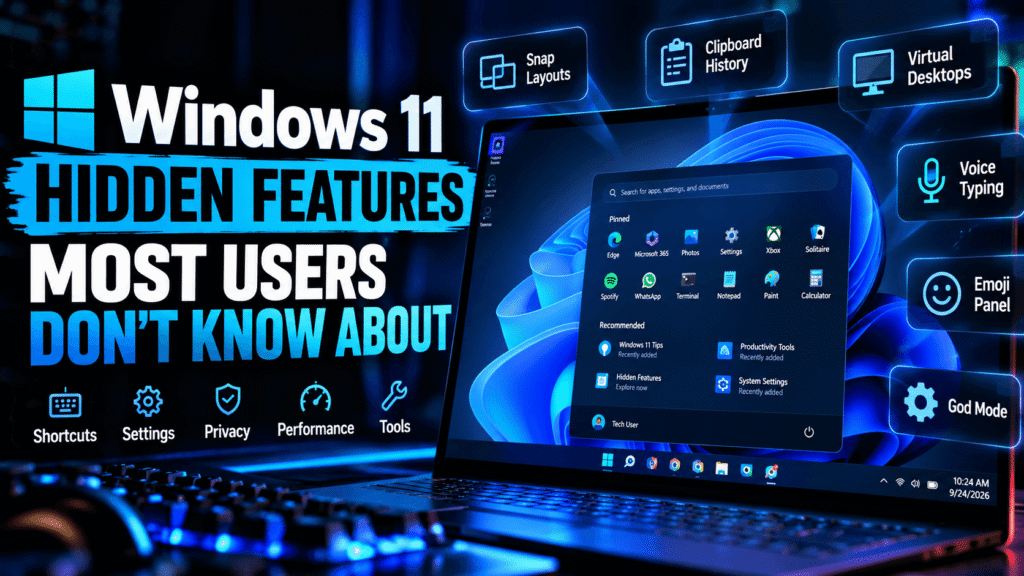
Windows 11 has been around long enough that most users have already discovered the basics: the redesigned Start menu, centered taskbar, Snap layouts, widgets, and the updated Settings app.
But Windows 11 has another side that is much easier to miss.

Buried inside the operating system are dozens of useful features, shortcuts, utilities, and customization options that Microsoft doesn’t always put front and center. Some can make multitasking faster, others improve productivity, while a few can completely change how you interact with your PC.
Whether you’re using Windows 11 on a desktop, laptop, or gaming machine, these hidden features are worth exploring.
1. Clipboard History
Most people know that Ctrl + C copies something and Ctrl + V pastes it.
Far fewer people use Windows 11’s clipboard history.
Press:
Windows key + V
The first time you use it, Windows may ask you to enable Clipboard history.
Once enabled, Windows can keep multiple copied items instead of remembering only the last thing you copied.
You can then select previous text or other supported clipboard content without repeatedly switching between applications.
This is particularly useful when researching, writing articles, coding, or working with multiple pieces of information.
How to enable Clipboard history
Go to:
Settings → System → Clipboard
Then enable Clipboard history.
Windows 11 also provides options for syncing clipboard data between compatible devices, although you should consider the privacy implications before enabling synchronization.
2. Secret Quick Access Menu
Windows 11 has a powerful menu that doesn’t require opening the Start menu.
Press:
Windows key + X
You’ll get access to tools such as:
- Terminal
- Task Manager
- Device Manager
- Disk Management
- Event Viewer
- System
- Network Connections
- Computer Management
- Run
This is one of the most useful shortcuts for advanced Windows users.
Instead of searching through Settings every time you need an administrative tool, Win + X gives you a much faster route.
3. God Mode
Despite the dramatic name, Windows “God Mode” isn’t a secret hacking mode.
It’s essentially a special folder that exposes a large collection of Windows configuration shortcuts in one place.
To create it:
- Right-click an empty area of your desktop.
- Select New → Folder.
- Rename the folder to:
GodMode.{ED7BA470-8E54-465E-825C-99712043E01C}
- Press Enter.
The folder icon should change.
Open it and you’ll find a categorized collection of administrative and configuration options.
It’s especially useful for users who prefer having Windows’ settings organized in one traditional interface.
4. Snap Layouts
Windows 11 introduced a much more powerful window-management system.
Hover your mouse over the maximize button on a window.
You’ll see several layout options.
You can quickly position applications side by side, in columns, or in larger multi-window arrangements.
There’s also a keyboard shortcut:
Windows key + Z
This opens the Snap Layout interface.
For people who work with a browser, WordPress dashboard, file manager, terminal, and other applications simultaneously, Snap layouts can save a surprising amount of time.
5. Virtual Desktops
Windows 11 lets you create multiple desktops without installing additional software.
Press:
Windows key + Ctrl + D
Windows creates a new virtual desktop.
You can then separate your workspaces.
For example:
Desktop 1: Work
Desktop 2: Research
Desktop 3: Personal
Desktop 4: Development
Switch between them using:
Windows key + Ctrl + Left/Right Arrow
You can also press Windows key + Tab to manage your desktops visually.
This is particularly useful on laptops with limited screen space.
6. Voice Typing
Windows 11 includes built-in voice typing.
Instead of manually typing everything, press:
Windows key + H
Windows will open its voice-typing interface.
Start speaking and Windows can convert your speech into text.
The feature can be useful for drafting notes, emails, documents, or quick messages.
The accuracy can vary depending on your microphone, language, accent, and environment, but it can still be surprisingly useful.
7. Emoji, Symbols and GIFs
Windows 11 has a surprisingly powerful built-in text panel.
Press:
Windows key + .
or
Windows key + ;
You’ll get access to:
- Emojis
- GIFs
- Symbols
- Kaomoji
- Clipboard history
This works in many applications that accept text input.
It’s one of those features that’s easy to overlook because there’s no obvious button for it.
8. Focus Sessions
Windows 11 includes a feature designed to help you concentrate.
Open the Clock app and look for Focus sessions.
You can set a period of focused work while reducing distractions.
Depending on your Windows configuration, Focus sessions can integrate with Microsoft’s productivity ecosystem.
You can use the feature for:
- Writing
- Studying
- Coding
- Research
- Reading
- Other uninterrupted work
It’s essentially a lightweight productivity timer built into Windows.
9. Nearby Sharing
Windows 11 can share files with nearby compatible Windows devices.
Go to:
Settings → System → Nearby sharing
Depending on the available options, you can configure sharing between nearby devices.
This can be more convenient than emailing yourself a file or uploading it to cloud storage when you’re simply transferring something between nearby computers.
10. Dynamic Lock
Dynamic Lock is a clever security feature that many users never configure.
The idea is simple: Windows can use a paired Bluetooth device, such as your phone, to determine when you’ve moved away from your computer.
When the device is sufficiently out of range, Windows can automatically lock the PC.
Find it under:
Settings → Accounts → Sign-in options
Look for Dynamic lock.
It isn’t a replacement for good security practices, but it can provide an additional layer of convenience when leaving your computer unattended.
11. Storage Sense
Running out of disk space?
Windows 11 includes a built-in cleanup feature called Storage Sense.
Go to:
Settings → System → Storage
Then open Storage Sense.
Windows can automatically clean certain temporary files and manage storage according to your settings.
This can help prevent your system drive from gradually filling with unnecessary data.
You can also use the Storage page to identify what is consuming the most disk space.
12. Hidden Screenshot Tools
Windows 11 has more screenshot functionality than simply pressing Print Screen.
Try:
Windows key + Shift + S
This opens the Snipping Tool interface.
You can capture:
- A rectangular area
- A specific window
- A freeform area
- The entire screen
The screenshot can then be edited or saved.
The Snipping Tool has also evolved beyond simple screenshots and can provide additional capture functionality depending on your Windows 11 version.
13. Windows Terminal
Windows 11 includes Windows Terminal, which provides a modern interface for command-line tools.
You can use shells such as:
- PowerShell
- Command Prompt
- Windows PowerShell
- Other installed command-line environments
A quick way to access it is through the Win + X menu.
For developers and advanced users, Terminal is considerably more convenient than managing separate command-line windows.
You can also open multiple tabs within one Terminal window.
14. Hidden File Extensions
Windows often hides file extensions by default.
That means a file might appear as:
document
instead of:
document.pdf
or:
document.exe
Showing extensions makes it much easier to understand exactly what type of file you’re dealing with.
Open File Explorer and go to:
View → Show → File name extensions
Enable the option.
This is also a useful security habit because it makes suspicious executable files easier to identify.
15. Advanced Screenshot and Screen Recording
The Snipping Tool has become more capable in newer Windows 11 releases.
Depending on your version, you can use it not only for screenshots but also for screen recording.
Search for:
Snipping Tool
Then explore the available capture modes.
This can be useful when creating tutorials, documenting software problems, or recording a short demonstration without installing third-party software.
16. Secret Run Commands
Windows has a huge collection of commands that can launch system tools quickly.
Press:
Windows key + R
Then enter commands such as:
appwiz.cpl
to open Programs and Features.
ncpa.cpl
to open Network Connections.
devmgmt.msc
to open Device Manager.
diskmgmt.msc
to open Disk Management.
services.msc
to open Windows Services.
eventvwr.msc
to open Event Viewer.
These commands are particularly useful when troubleshooting Windows.
17. Advanced Task Manager
Task Manager is much more than a place to kill frozen applications.
Press:
Ctrl + Shift + Esc
You can inspect:
- CPU usage
- Memory usage
- Disk activity
- Network activity
- Startup applications
- Running processes
- Performance information
- Services
- Users
The Startup apps section is particularly useful.
If your computer takes a long time to boot, check which applications are automatically starting with Windows.
Don’t blindly disable everything, though. Some startup applications may be required for hardware, security software, drivers, or other functionality.
18. Battery Usage by Application
Laptop users can check which applications consume battery power.
Go to:
Settings → System → Power & battery
Depending on your Windows 11 version, you’ll find battery usage information that can help identify applications consuming significant power.
This can be useful when trying to extend battery life.
19. Windows Sandbox
Some editions of Windows 11 support Windows Sandbox, a lightweight isolated environment for running applications separately from your main Windows installation.
It can be useful when testing software or opening files that you don’t want interacting directly with your normal desktop environment.
Availability depends on your Windows edition and hardware configuration.
Because Sandbox is isolated and temporary, anything inside it disappears when the sandbox is closed.
However, it should not be treated as a guarantee of safety for every potentially malicious file.
20. System Information Without Third-Party Software
Windows already includes several tools for checking your computer’s hardware.
Press:
Windows key + R
Then type:
msinfo32
and press Enter.
The System Information utility can show details about:
- Processor
- Installed memory
- BIOS
- Motherboard
- Windows version
- Hardware resources
- System components
You can also use:
dxdiag
to access DirectX diagnostic information.
These tools can be extremely useful when troubleshooting hardware or checking system specifications.
Bonus: Windows 11 Keyboard Shortcuts Worth Memorizing
If you want to become faster with Windows 11, these shortcuts are worth learning.
| Shortcut | Function |
|---|---|
| Win + V | Clipboard history |
| Win + X | Quick administrative menu |
| Win + Z | Snap layouts |
| Win + H | Voice typing |
| Win + . | Emoji/symbol panel |
| Win + Shift + S | Screen capture |
| Win + Tab | Task View |
| Win + Ctrl + D | New virtual desktop |
| Win + Ctrl + Left/Right | Switch desktops |
| Win + R | Run |
| Win + E | File Explorer |
| Win + I | Settings |
| Win + L | Lock PC |
| Win + A | Quick Settings |
| Win + N | Notifications and calendar |
| Win + S | Search |
| Ctrl + Shift + Esc | Task Manager |
Final Thoughts
Windows 11 is considerably deeper than its redesigned interface suggests.
Features such as Clipboard history, virtual desktops, Snap layouts, voice typing, Storage Sense, Windows Terminal, Dynamic Lock, and the Snipping Tool can make everyday computing significantly easier without requiring additional software.
The biggest advantage is that many of these tools are already built into Windows.
Before installing another utility to solve a Windows problem, it’s worth checking whether Windows 11 already has the feature you need.
The more you explore the operating system, the more you’ll discover that some of its most useful tools aren’t necessarily the ones Microsoft puts directly in front of you.
Frequently Asked Questions
What is the most useful hidden feature in Windows 11?
It depends on how you use your PC. Clipboard history, Snap layouts, virtual desktops, Windows Terminal, and the Snipping Tool are particularly useful for everyday productivity.
Does Windows 11 have a hidden administrator mode?
Windows 11 doesn’t have a special unrestricted “God Mode.” However, the God Mode folder provides centralized access to many Windows configuration settings.
How do I see clipboard history in Windows 11?
Press Windows + V. If it isn’t enabled, go to Settings → System → Clipboard and enable Clipboard history.
How do I take a screenshot in Windows 11?
Press Windows + Shift + S to open the Snipping Tool capture interface.
How do I make Windows 11 faster?
Start by checking startup applications, available storage, background processes, Windows updates, and unnecessary applications. Windows 11’s Storage Sense and Task Manager can help with several of these tasks.
Are these features available on every Windows 11 PC?
Not necessarily. Some features depend on your Windows 11 version, edition, hardware, installed components, or Microsoft account configuration. Microsoft also changes Windows features through updates, so the exact interface can vary between releases.
Windows 11 still has plenty of tricks hiding underneath the surface. Once you start using these tools, everyday tasks can become noticeably faster and easier.