DIY
DIY
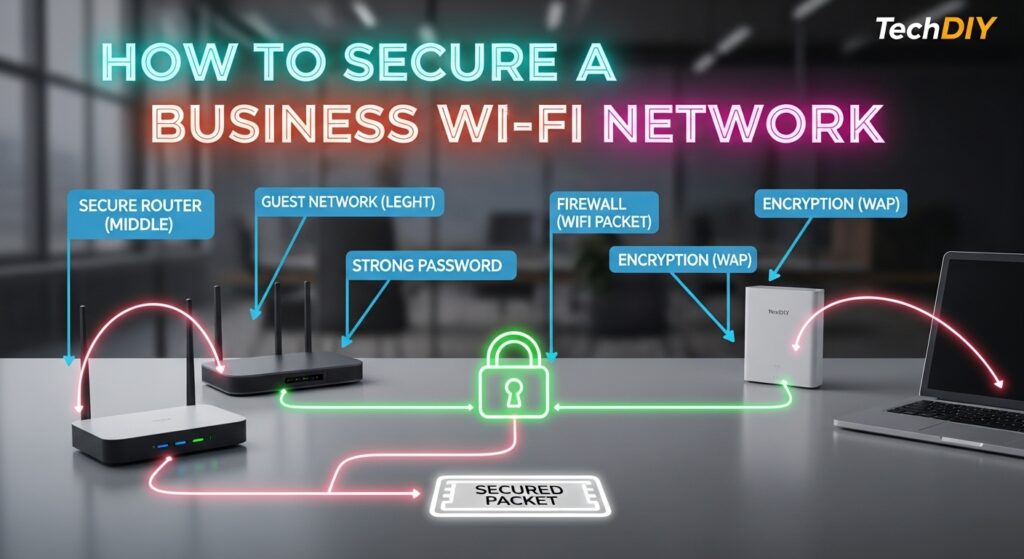
Over 61% of small business cyberattacks in 2025 began with an unsecured or misconfigured Wi-Fi network. Your office Wi-Fi is the front door to every device, file, and system in your company — and most businesses leave it wide open without realising it.
This guide walks you through 12 concrete steps to secure your business Wi-Fi network from the ground up — from changing default router credentials to setting up network segmentation and monitoring. Each step includes exactly what to do and where to find the settings, with no deep technical background required.

⚡ QUICK WINS — Start here right now:
🟡 DO THIS IN 5 MINUTES
Change your default router admin password
🟡 DO THIS IN 10 MINUTES
🟢 DO THIS THIS WEEK
Create separate networks for staff, guests, and IoT devices
🔴 DO THIS THIS MONTH
Deploy network monitoring and set up a business VPN
Table of Contents
Why Business Wi-Fi Security Is Different from Home Wi-Fi
Securing a home router is simple — change the password and call it done. Business Wi-Fi is a fundamentally different challenge. You have dozens to hundreds of devices, employees with varying security habits, visitors expecting guest access, smart office devices, and sensitive company data all sharing the same network infrastructure.
The stakes are also much higher. A compromised home network might expose personal photos. A compromised business network can expose:
- Client data — names, emails, payment details, contracts
- Financial records — accounting data, bank credentials, invoices
- Employee information — payroll data, HR records, personal details
- Intellectual property — product plans, source code, proprietary processes
- Regulatory penalties — GDPR fines up to 4% of annual turnover for data breaches
💡 Key insight: A single rogue device on your business network — a guest’s infected laptop, a compromised smart TV, or an unauthorised access point — can silently intercept all unencrypted traffic flowing across your network, including passwords, emails, and internal communications.
Common Wi-Fi Threats Businesses Face
Before securing your network, understand what you are protecting it against. These are the six most common Wi-Fi attack methods used against businesses:
👿 Evil Twin Attacks
An attacker creates a fake Wi-Fi hotspot with the same name as your business network. Employees connect thinking it is legitimate and all their traffic routes through the attacker’s device. Especially common in shared office buildings and coffee shops near your premises.
🔐 Brute-Force Password Attacks
Automated tools try millions of password combinations per second against your Wi-Fi network. Default or weak passwords fall in minutes. A modern GPU cluster can crack an 8-character WPA2 password in under 48 hours using dictionary and rule-based attacks.
🕵 Man-in-the-Middle (MitM)
An attacker positions themselves between devices and your router, intercepting and potentially modifying all traffic. Can be performed via ARP poisoning on the local network or by running an evil twin access point. Unencrypted protocols (HTTP, FTP, Telnet) are fully exposed.
🔌 Rogue Access Points
An employee or visitor plugs an unauthorised Wi-Fi router or hotspot into your wired network — intentionally or accidentally. This creates an unsecured back door into your internal network that bypasses all your security controls.
🔎 Packet Sniffing
Tools like Wireshark capture all unencrypted data packets travelling over your network. Any device on the same network segment can passively collect usernames, passwords, emails, and session cookies from unencrypted traffic — no active attack needed.
📵 WPS PIN Exploits
Wi-Fi Protected Setup uses an 8-digit PIN that can be cracked in as few as 11,000 attempts due to a fundamental design flaw. Freely available tools like Reaver can crack WPS in 4–10 hours. WPS has been exploitable since 2011 and should be disabled on every business router.
What You Need Before You Start
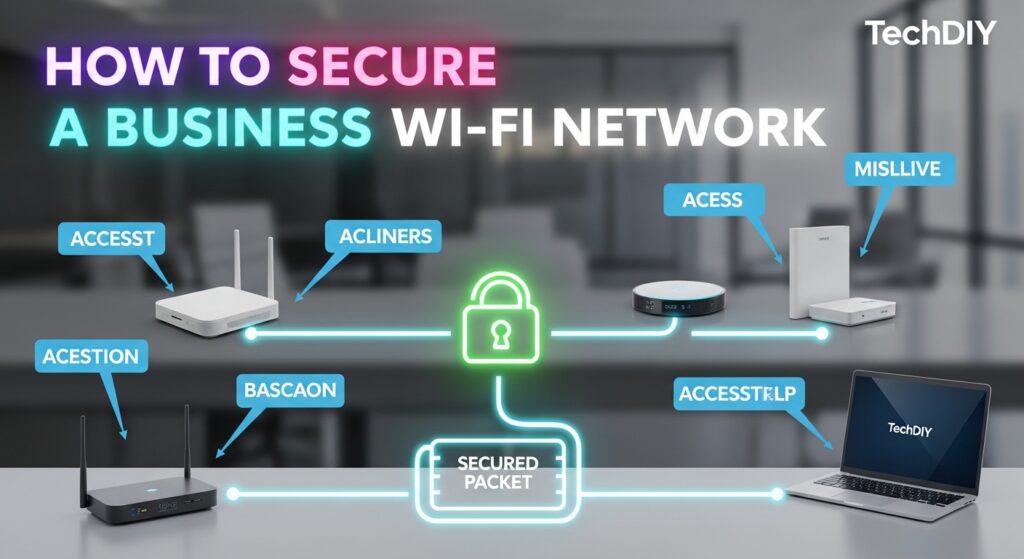
Gather these items before working through the steps below:
- Router admin panel access — usually at 192.168.1.1 or 192.168.0.1 in your browser. Check your router’s label for the default address
- Current admin credentials — found on the router label if unchanged
- Router model number — you will need this to check firmware updates
- A password manager — Bitwarden (free) or 1Password to store new credentials securely
- A device inventory — a rough list of devices that need Wi-Fi access (staff laptops, phones, printers, smart devices)
- 30–60 minutes uninterrupted time — some changes briefly drop the Wi-Fi connection
⚠️ Schedule a quiet time: Several steps in this guide will temporarily disconnect all Wi-Fi devices. Plan to run through the checklist outside of peak business hours — early morning or after close of business is ideal.
The 12-Step Business Wi-Fi Security Guide
Work through these steps in order. Steps 1–4 are critical and take less than 30 minutes total.
1
Change All Default Router Credentials
🔴 CRITICAL — Do this first
Factory default router admin credentials (admin/admin, admin/password) are publicly documented in manufacturer manuals and online databases. Automated bots actively scan for routers using default credentials. This is the single most common way business routers get compromised.
What to change:
- Router admin panel username — change from “admin” to something non-obvious
- Router admin panel password — use 16+ characters, store in password manager
- Wi-Fi network password (passphrase) — change from default to 20+ character strong password
How to do it: Open a browser → type your router’s IP address (e.g. 192.168.1.1) → log in with current credentials → navigate to Administration or System → change username and password → save.
2
Update Router Firmware Immediately
🔴 CRITICAL — Patches known security holes
Router firmware updates patch security vulnerabilities — some critical enough to allow full network takeover without authentication. Many businesses run firmware that is 2–5 years out of date, leaving known exploits wide open. Check for updates immediately and then quarterly going forward.
- Log in to your router admin panel
- Navigate to Administration → Firmware Update (location varies by brand)
- Click Check for Updates or download the latest firmware from the manufacturer’s website
- Enable automatic updates if your router supports it
🛑 Important: If your router is more than 5–7 years old and the manufacturer no longer releases firmware updates, it is time to replace it. An unpatched router is a permanent security liability regardless of any other settings you configure.
3
Enable WPA3 Encryption (WPA2-AES Minimum)
🔴 CRITICAL — The foundation of Wi-Fi security
Your Wi-Fi encryption protocol determines how strongly your wireless traffic is protected. WPA3 is the current gold standard, introduced in 2018 and now supported by most devices manufactured after 2020. If any of your devices do not support WPA3, use WPA2/WPA3 mixed mode as a transition option.
| Protocol | Status | Verdict |
|---|---|---|
| WEP | Crackable in minutes | ✕ Never use |
| WPA / WPA-TKIP | Deprecated since 2009 | △ Do not use |
| WPA2-AES | Secure with strong password | ✓ Acceptable minimum |
| WPA3 / WPA2+WPA3 | Current gold standard | ✓✓ Recommended |
How to enable: Router admin → Wireless → Security Mode → select WPA3 or WPA3/WPA2 Mixed. Save and reconnect all devices.
4
Set a Strong Wi-Fi Passphrase
🔴 CRITICAL — WPA3 is only as strong as the password
Even the strongest encryption protocol is useless with a weak passphrase. Your Wi-Fi password is your first line of defence against brute-force attacks. A 20-character random passphrase takes trillions of years to crack — an 8-character one can fall in under 48 hours with modern GPU hardware.
Strong passphrase rules:
- Minimum 20 characters — longer is always better
- Mix of uppercase, lowercase, numbers, and symbols
- Never use your company name, address, phone number, or any dictionary word
- Change every 6–12 months and immediately when an employee with Wi-Fi access leaves
- Store and distribute via a password manager — never written on a sticky note by the router
5
Create Separate Networks (Network Segmentation)
🟡 HIGH PRIORITY — Limits damage from any single breach
Network segmentation means one compromised device cannot reach everything else. If a guest’s infected laptop connects to your guest network, it should have zero access to staff computers, servers, or printers. Most modern business routers and access points support multiple SSIDs — use them.
💼 STAFF NETWORK
Internal resources, file servers, printers, business apps. Strong password. WPA3. Employees only.
👥 GUEST NETWORK
Internet access only. Isolated from staff network. Client isolation enabled. Bandwidth limited. Separate password updated regularly.
📷 IoT NETWORK
Smart TVs, cameras, printers, thermostats, smart locks. Isolated from staff network. Many IoT devices have poor security — keep them sandboxed.
How to set up guest network: Router admin → Wireless → Guest Network → Enable → set SSID name and separate password → enable Client Isolation (stops guest devices seeing each other) → enable bandwidth limiting → Save.
6
Hide the Internal Staff Network SSID
🟡 MEDIUM PRIORITY — Reduces visibility to casual attackers
Disabling SSID broadcast removes your internal staff network from the list of available Wi-Fi networks visible to anyone scanning nearby. Visitors, clients, and casual attackers performing passive scans will not see it. It does not make the network invisible to dedicated attackers using active scanning tools, but it meaningfully reduces your attack surface from opportunistic threats.
- Hide staff network SSID only — keep guest network visible for visitors
- After hiding, staff connect by entering the exact SSID name manually on each device
- How to: Router admin → Wireless → SSID Broadcast → Disable (for staff SSID only) → Save
7
Disable WPS, Remote Management, and UPnP
🔴 CRITICAL — Three features that should always be off
Most routers ship with three dangerous features enabled by default. None of them offer security benefits that outweigh their risks in a business environment. Disable all three immediately:
❌ WPS (Wi-Fi Protected Setup)
An 8-digit PIN exploitable via brute force in hours. Been broken since 2011. Disable completely under Wireless → WPS → Disable.
❌ Remote Management
Allows router admin panel access from the internet. Exposes your router to global brute-force attacks. Disable unless you have a specific audited need. Found under Administration → Remote Management.
❌ UPnP (Universal Plug and Play)
Allows devices to automatically open firewall ports without admin approval. Malware exploits UPnP to create outbound tunnels from your network. Disable under Advanced → UPnP.
8
Enable MAC Address Filtering
🟡 MEDIUM PRIORITY — An extra layer, not a standalone defence
MAC address filtering creates an approved device whitelist — only devices whose hardware address (MAC) has been pre-registered in the router can connect. Every device has a unique MAC address visible in its network settings. An unknown device attempting to connect is blocked even if it knows the Wi-Fi password.
How to set up MAC filtering:
- Find each device’s MAC address: Windows → Settings → Network → Properties; iOS → Settings → Wi-Fi → tap network name
- Router admin → Wireless → MAC Filter → Enable → add each approved device’s MAC address
- Set mode to Allow only listed devices
- Maintain a spreadsheet of all approved devices with owner, device type, and MAC address
💡 Know the limitation: MAC addresses can be spoofed by an attacker who observes a legitimate MAC on the network. MAC filtering is an extra hurdle, not an impenetrable barrier. Always use it in combination with WPA3 and a strong password.
9
Enable the Router Firewall and Consider IDS/IPS
🟡 HIGH PRIORITY — Your traffic gatekeeper
Every business router includes a built-in firewall — but it is often not enabled by default, or set to its weakest profile. Ensure it is active and configured to block unsolicited inbound connections. For businesses handling sensitive data, a dedicated hardware firewall or wireless intrusion detection system (WIDS) adds another critical layer.
Action steps:
- Enable router firewall: Router admin → Security or Firewall → Enable → set to Medium or High
- Block known malicious IPs using threat intelligence feeds if your router supports it
- For SMBs with 10+ employees: Consider a dedicated firewall appliance — Fortinet FortiGate, Cisco Meraki MX, or open-source pfSense
- WIDS/WIPS: Automatically detects rogue access points, evil twin attacks, and deauthentication attacks in real time. Available in Cisco Meraki, Aruba, and Ubiquiti UniFi platforms
10
Require a Business VPN for Remote and Off-Site Access
🟡 HIGH PRIORITY — Essential for remote workers
Employees working from coffee shops, hotels, or home networks expose company data to unsecured public Wi-Fi. A business VPN creates an encrypted tunnel from any location back to your company network — making all traffic unreadable to local network attackers, ISPs, and surveillance.
Top business VPN options:
- NordLayer (by NordVPN) — best for small business, easy central management, from $7/user/mo
- Perimeter 81 — zero-trust network access, strong SMB fit, from $8/user/mo
- Cisco AnyConnect — enterprise-grade, integrates with Cisco infrastructure
- WireGuard (self-hosted) — free, extremely fast, requires technical setup
💡 Consumer vs business VPN: NordVPN, ExpressVPN, and similar consumer VPNs work for individuals but lack centralised management, user provisioning, and device policy enforcement needed for a business. Always use a business-grade VPN solution for company devices.
11
Implement Per-User Authentication with WPA2/3-Enterprise
🟢 ADVANCED — Best for businesses with 10+ employees
Standard Wi-Fi uses a single shared password for everyone. WPA2/3-Enterprise replaces this with individual credentials per user via a RADIUS authentication server. Each employee logs in with their own username and password — when they leave, you revoke only their credentials rather than changing the Wi-Fi password for the whole company.
Benefits and implementation:
- Each user gets unique login credentials — no shared password to protect or distribute
- Full audit trail: you can see exactly which user connected when and from which device
- Instant access revocation when an employee leaves — no network-wide password change
- Tools needed: RADIUS server — Microsoft NPS (free with Windows Server), FreeRADIUS (open-source), or cloud-based options like JumpCloud or Cisco ISE
- Also enable MFA on all company systems accessed over Wi-Fi for an additional authentication layer
12
Monitor Network Activity and Audit Regularly
🟡 HIGH PRIORITY — Security is an ongoing process
Locking down your Wi-Fi is not a one-time task. New devices appear, configurations drift, and new vulnerabilities emerge. Establish a regular monitoring and audit routine to catch problems before they become incidents.
Monthly audit checklist:
- Review all connected devices — remove any unknown or unauthorised devices immediately
- Check router firmware version and apply any new updates
- Review who currently holds Wi-Fi credentials — revoke any that are no longer needed
- Check firewall logs for unusual connection attempts or port scans
- Scan for rogue access points using your router’s wireless client list
Recommended monitoring tools:
- Auvik — cloud-based, auto-discovery, great for MSPs and multi-site businesses
- PRTG Network Monitor — free for up to 100 sensors, comprehensive alerting
- Domotz — affordable remote monitoring, from $21/mo per site
- Router built-in logs — check monthly at minimum for login attempts and unknown devices
Quick Reference: Business Wi-Fi Security Checklist
Print or bookmark this checklist to track your progress. All 12 steps completed puts your business Wi-Fi in the top 10% of small business network security.
| # | Security Action | Priority | Time Required | Done? |
|---|---|---|---|---|
| 1 | Change default router admin credentials | 🔴 Critical | 5 min | ☐ |
| 2 | Update router firmware | 🔴 Critical | 10 min | ☐ |
| 3 | Enable WPA3 or WPA2-AES encryption | 🔴 Critical | 5 min | ☐ |
| 4 | Set a strong 20+ character Wi-Fi passphrase | 🔴 Critical | 5 min | ☐ |
| 5 | Create separate staff, guest, and IoT networks | 🟡 High | 20 min | ☐ |
| 6 | Hide internal staff SSID broadcast | 🟢 Medium | 5 min | ☐ |
| 7 | Disable WPS, Remote Management, and UPnP | 🔴 Critical | 10 min | ☐ |
| 8 | Enable MAC address filtering | 🟢 Medium | 15 min | ☐ |
| 9 | Enable router firewall (and IDS for larger teams) | 🟡 High | 15 min | ☐ |
| 10 | Deploy a business VPN for remote staff | 🟡 High | 1–2 hrs | ☐ |
| 11 | Implement WPA-Enterprise + MFA (10+ staff) | 🟢 Advanced | 2–4 hrs | ☐ |
| 12 | Set up network monitoring and monthly audits | 🟡 High | Ongoing | ☐ |
Best Routers and Access Points for Business Security
Your router is your network’s first line of defence. Consumer-grade routers lack the security features, update cadence, and management tools that businesses need. Here are the top five platforms worth considering:
Cisco Meraki
Best for enterprise / multi-site
Cloud-managed networking with built-in WIDS/IPS, automatic firmware updates, per-user authentication, and a centralised dashboard for all locations. Industry gold standard.
Price: From ~$150/device/yr (license required)
Ubiquiti UniFi
Best value for SMBs
Powerful prosumer/SMB platform with no subscription fees. Supports VLANs, WPA3-Enterprise, guest portals, and detailed traffic analysis via the UniFi controller. Requires modest technical setup.
Price: From ~$100/access point, no recurring fees
Fortinet FortiGate
Best firewall + Wi-Fi combo
Combines a high-performance next-generation firewall with wireless management in a single appliance. Excellent for businesses where network security is a compliance requirement (finance, healthcare, legal).
Price: From ~$300 (appliance) + annual subscription
Aruba Networks (HPE)
Best for large enterprise
Enterprise-grade Wi-Fi 6/6E with AI-driven network management, WPA3-Enterprise, built-in zero-trust security, and ClearPass for advanced access control. Used by hospitals, universities, and large corporate campuses.
Price: Custom enterprise pricing
TP-Link Omada
Best budget option for small business
Affordable cloud-managed Wi-Fi with free controller software, VLAN support, guest portal, and WPA3 on newer models. An excellent entry point for businesses upgrading from consumer-grade routers.
Price: From ~$60/access point, free cloud controller
Frequently Asked Questions
Secure Your Business Wi-Fi Today
Steps 1–4 take less than 30 minutes and close the most common attack vectors immediately. Start now — then work through the full checklist this week.