DIY
DIY
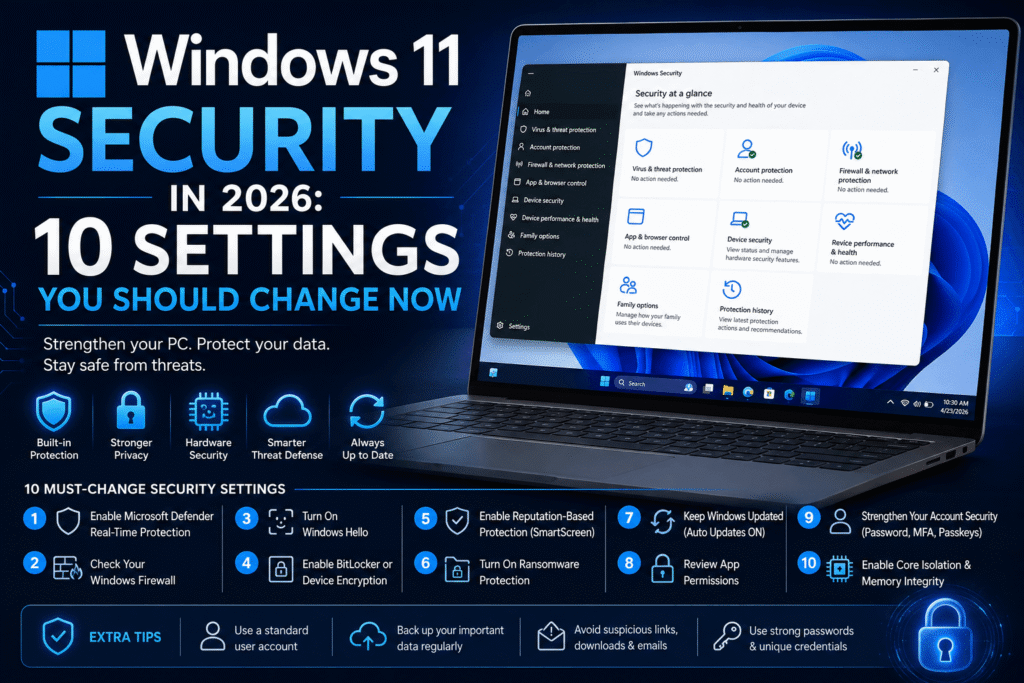
Windows 11 comes with some of the strongest security features Microsoft has ever included in a consumer version of Windows. Microsoft Defender, Secure Boot, TPM 2.0, Windows Hello, SmartScreen, and built-in firewall protection give a modern Windows 11 PC several layers of security straight out of the box.
But simply installing Windows 11 doesn’t mean every useful security option is configured exactly how you want it.

Some protections depend on your hardware, Windows edition, Microsoft account, or existing configuration. Others are worth reviewing because a single change can significantly improve your protection against phishing, malware, ransomware, account theft, and unauthorized access.
If you’re using Windows 11 in 2026, here are 10 security settings worth checking right now.
1. Make Sure Microsoft Defender Real-Time Protection Is Enabled
Start with one of the most important protections built into Windows 11: Microsoft Defender Antivirus.
Defender continuously monitors files, downloads, applications, and other activity for potential threats. For most everyday Windows users, leaving real-time protection enabled provides an important first line of defense against malicious software.
Open:
Settings → Privacy & security → Windows Security → Virus & threat protection
From there, review your protection status.
Under the virus and threat protection settings, make sure Real-time protection is enabled.
You may also see additional protections such as cloud-delivered protection and automatic sample submission.
Cloud-based protection can help Microsoft Defender respond more quickly when suspicious files or newly discovered threats appear.
If another antivirus product is installed, some Microsoft Defender settings may be managed automatically, so don’t be surprised if your options look slightly different.
2. Check Your Windows Firewall
Antivirus software gets most of the attention, but your firewall is another critical part of Windows security.
Microsoft Defender Firewall controls network connections and helps prevent unauthorized network traffic from reaching your computer.
Search Windows for:
Windows Security
Then open:
Firewall & network protection
You’ll normally see different network profiles, including:
- Domain network
- Private network
- Public network
Windows automatically applies different rules depending on the network you’re connected to.
You generally shouldn’t disable the firewall simply because an application is having connection problems. Instead, investigate whether that particular application needs permission through the firewall.
Turning the entire firewall off removes an important security layer.
3. Turn On Windows Hello
Passwords remain one of the biggest weaknesses in account security.
Windows Hello provides alternative ways to sign in to your computer, depending on your device.
These can include:
- Facial recognition
- Fingerprint recognition
- Windows Hello PIN
Go to:
Settings → Accounts → Sign-in options
Check which Windows Hello methods your computer supports.
A Windows Hello PIN is different from simply using the same password everywhere. It is tied to the particular device and works with Windows security hardware and protections.
Newer computers with compatible fingerprint readers or infrared cameras can make biometric login extremely convenient.
You get faster access to your PC without repeatedly typing your Microsoft account password.
4. Review Device Encryption or BitLocker
Imagine your laptop disappears tomorrow.
A strong Windows password helps prevent someone from simply signing into your account, but physical access to an unencrypted drive creates another security concern.
That’s where drive encryption becomes important.
Depending on your computer and edition of Windows, you may have access to Device Encryption or BitLocker.
Search Settings for:
Device encryption
You can also search Windows for BitLocker to see which encryption options are available on your system.
Encryption protects data stored on the drive by making it extremely difficult to access without the appropriate authentication or recovery information.
There’s one important thing to remember:
Protect your recovery key.
If encryption is enabled and Windows requires recovery, losing the recovery key could make accessing your own data difficult or impossible.
Store recovery information somewhere secure rather than keeping your only copy on the encrypted computer.
5. Enable Reputation-Based Protection
Windows 11 includes protections designed to identify suspicious applications, files, and websites.
Open:
Windows Security → App & browser control
Look for Reputation-based protection.
Depending on your Windows configuration, you’ll find protections related to potentially unwanted applications, suspicious downloads, and Microsoft Defender SmartScreen.
These protections are particularly valuable because not every dangerous download looks obviously malicious.
Some unwanted programs disguise themselves as free utilities, browser extensions, installers, system optimizers, or download managers.
A reputation system can provide another warning before you run something potentially dangerous.
Don’t automatically ignore these warnings.
If Windows warns you about an unknown executable you just downloaded, verify where it came from before running it.
6. Check Ransomware Protection
Ransomware remains one of the most disruptive forms of malware.
Instead of simply stealing information, ransomware can encrypt files and demand payment for their recovery.
Windows Security includes ransomware-related protections.
Open:
Windows Security → Virus & threat protection → Ransomware protection
One feature you may find is Controlled folder access.
Controlled folder access is designed to prevent untrusted applications from making unauthorized changes to protected folders.
However, it can occasionally interfere with legitimate applications.
If you enable it, don’t immediately disable the entire feature when an application encounters a problem. Check whether the trusted application can be specifically allowed instead.
Ransomware protection should also include backups.
No security product can promise perfect protection against every possible threat.
Keep important files backed up somewhere separate from your primary computer.
7. Install Windows Security Updates Automatically
Security settings won’t help nearly as much if your operating system is months behind on patches.
Go to:
Settings → Windows Update
Check for available updates and make sure your computer is receiving Windows security updates normally.
Security researchers regularly discover vulnerabilities in operating systems, browsers, drivers, and other software.
Once a vulnerability becomes publicly known, attackers may attempt to exploit computers that haven’t been updated.
That makes delaying security patches indefinitely a bad idea.
Windows may occasionally require a restart to complete an update.
Instead of repeatedly postponing restarts, configure your active hours so Windows understands when you normally use the computer.
This gives you both security and convenience.
8. Review App Permissions
Smartphone users have become accustomed to reviewing camera, microphone, and location permissions.
Windows users should do the same.
Open:
Settings → Privacy & security
You’ll find permissions for features such as:
- Location
- Camera
- Microphone
- Notifications
- Contacts
- Calendar
- Other Windows capabilities
Review which applications have access to sensitive features.
For example, a video conferencing application having microphone and camera access makes sense.
An unfamiliar application that you haven’t used in months may not need the same permissions.
Removing unnecessary permissions reduces the amount of access applications have to your computer.
It’s a simple security and privacy habit that’s worth reviewing periodically.
9. Use Passkeys and Strong Account Security
Securing Windows itself isn’t enough if the online account connected to your computer is poorly protected.
If you use a Microsoft account, make sure its security information is current.
Use strong authentication and avoid reusing your Microsoft account password on unrelated websites.
Passkeys are also becoming increasingly important.
Passkeys allow supported services to authenticate users without relying on traditional reusable passwords. They can work with device security features such as Windows Hello.
This provides strong protection against many traditional phishing attacks because there isn’t a normal password for the user to accidentally type into a fake login page.
Where supported by services you regularly use, passkeys are worth considering.
For accounts that still rely on passwords, use unique passwords and enable multi-factor authentication whenever available.
10. Review Core Isolation and Memory Integrity
Windows 11 includes advanced security features that use virtualization-based technologies to isolate sensitive parts of the operating system.
Open:
Windows Security → Device security
Look for Core isolation.
On compatible systems, you may find a setting called Memory integrity.
Memory integrity helps protect important Windows processes from certain attacks involving malicious or compromised drivers.
Modern computers can usually run these protections with relatively little noticeable impact.
However, older or incompatible drivers can occasionally cause problems.
If Windows reports an incompatible driver, investigate the driver rather than randomly deleting system files or disabling security protections without understanding the issue.
Updating the affected hardware driver may solve the compatibility problem.
Bonus: Check Secure Boot and TPM
Windows 11 introduced stricter hardware security requirements than previous versions of Windows.
Two technologies you’ll frequently encounter are TPM 2.0 and Secure Boot.
TPM stands for Trusted Platform Module.
It provides hardware-backed security capabilities that Windows can use for features involving encryption, credentials, Windows Hello, and system integrity.
Secure Boot helps ensure that trusted software is loaded during the computer’s startup process.
You can check some of this information through:
Windows Security → Device security
You can also open System Information to review your Secure Boot status.
Don’t randomly change UEFI or BIOS security settings if you’re unfamiliar with them. Incorrect firmware changes can prevent Windows from starting normally.
Don’t Forget Your Browser
A secure operating system can’t completely protect you from every decision made inside a web browser.
Keep your browser updated.
Be suspicious of unexpected browser extensions.
Avoid installing extensions simply because a website claims you need them to watch a video, download a document, or verify your identity.
Phishing pages have also become increasingly convincing.
Before entering account credentials, check that you’re actually visiting the service you intended to visit.
Password managers and passkeys can provide additional protection because they’re less likely to authenticate on an unrelated phishing domain.
Do You Need Third-Party Antivirus on Windows 11?
For many everyday users, the security tools included with Windows 11 provide a strong baseline.
Microsoft Defender Antivirus works alongside features including Windows Firewall, SmartScreen, Secure Boot, and other operating-system protections.
That doesn’t mean third-party security products have no value.
Some products provide additional features such as parental controls, identity monitoring, VPN services, centralized management, or specialized enterprise protection.
Whether you need them depends on your requirements.
The important thing is not to assume that installing multiple antivirus applications automatically gives you twice the protection.
Security programs operating simultaneously can sometimes interfere with each other.
Common Windows 11 Security Mistakes to Avoid
Even the strongest security settings can’t compensate for unsafe habits.
Avoid downloading pirated software, unknown executable files, unofficial software cracks, and suspicious email attachments.
Don’t disable Microsoft Defender simply because a random tutorial tells you that it’s necessary to install a program.
Be particularly suspicious if an installation guide tells you to:
- Disable antivirus protection
- Disable SmartScreen
- Turn off the firewall
- Ignore multiple security warnings
- Run an unknown program as administrator
Legitimate software occasionally requires special permissions, but several security protections needing to be disabled simultaneously should make you question what you’re installing.
Windows 11 Security Checklist for 2026
Once you’ve finished reviewing your computer, your basic checklist should look something like this:
Microsoft Defender: Enabled and updated
Windows Firewall: Enabled
Windows Hello: Configured where available
Drive encryption: Reviewed and enabled when appropriate
SmartScreen/Reputation protection: Enabled where appropriate
Ransomware protection: Reviewed
Windows Update: Up to date
Application permissions: Reviewed
Account security: Strong authentication enabled
Core isolation: Reviewed and enabled when compatible
You should also maintain reliable backups of important files.
Backups are particularly important because security isn’t only about malware. Hardware failure, accidental deletion, theft, and physical damage can also cause permanent data loss.
Final Thoughts
Windows 11 in 2026 provides a substantial collection of security technologies without requiring users to purchase additional software.
The biggest mistake is assuming that because these protections exist, you never need to check them.
Spend a few minutes reviewing Microsoft Defender, Firewall, Windows Hello, encryption, SmartScreen, ransomware protection, Windows Update, application permissions, account security, and Core Isolation.
Then focus on the part no Windows setting can completely control: your own browsing and download habits.
Keep Windows and your applications updated, download software from trustworthy sources, use strong authentication, maintain backups, and pay attention when Windows displays a security warning.
Those basic practices, combined with Windows 11’s built-in protections, can make a significant difference in keeping your PC and personal information secure in 2026.