DIY
DIY
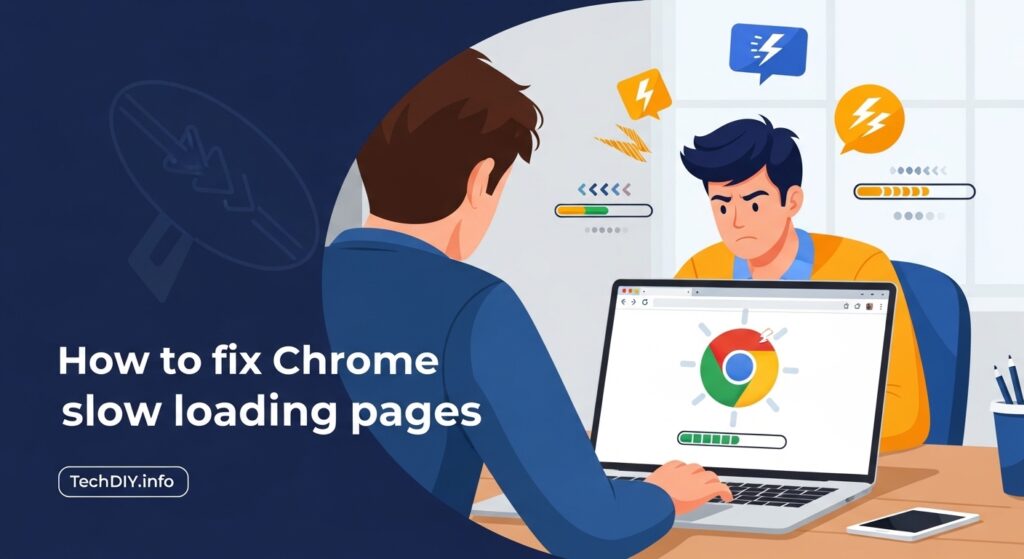
You open Chrome, type a URL, and wait. The spinner turns. And turns. A browser that used to snap pages open in a blink now feels like it’s loading through wet cement.
You’re not imagining it — and you’re not alone. Chrome is the world’s most-used browser, and “Chrome slow loading pages” is one of the most-searched browser complaints every single year. The frustrating part: Chrome doesn’t slow down because of one big failure. It slows down gradually, quietly, through a combination of accumulated cache, extension bloat, memory pressure, and settings that drift out of tune over months of use.

The good news is that most Chrome slowdowns have a fix that takes under five minutes — once you know which fix applies to your situation. That’s exactly what this guide is built around.
Rather than throwing ten fixes at you and hoping one sticks, we start with a quick diagnosis so you can identify why Chrome is slow for you specifically — whether it’s a rogue extension eating 300 MB of RAM, a DNS resolver adding a half-second to every page load, or a Chrome update that introduced a settings regression. From there, fixes are ordered from fastest and least invasive to most thorough, so you can stop as soon as the problem is solved.
This guide covers Windows 10, Windows 11, and Mac, with separate callout boxes wherever the steps differ between platforms.
| Symptom you notice | Most likely fix |
|---|---|
| Slow on all sites, was fine last week | Fix 1 — Clear cache |
| Slow only on one specific site | That site is the problem, not Chrome |
| Slowed down after installing an extension | Fix 3 — Audit extensions |
| Slow only on Wi-Fi, fast on mobile hotspot | Fix 7 — Flush DNS |
| Chrome uses high RAM or CPU in Task Manager | Fix 4 — Memory Saver |
| Slow after a Chrome or Windows/Mac update | Fix 9 — Reset Chrome settings |
| Homepage changed or strange redirects appear | Fix 8 — Scan for malware |
Why Chrome Gets Slow Over Time
Google Chrome ships fast. A fresh install on an average laptop opens pages in under a second, handles dozens of tabs without complaint, and generally stays out of your way. Then, a few months later, the same browser feels sluggish. Pages hang for a beat before loading. Clicking a link takes noticeably longer than it used to. Sound familiar?
The culprit is rarely a single thing. Chrome slows down gradually as several forces combine:
- Cache bloat — Chrome stores cached copies of websites to speed up repeat visits. Over time that cache grows into gigabytes of mixed-freshness data, and retrieving stale or corrupted files can actually slow loading rather than help it.
- Extension creep — Every extension you install runs its own process. Install enough of them and Chrome is effectively running a small server alongside every tab you open.
- Memory pressure — Chrome’s multi-process architecture gives each tab its own slice of RAM. With many tabs open on a machine with limited memory, the OS starts swapping data to disk — which is orders of magnitude slower than RAM.
- Outdated settings and profile drift — Settings optimized for Chrome 100 may not perform well on Chrome 130. An aging user profile can also accumulate broken preferences over time.
The good news: most Chrome slowdowns are fixed in under five minutes. The ten fixes in this guide are ordered from quickest and least invasive to most thorough — work through them in order and stop as soon as Chrome feels fast again.
Diagnose First: Is It Chrome or Something Else?
Before changing any settings, spend 60 seconds narrowing down the cause. Applying the wrong fix wastes time — and some fixes like clearing cookies have side effects you may not want.
- Is it slow on every website, or just one? If only one site is slow, that site has a performance problem. Chrome is fine.
- Is it slow on Wi-Fi but fast on mobile data (hotspot)? That points to a DNS or router issue, not Chrome. Jump straight to Fix 7.
- Did the slowdown start right after you installed an extension? Disable that extension first and test. See Fix 3.
- Did it start after a Chrome or OS update? A settings reset often fixes post-update regressions. See Fix 9.
- Is Chrome using 80%+ RAM or CPU in your system Task Manager? Chrome itself is the bottleneck. See Fix 4 for Memory Saver.
- Is your internet speed actually slow? Open fast.com or speedtest.net. If speeds are far below your plan’s promise, the problem is your connection — not Chrome.
- Is Chrome slow but Edge or Firefox is fast on the same sites? The problem is Chrome-specific. Work through the fixes below in order.
Fix 1: Clear Cache, Cookies, and Browsing Data
This is the right starting point for most users because accumulated cache is the most common cause of gradual slowdowns — and clearing it takes under 30 seconds.
Chrome stores cached copies of images, scripts, and stylesheets from every site you visit. Most of the time this helps. But over months of browsing, the cache grows large, entries go stale, and occasionally files become corrupted. When Chrome tries to load a cached file that no longer matches the live site, it has to request a fresh copy anyway — adding a round-trip that makes loading slower, not faster.
How to clear Chrome cache — Windows and Mac
- Press Ctrl + Shift + Del (Windows) or Cmd + Shift + Del (Mac).
- Set Time range to All time.
- Check Cached images and files — this is the most important box.
- Optionally check Cookies and other site data — this logs you out of all websites, so only do this if you’re comfortable signing back in.
- Click Clear data.
Maintenance tip: Clear your cache once a month to keep Chrome running lean. You can navigate directly to the dialog any time via chrome://settings/clearBrowserData.
Fix 2: Update Chrome and Apply Pending Restarts
Running an outdated Chrome version is a surprisingly common cause of slowness — especially after a major Windows or macOS update that changes system APIs Chrome depends on. Google ships performance improvements and bug fixes in nearly every release, so staying current is free speed.
How to check for Chrome updates — Windows and Mac
- Click the three-dot menu (⋮) in the top-right corner of Chrome.
- Go to Help → About Google Chrome.
- Chrome automatically checks for updates and shows “Chrome is up to date” or begins downloading.
- If you see a “Relaunch to update” button — click it. Many users dismiss this button for days or weeks without realizing they are running a version behind.
GoogleUpdate.exe). In Task Manager → Services, look for gupdate and gupdatem — both should be enabled.Fix 3: Audit and Disable Extensions Using Chrome’s Task Manager
Extensions are the single most overlooked cause of slow page loading. The degradation is gradual — you install one extension, then another, then forget about both — and Chrome gets slower by the week without any obvious trigger.
The advantage this guide has over most others: you do not have to guess which extension is the culprit. Chrome has a built-in Task Manager that shows you exactly how much memory and CPU each extension is consuming right now.
Step 1 — Open Chrome’s Task Manager
- Windows: Press Shift + Esc while Chrome is open.
- Mac: Click the three-dot menu → More Tools → Task Manager.
You will see every open tab and active extension listed as a separate process, with columns for Memory footprint, CPU, and Network activity.
Step 2 — Identify the memory hog
Click the Memory footprint column header to sort from highest to lowest. Any extension using 100 MB or more is worth investigating. Extensions most commonly found in the top five: ad blockers with large filter lists, VPN extensions, screenshot tools, SEO toolbars, and tab manager extensions.
Step 3 — Disable or remove the culprit
- Go to
chrome://extensions/. - Toggle off the suspected extension.
- Reload a page that was previously slow and measure the difference.
- If speed returns, either keep the extension disabled or find a lighter alternative.
As a general rule, the leanest Chrome setup for most users is: one ad blocker, one password manager, and nothing else. Every additional extension adds overhead to every page load.
Fix 4: Enable Memory Saver and Use Chrome’s Performance Controls
Google’s Performance panel — significantly updated in October 2024 — is one of the most impactful and least-used Chrome features. If your machine has 8 GB of RAM or less, enabling Memory Saver is often the single biggest speed improvement you can make without changing any hardware.
How to open Performance settings
Go to chrome://settings/performance or navigate to Settings → Performance.
Memory Saver — three modes explained
Memory Saver freezes inactive tabs and releases the RAM they were using. The tab reloads when you click back to it — a small tradeoff for significantly faster active tabs.
| Mode | How it works | Best for |
|---|---|---|
| Standard | Freezes inactive tabs based on your system’s memory needs | Most users — a safe balanced default |
| Balanced | Considers both system memory needs and your browsing habits | Users who switch between tabs frequently |
| Advanced | Freezes tabs as soon as you stop using them | Users with limited RAM (4–8 GB) who open many tabs |
Recommended for most users: Start with Balanced. If Chrome is still sluggish, switch to Advanced.
Always keep active list
If you rely on web apps constantly — Gmail, Google Docs, Notion, Slack — add them to the “Always keep active” exception list so Memory Saver never freezes them. Click Add next to the exception list and enter the site’s URL.
Performance Detection
Also in chrome://settings/performance, the Performance Detection tool proactively scans Chrome and flags issues — like an extension consuming excessive memory — with suggestions to fix them. Check this panel periodically; it often surfaces problems you would not have found manually.
Energy Saver (laptop users)
If you are on a laptop and Chrome slows down when unplugged, enable Energy Saver in the same Performance panel. It limits background activity and visual effects to preserve battery — and keeps Chrome more responsive under low-power conditions.
Fix 5: Configure Preloading for Faster Page Loads
Page preloading is Chrome’s way of loading links before you click them. When working correctly, navigation feels nearly instant — the page is already partly loaded by the time your click registers.
Where to find preloading settings
Go to Settings → Performance → Preload pages.
- Standard preloading — Chrome preloads pages its algorithm predicts you are likely to visit next. Moderate additional data usage. Recommended for most users on home broadband.
- Extended preloading — Chrome preloads a broader set of predicted pages. Faster navigation but higher data usage. Best on unlimited broadband. Privacy note: Google can log preloaded URLs even if you never visit them.
- No preloading — Best on metered connections (mobile hotspot, capped plans) or very slow connections where preloading would compete with your active tab loading.
DNS prefetching
A related setting: go to Settings → Privacy and security → Use a prediction service to load pages more quickly and confirm it is enabled. This tells Chrome to pre-resolve domain names in the background, shaving 20–120 ms off the first step of every page load.
Fix 6: Hardware Acceleration — Enable or Disable?
This is the one setting in this guide where the right answer depends on your specific machine. Hardware acceleration offloads page rendering from your CPU to your GPU — for most systems it speeds things up significantly, but on systems with outdated or conflicting GPU drivers it can cause slowness, visual glitching, or crashes.
Where to find it
Go to Settings → System → Use graphics acceleration when available. Toggle the setting and click Relaunch.
When to enable hardware acceleration
- You have a dedicated GPU (Nvidia, AMD, or Intel Arc) with up-to-date drivers
- You watch video or use graphics-heavy web apps frequently
- It is currently disabled and you are not experiencing any visual glitches
When to disable hardware acceleration
- You are on integrated graphics with old or manufacturer-locked drivers
- You see visual glitches, tearing, or blinking alongside slowness
- Chrome crashes or freezes specifically on video-heavy pages
How to test: Toggle the setting, relaunch Chrome, and browse normally for 10 minutes. If the new state is worse, toggle it back.
Fix 7: Flush DNS and Switch to a Faster DNS Resolver
This is what most Chrome performance guides miss entirely. DNS (Domain Name System) resolution happens before a single byte of any web page loads — it translates techdiy.info into a numeric IP address. If your DNS is slow, stale, or your ISP’s DNS server is overloaded, every site loads slowly regardless of Chrome settings.
Quick test before proceeding: Open the same slow site in another browser (Edge, Firefox, Safari). If it loads at the same speed there too, the problem is DNS or network — not Chrome-specific. If the other browser is noticeably faster, skip this section and continue to Fix 8.
Step 1 — Flush Chrome’s internal DNS cache
- Go to
chrome://net-internals/#dns - Click Clear host cache. Chrome stores its own DNS cache separately from the OS — this clears it independently.
Step 2 — Flush your operating system’s DNS cache
💻 Windows: Open Command Prompt as Administrator and run:
ipconfig /flushdns
You should see: “Successfully flushed the DNS Resolver Cache.”
Mac: Open Terminal and run:
sudo dscacheutil -flushcache; sudo killall -HUP mDNSResponder
Enter your password when prompted.
Step 3 — Switch to a faster DNS resolver
Your ISP’s default DNS servers are often slower and less reliable than third-party alternatives. Switching to Google DNS or Cloudflare is free, takes under two minutes, and can shave 50–200 ms off every page load’s first step.
| DNS Provider | Primary DNS | Secondary DNS |
|---|---|---|
| Google DNS | 8.8.8.8 | 8.8.4.4 |
| Cloudflare | 1.1.1.1 | 1.0.0.1 |
How to change DNS on Windows 10/11: Settings → Network & Internet → your active connection → DNS server assignment → Edit → Manual → enter the IPs above for IPv4.
How to change DNS on Mac: System Settings → Network → your active connection → Details → DNS tab → click “+” and add the IPs above.
Fix 8–10: Scan for Malware, Reset Chrome Settings, and Reinstall
If Chrome is still slow after working through Fixes 1–7, one of three deeper issues is likely: malware hijacking Chrome’s resources, a corrupted Chrome profile built up over years of use, or a broken installation. These three escalating fixes address all three.
Fix 8 — Scan for malware hijacking Chrome
Malware rarely announces itself. Instead it quietly installs extensions, redirects searches, and consumes CPU in the background — all of which make Chrome feel slow. Signs you are dealing with malware rather than ordinary slowness:
- Your homepage or default search engine changed without you doing it
- Unfamiliar extensions appear in
chrome://extensions/that you did not install - You are being redirected to strange sites before reaching your destination
- Excessive ads appear on sites that are not normally ad-heavy
For a more thorough scan on both Windows and Mac, download and run Malwarebytes Free — the free version handles one-time scans and removes the most common browser hijackers effectively.
Fix 9 — Reset Chrome settings to default
Over time, Chrome settings accumulate changes — some intentional, some made by extensions, some introduced by updates that did not migrate old settings cleanly. A settings reset returns everything to a known-good state without deleting your personal data.
What resetting does:
- Resets startup page, new tab page, and default search engine
- Disables all extensions (does not delete them)
- Clears temporary data and all site permissions
- Returns all content settings to defaults
What resetting does NOT do:
- Does not delete your bookmarks
- Does not delete saved passwords
- Does not delete your browsing history
- Go to Settings → Reset and clean up → Restore settings to their original defaults.
- Click Reset settings in the confirmation dialog.
- Reopen Chrome and test speed before re-enabling any extensions.
Fix 10 — Uninstall and reinstall Chrome
The true last resort — but fast and highly effective when everything else has failed. A clean reinstall eliminates any installation-level corruption that a settings reset cannot touch.
💻 Windows — full clean uninstall:
- Go to Settings → Apps → Installed apps, find Google Chrome, and uninstall it.
- Open File Explorer and navigate to
%LOCALAPPDATA%GoogleChromeUser Data— delete this folder for a completely clean slate. - Download a fresh installer from google.com/chrome and install.
Mac — full clean uninstall:
- Drag Chrome from your Applications folder to the Trash.
- Press Cmd + Shift + G in Finder, go to
~/Library/Application Support/Google/Chrome, and delete that folder. - Download a fresh Chrome from google.com/chrome and install.
After reinstalling, sign into your Google account. Chrome Sync automatically restores your bookmarks, saved passwords, and extensions. Re-enable only the extensions you genuinely need — treat this as an opportunity to start with a lean setup.
Frequently Asked Questions
Why is Chrome so slow all of a sudden?
A sudden Chrome slowdown is usually triggered by one of three things: a Chrome update that introduced a regression, a newly installed extension consuming excessive memory, or a cache that has grown large enough to cause performance problems. Use the diagnosis checklist above to pinpoint your specific cause, then apply the matching fix. In most cases, clearing the cache (Fix 1) or disabling a recent extension (Fix 3) resolves the problem in under five minutes.
Does clearing cache speed up Chrome?
Yes — often noticeably. A large or partially corrupted cache forces Chrome to re-validate or re-download files it could have used immediately. Clearing it gives Chrome a fresh start. You will not lose bookmarks, passwords, or synced data. If you clear only “Cached images and files” and skip cookies, you also stay logged into all your websites.
Should I disable hardware acceleration in Chrome?
For most users, hardware acceleration should be on — it offloads rendering work to your GPU and makes Chrome faster. The exception is machines with integrated graphics running outdated or conflicting drivers, where enabling it can cause slowness or visual glitches. If you are experiencing glitches alongside slowness, try toggling it off as described in Fix 6. Otherwise, leave it enabled.
How do I find which Chrome extension is slowing my browser?
Press Shift + Esc (Windows) inside Chrome to open Chrome’s built-in Task Manager. Sort by Memory footprint. Any extension using more than 100 MB is a candidate. Disable it at chrome://extensions/, reload a page that was slow, and see if speed improves. Use the bisect method described in Fix 3 if you have many extensions installed.
What is Chrome Memory Saver and does it actually help?
Chrome Memory Saver (found at chrome://settings/performance) frees up RAM by freezing tabs you have not used recently. When you click back to a frozen tab, it reloads from the internet. If your machine has 8 GB of RAM or less and you regularly keep 10 or more tabs open, enabling Memory Saver on Balanced or Advanced mode will make your active tabs significantly faster. It is one of the most impactful Chrome settings most users have never touched.
Is Chrome slow on Windows 11 specifically?
Chrome on Windows 11 can slow down after major Windows updates if the update changes how the OS handles graphics or networking in ways Chrome has not yet optimized for. In those cases, checking for a pending Chrome update (Fix 2) and flushing your DNS cache (Fix 7) are the fastest resolutions. If the problem persists post-update, a Chrome settings reset (Fix 9) usually clears any compatibility regressions.